 When you have a product named Yoga, you know you can expect some impressive physical contortion. And that's exactly the case with Lenovo's new IdeaPad Yoga 13 – the technology giant's Windows 8-enabled foray in the hybrid computer domain.
The specialty of this device is that its screen, in laptop form, can be tilted all the way back and behind to enable it to function as a tablet! But that's not the Yoga 13's only highlight by any "stretch" of the imagination – here’s a more detailed look featuring the Intel Core i5 model:
Design
The aforementioned flip-back screen is undoubtedly the conspicuous physical facet and indeed useful. However, the pivot holding the screen is a bit loose, which may cause some stability and operating issues.
The Yoga 13 bears a pleasing black and silver chassis with the prominent Lenovo logo embossed on the screen lid. The hybrid computer is 13.1 inches (expectedly) long, 8.9 inches wide, and 0.67 inches in depth. While these dimensions are commendable for a laptop configuration, things aren't quite so sanguine on the tablet front – the Yoga 13 feels awkward and unwieldy when in tablet form. The sizeable 3.4-pound weight doesn't help matters much either.
The 13.3-inch display is, although not completely high definition, still impressive at a 1600 by 900-pixel top resolution. Further, the screen boasts a widescreen viewing mode as also IPS capacitive knowhow making the viewed content extremely vivid and amenable to touch responses. The physical AccuType-enabled keyboard, save for a few unusually cramped keys, is adequate while the touchpad is above average. Incidentally, the physical keyboard automatically disables itself when the tablet form is activated.
Ports and Connectivity
The Yoga 13 is armed with a fair mixture of connectivity choices to permit quick and easy sharing of data. These functionalities include:
-
USB (2.0) port
-
USB (3.0) port
-
Combination port
-
HDMI port
-
SD and MMC card slot
In addition, the hybrid computer also possesses Wi-Fi (802.11 b/g/n) and Bluetooth linking abilities for heightened user convenience. The only minor gripe is that the power port is shaped like a USB port sometimes leading to confusion.
Functioning
-
The Yoga 13 runs on a 3rd generation Intel Core i5 (3317U) processor and also have an Integrated Intel HD Graphics (4000) card thereby rendering decent performance and agility.
-
Besides the device is equipped with 4GB of DDR3 RAM and a 128GB Solid State Drive (SSD) further enhancing its overall functionality.
As mentioned earlier, the Yoga 13 ships with the all-new Microsoft Windows 8 operating system, which has already impressed technology enthusiasts with its adaptability, speed, and spruced-up interface.
The included battery is commodious and is capable of sustaining the device for a good 5 hours of moderate use.
The Yoga 13 also comes with the ensuing neat functions:
-
The capability to control multimedia functions through motions using the provided web camera
-
The ability to recover quickly from a flawed state using OneKey
-
A distinctive element that keeps the system surprisingly cool at all times.
Verdict
The Lenovo IdeaPad Yoga 13 has the features and a special new-age feel about it to lure customers, especially those not overly concerned with its "above $1000" price tag.
Allan Goltz likes writing articles related to Technology News, Gadget Reviews and How To. He also does guest posting for buycharter.com – a site that offers savings and current information on charter tv.
Technorati Claim Token: G2KY2Y3CQGQ5
Like this:
Like Loading...


HI..
I downloaded e kalapai software and tamil.ttf format and i copied it on C:windows/Fonts folder and i cant find font directory in control panel( I'm using Windows XP) if once I activated E kalapai tamil fonts appear in web pages but it nao appearing in ms.word
pls help me in this regard…
Harish.
Hi Harish,
Recheck gaain if you can see that tamil font in fonts folder or not. (C:\Windows\fonts\)
If you can see it there, then open MS word first I am using MS word 2007 and then look by that name or name may be misleading.
If you can't find that font name check tamil language font (i mean it will be written in tamil itself), if so use that.
Let me know if it helps you
Thanks Vibhor. Will keep sharing such things on regular basis.
hi sir,
that was really great …. thank u so much……….i really appriciate your work.
Hi Sanjay,
Answer to your question has been posted as a separate blog.
Here is the link: http://aliencoders.com/content/solved-problem-viewing-hindi-font-websites
I'm a win 7 user, I need to view a web page that asks to install "kruti dev" font (hindi), I downloaded n installed it but still that page doesn't show the original content, tried various methods but still helpless, would you please help..
Gr8 way….very simple way…thanks
Hi Anonymous,
You need to do any of these things:
Hope this would help
Regards,
Sanjeev
im windows xp user
through i followed ur steps , hindi texts go boxes when pasted to word
hi all please help to how to use mangal font in my computer using through ms office.
Hi Jai,
Did you try the given steps? What problem exactly you are facing while doing so?
If you can explain mroe, may be we can help you.
how to use hindi font(mangal) in ms word..
Thank you so much.. Helped me a lot…
I got the devnagari fonts in my fonts folder. but in MS word when i type AKHI its giving me ???… actually it should be in AKHI in marathi font. i have all Marathi fonts in my FONTS folder.. i think, this is something to do with the keys?
Hi Sanjeevani,
As far as I know, you need to do some setting in your system apart form putting fonts in correct folder.
1. Did you do all system settings?
2. Did you install any Marathi fonts? as devnagri is not for marathi letter
Please go through my previous comments, you may find useful and may solve your issues. If not then let me know in detail like what you tried and what you got, what you expected etc. We will be happy to help you.
Regards,
Sanjeev
I tried the system settings you have mentioned like going to right most bottom corner change it to Marathi. It's showing Marathi now. Then i installed 4 marathi fonts with .ttf extension like Mangal, Utsah, aparajita, kiran, Akshar. For all fonts i am getting teh same results, If i press key P, it shows me ?. It should have been ?. so for every key, the corresponding Marathi letter is different. …. so how can i come to know what keys i need to press to get the desired Marathi word?
try to download this font and install it in font directory.
then open MS word and type kiran as font.
Hope this would work, because it worked at my system. I typed paha and it showed ??? correctly.
Kiran does work to some extent… thanks… but still, it does not give the correct translation of the keysike YENAR is ynar… apparantly i am not able to cntrl+V marathi word here.. in my earlier message i could copy-paste.. today i cant… ay, this was of much help and better as compared to earlier solution.. . thanks for our prompt and helpful replies… pls see if you can completely solve my problem.. đź�‰
thnaxxxxxxxxx
i am using display properties to convert hindi to engish using display tag in jsp i am generating pdf but headter data in hindi is not displaying can any one hepl me plaes
How to use mangal font in word in windows 8?
hindi text copy from google translator and past in MS WORD 2007 (XP) but in encrypted font
please help us so that we can type in translator and past save hindi as it is
THANKS RESOLVED PROBLEM
Thanks Madhaw for the confirmation. Keep learning and sharing
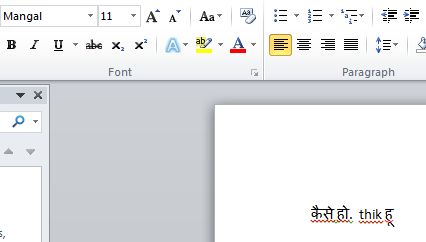
Hi ?Madhaw, can you send the screenshot of the problem which you are facing?
Because, I am not able to simulate the same error with the suggested settings given in this article.
Steps what I did:
Please, share your issues in detail step by step for better diagnosis. Here is the screenshot of my example.
Visitor Rating: 5 Stars
I think the admin of this website is ?n fact working hard for his w?b site, fo? the reason that he?e every material i? quality base? materi?l.
This information is priceless. Where can I find out more?
I waas suggestsd this blog by mmy cousin. I am not sure
whethsr this post is written by him as no one else know such detailed about myy problem.
You are incredible! Thanks!
Visitor Rating: 5 Stars
Visitor Rating: 5 Stars
Visitor Rating: 5 Stars
Visitor Rating: 4 Stars
Visitor Rating: 5 Stars
Visitor Rating: 5 Stars
Visitor Rating: 1 Stars
Visitor Rating: 5 Stars
Visitor Rating: 5 Stars
Visitor Rating: 5 Stars