Reset any password in windows through windows key enterprise

Windows Key EnterpriseHave you ever imagined, what will happen, if you would forget or compromised your login password in Windows O.S.?
There may be a situation when your friends or relatives may play prank with you and will change administrator password. What you will do then?

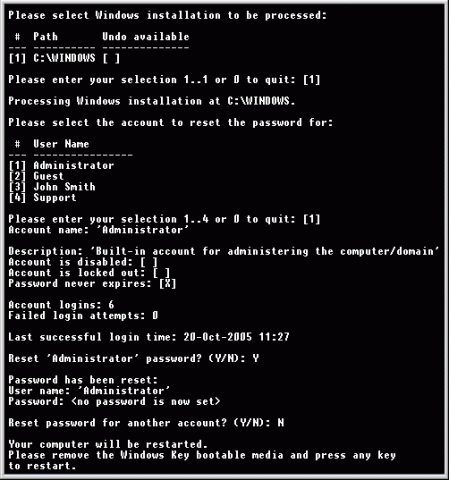
In short, if you are using Windows Operating Systems and want to get rid of forgotten/lost password or want to reset almost all the existing password at one go. Then “Windows Key Enterprise Edition is for you only.”

Here are the listed features of this particular software:
Just burn it into CD and you are done!

Features

  • 100% recovery rate
  • All passwords are reset instantly
  • Windows 7 New!, Vista, Vista SP1 supported
  • All Windows Workstations supported
  • All Windows Servers supported, including Server 2008 (Windows Key Professional and Enterprise editions only) New!
  • Resets passwords with a bootable CD-ROM
  • Resets passwords with a bootable USB drive (Windows Key Professional and Enterprise editions only)
  • Burns password reset CD
  • Resets local Administrator passwords
  • Resets Domain Administrator passwords (Windows Key Enterprise edition only)
  • Resets local policy settings
  • Resets secure boot options: startup password or startup key disk
  • Displays account properties
  • Supports all Service Packs
  • Supports RAID/SCSI/SATA drives Updated!

Its latest version is: 10.3.2585 whose archived size is: 5.12 MB (8.2 MB approx in iso format). It’s a shareware software. So you need to pay to use its full version. You can try demo though.

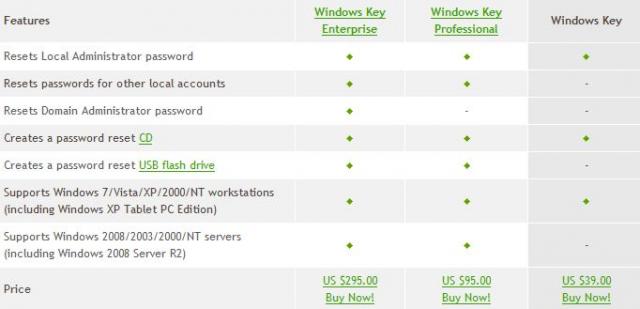
Other versions are Windows Key Professional and Windows Key only which has limited features.
Features of Windows Key Enterprise

Image Source: http://www.lostpassword.com

Download its Torrent file form here


4 simple steps to use fonts other than English in MS word

[caption id="" align="alignleft" width="155"]Windows Custom font Windows Custom font[/caption]

Most of the internet or computer users use Microsoft Office word for document purpose (Those who use Microsoft Operating Systems). This blog will show you how to use different text fonts other than English text.
For example: How to use Hindi , Punjabi, Bengali, Tamil, Malayalam fonts in MS word.

Follow these steps to install your desired fonts:

  1. Download the fonts that you wish to use in MS word. Foe ex: Hindi, Marathi, Bengali, Punjabi, Tamil, Malayalam etc.   It should have .tff extension. Ex: hindi_font.tff
  2. Save this font anywhere in your system and then copy it to fonts directory. You can reach to Fonts directory in 2 ways
    1. Open C:/Windows/Fonts (will work in Any Windows O.S. like XP, Vista, Win7 etc)
    2. Got to Control panel there you will see Fonts Directory in Windows XP and Control Panel\Appearance and Personalization\Fonts for Windows Vista users
  3. Open that Fonts Directory and just paste the fonts. You are Done!
  4. Now open MS word and you will see that font name or font style in your font field.

I have tested it on Windows XP and Windows Vista only. If you find any issues in installing fonts into your system or  facing problem in using it. Please let us know we may solve your issues.

You can download few common fonts that may be useful for you from the attached links shown below:

Uncategorized

Minimal Keyboard shortcuts for Windows users

There are many websites, where you can find Keyboard shortcuts for windows users. So I just though t why not to put it in our blog too Here are few essential keyboard shortcuts that you will need in day to day life.
Most common Keyboard Shortcuts:

  1. Windows key + R = Run menu
  2. cmd = Command Prompt (open run menu then type cmd)
  3. iexplore + "web address" = Internet Explorer  (under run menu. Ex: iexplore “www.aliencoders.org”)
  4. CTRL + Shift + Esc = Task Manager (ctrl + alt +del may do the same thing but its specific one)
  5. Windows key + Break = System properties
  6. Windows key + F = Search (I have installed Ava Find for this purpose ;P )
  7. Windows key + D = Hide/Display all windows
  8. Ctrl + H = Opens the history bar  (for browsers)
  9. Ctrl + C = Copy
  10. Ctrl + X = Cut
  11. Ctrl + V = Paste
  12. Ctrl + Z = Undo
  13. Ctrl + A = Selet All
  14. Alt and Esc = Switch between running applications
  15. Alt + Tab = switch through opened items (you can toggle here)
  16. Try windows key + tab (in windows vista it shows all running  application in 3-d style)
  17. Ctrl + Esc = Program Menu
  18. Del = deletes the selected item (will be there in recycle bin if size is not more than 2 GB  approx.)
  19. Shift + Del = deletes selected items permanently
  20. Alt +F4 =  Close the active item, or quit the active program.
  21. F2 = renames selected item(s)
  22. F4 = Display the Address bar list in My Computer or Windows Explorer.
  23. F5 = Refresh the active window.
  24. WIN Key+D = Shows the desktop.
  25. WIN Key+M = Minimizes all windows
  26. WIN Key+Shift+M = Restores minimized windows.
  27. Windows key + L = to lock your computer or to switch over other user

Note:  pressing SHIFT when you insert a CD into the CD-ROM drive will  Prevent the CD from automatically playing. There are  few commands which you can use after open run menu (win key + R):

  1. devmgmt.msc = Device Manager
  2. compmgmt.msc  = Computer management
  3. msinfo32 = System Information
  4. cleanmgr = Disk Cleanup
  5. mmc = Microsoft Management Console
  6. excel = Microsoft Excel (If Installed)
  7. msaccess = Microsoft Access (If Installed)
  8. powerpnt = Microsoft PowerPoint (If Installed)
  9. winword = Microsoft Word (If Installed)
  10. notepad = Notepad
  11. wordpad = WordPad
  12. calc = Calculator
  13. mspaint = Microsoft Paint
  14. wmplayer = Windows Media Player
  15. rstrui = System Restore
  16. control = Opens the Control Panel
  17. control printers = Opens the Printers Dialog
  18. mstsc = Remote Control window
  19. conf = to start net meeting (works in win XP, does not work in Vista and Win7)

For more details visit here:

Uncategorized

Minimal reasons to know about system crashes

If you are using Microsoft Windows O.S then you might have seen “Blue Screen of Death” ( BSOD). I have experienced it 3 times in my own system and have seen many times in my friends system too. If you have not seen this yet, it means you are lucky that your system is working fine :P.  But it’s good to know that what are the causes that leads us towards BSOD? It may happen for various causes, few are listed here:

1.  The number one reason why Windows crashes is hardware conflict. Each hardware device communicates to other devices through an interrupt request channel (IRQ). These are supposed to be unique for each device.

For example, a printer usually connects internally on IRQ 7. The keyboard usually uses IRQ 1 and the floppy disk drive IRQ 6. Each device will try to hog a single IRQ for itself. If there are a lot of devices, or if they are not installed properly, two of them may end up sharing the same IRQ number. When the user tries to use both devices at the same time, a crash can happen.

2. Bad Ram Ram (random-access memory) problems might bring on the blue screen of death with a message saying Fatal Exception Error. A fatal error indicates a serious hardware problem. Sometimes it may mean a part is damaged and will need replacing.

3. BIOS settings Every motherboard is supplied with a range of chipset settings that are decided in the factory. A common way to access these settings is to press the F2 or delete button during the first few seconds of a boot-up. Once inside the BIOS, great care should be taken. It is a good idea to write down on a piece of paper all the settings that appear on the screen.
That way, if you change something and the computer becomes more unstable, you will know what settings to revert to. MS  Windows is better at allocating IRQ numbers than any BIOS. If possible set the IRQ numbers to Auto in the BIOS. This will allow Windows to allocate the IRQ numbers (make sure the BIOS setting for Plug and Play OS is switched to ‘yes’ to allow Windows to do this.).

4. Hard disk drives After a few weeks, the information on a hard disk drive starts to become piecemeal or fragmented. It is a good idea to defragment the hard disk every week or so, to prevent the disk from causing a screen freeze. There are many tools to defragment it a.       Disk Defragmenter b.      ScanDisk

5. Viruses Often the first sign of a virus infection is instability. Some viruses erase the boot sector of a hard drive, making it impossible to start. This is why it is a good idea to create a Windows start-up disk. Use any good anti-virus for it. I use Eset NOD 32 . McAfee, Norton are also very good in that.

6. Software A common cause of computer crash is faulty or badly-installed software. Often the problem can be cured by uninstalling the software and then reinstalling it. The System Registry can be corrupted by old references to obsolete software that you thought was uninstalled. Ccleaner  to clean up the System Registry and remove obsolete entries. It works on Windows 95, Windows 98, Windows 98 SE (Second Edition), Windows Millennium Edition (ME), NT4 and Windows 2000.

7. Overheating Central processing units (CPUs) are usually equipped with fans to keep them cool. If the fan fails or if the CPU gets old it may start to overheat and generate a particular kind of error called a kernel error. This is a common problem in chips that have been over clocked to operate at higher speeds than they are supposed to. One remedy is to get a bigger better fan and install it on top of the CPU. Specialist cooling fans/heatsinks are available from http://www.computernerd.com or www.coolit.com CPU problems can often be fixed by disabling the CPU internal cache in the BIOS. This will make the machine run more slowly, but it should also be more stable.

8. Power supply problems With all the new construction going on around the country the steady supply of electricity has become disrupted. A power surge or spike can crash a computer as easily as a power cut. If this has become a nuisance for you then consider buying a uninterrupted power supply (UPS). This will give you a clean power supply when there is electricity, and it will give you a few minutes to perform a controlled shutdown in case of a power cut. It is a good investment if your data are critical, because a power cut will cause any unsaved data to be lost.

Source : http://faq.programmerworld.net/pc/10-reasons-why-pcs-crash.html

Uncategorized

Minimal keyboard shortcuts for Microsoft Word

If you are using Windows O.S.  , then I am damn sure either you have already used Microsoft Word or will use sooner/later, but anyhow you will come to use it for sure 😛 So I thought Why not to put few important and frequently used keyboard shortcuts for it. Here is the list:

  • CTRL  + A : Selects all in the current document.
  • CTRL  + B Bold text.
  • CTRL  + C Copies the item or text to the Clipboard  and can be pasted using CTRL  + V.
  • CTRL  + D Displays the Font dialogue box.
  • CTRL  + E Centre Alignment.
  • CTRL  + F Displays the Find dialog box, to search the current document.
  • CTRL  + G Displays the Go to dialog box, to go to a specific location in the current document.
  • CTRL  + H Displays the Replace dialogue box.
  • CTRL  + I  Italic text.
  • CTRL  + J  does Full Justification.
  • CTRL  + K Creates  Hyperlink
  • CTRL  + L is for Left Alignment
  • CTRL  + M puts a  Tab in the present line.
  • CTRL  + N Creates a new document.
  • CTRL  + O Displays the Open File dialogue box.
  • CTRL  + P Displays the Print dialog box.
  • CTRL  + R Right Alignment.
  • CTRL  + S Displays the Save dialog box.
  • CTRL  + U Underline text
  • CTRL  + V Pastes the copied item or text from the Clipboard into the current position in the document.
  • CTRL  + X Cuts the item or text selected to the Clipboard.
  • CTRL  + Y Redo the last undone action.
  • CTRL  + Z Undoes the last action.
  • CTRL  + ENTER Insert Page Break.
  • CTRL  + F2 Show Print preview.
  • CTRL  + F4 Closes the active document window.
  • CTRL  + F6 Opens the next document window.
  • F1 key Get help or use the Office assistant.
  • SHIFT  + F1 Key Context sensitive help.
  • F2 Key Move text or image.
  • SHIFT  + F2 Key Copy Text.
  • F3  , Key Insert an auto text entry.  rem
  • SHIFT  + F3 Key Change the case of the selected text.
  • F4 Key Perform last action again.
  • SHIFT  + F4 Key Perform a Find or Go to action again.
  • F5 Key Displays the Go to dialogue box, from here you can also Find  + Replace.
  • SHIFT  + F5 Key Move to a previous revision.
  • F6 Key Go to the next frame or pane.
  • SHIFT  + F6 Key Go to the previous frame or pane.
  • F7 Key Launch the Spell checker.
  • SHIFT  + F7 Key Launch the Thesaurus.
  • F8 Key Extend the current selection.
  • SHIFT  + F8 Key Shrink the current selection.
  • F9 Key Update the selected fields.
  • SHIFT  + F9 Key Switch between a field code  + it's result.
  • F10 Key Activate the menu bar.
  • SHIFT  + F10 Key Display a Shortcut Menu. Its same as right clicking.
  • F11 Key Go to the next field.
  • SHIFT  + F11 Key Go to the previous field.
  • F12 Key Save file As
  • SHIFT  + F12 Key Save document

I hope it will help you in manipulating MS Word easily and efficiently. Note: There are many shortcuts using ctrl, alt, alt+ctrl. Ex: alt+F7. You can give it a trial too. ?For more information click here.

Uncategorized

How to change logo in system properties

Want to see your organization or your picture in System information in System Properties window below to the windows logo? Follow the following easy steps to see your logo there.

How to change the default location of My Documents

In Windows O.S. My Documents resides at C:\Documents and Settings\username by default and whatever you download would go there by default. Ex: gtalk shared files, gmail documents, songs , pictures etc (unless and until you have not specified the alternate path for downloads).
Nobody wants to go deep inside to open a file. At least I never choose my documents for my downloaded stuffs storage purpose.

Uncategorized

How to change the default location of “Program Files”

Have you ever given thought that why all the applications in Windows O.S. getting installed at default location “C:\Program Files” ?
Can’t it be according to our choice?

Yes it can be. And I have two reasons to change it default location anyway (either you feel its necessity or not but it’s good to install application at other location instead of “C:\Program Files”).

Why we need to change the default location of Installed application?
Reason is very simple:
1.       If you are a computer geek like me 😛 or you belong to a profession where you need to install many large sized applications like CAD apps, MS Office, Adobe Photoshop, Dreamweaver, Visual Studio, media players, games etc. Once you will feel that C drive (By default O.S gets installed in this drive only) is not sufficient for installing applications because of growing size of “program files directory” which may slow down your system. So its better to install applications in other drive rather than C

2.       Windows O.S is how much promising with its robustness, how much its virus free, you people know it very well. It may crash because of any silly mistakes that we may do like opening virus contained files, using thumb drive (pen drive) and many more. By that time all installed application will also go in vain and you need to install everything from the beginning. Why not to install applications in other location, so that it may not get affected even O.S gets crashed?

How we could do it?
We could do it by two ways:

1.       While installing application, it will ask for location where it will install it. At that time itself we can provide some other location. For example: D:\Program Files (if Program files folder is not there then create it first and locate it while installing applications).

Through this way you can install software according to your choice of drives. Say all media apps should get installed in D drive and all web tools should get installed in F drive.

2.       We could change the default location permanently using registry editor.

a.       Click on start->run (windows XP) and type regedit, sand then press enter. (Shortcut key for run command is windows key + R)

b.      Look for “HKEY_LOCAL_MACHINE\SOFTWARE\Microsoft\Windows\CurrentVersion”

c.       When you will click on Currentversion, You will see a value named ProgramFilesDir  at the right side of that window. By default its value is “C:\Program Files”

d.      Double click on that value and change the default location wherever you wish to install your application from now onwards. Ex: “D:\Program Files”

Uncategorized

Automatically Turn On Num Lock, Scroll Lock, Caps

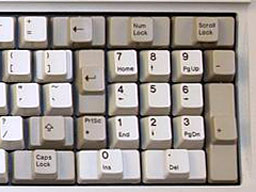
When you start your PC, Num Lock, Scroll Lock, and Caps Lock don't automatically toggle on. You can automatically turn each of them on or off whenever your PC starts, for all accounts on the PC. As a practical matter, most people probably want to have only Num Lock automatically turned on, but this Registry hack allows you to force any combination of keys on or off.

Steps to follow:

1. Run the Registry Editor and go to HKEY_USERS\.Default\Control Panel\Keyboard.
2. Find the String value InitialKeyboardIndicators. By default, it is set to 0, which means that Num Lock, Scroll Lock, and Caps Lock are all turned off.
3. Set it to any of the following values, depending on the combination of keys you want turned on or off:
0        Turns off Num Lock, Caps Lock, and Scroll Lock
1        Turns on Caps Lock
2        Turns on Num Lock
3        Turns on Caps Lock and Num Lock
4        Turns on Scroll Lock
5        Turns on Caps Lock and Scroll Lock
6        Turns on Num Lock and Scroll Lock
7        Turns on Caps Lock, Num Lock, and Scroll Lock Exit the Registry. When you restart, the new setting will take effect

Uncategorized

Enable disable USB port using registry editor

When I was in college, many times I needed to disable system's USB port so that nobody other than me can use that port. So what I was doing is simply editing registry editor for USB port everytime. When I had to use it, I was enabling it else I would be keeping it inactive and would rather say to my friends that "buddy! USB port has some problem in my system :(" 

I know you might have seen such a common topic here there always but whats the harm in keeping such stuffs in our site too! So I shared it here (may be little bit late, but i am sure it will still help many people from our blog :))
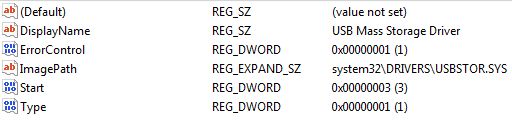
Now the trick lies here in registry editor USBSTOR keyword which is under HKEY_LOCAL_MACHINE\SYSTEM\CurrentControlSet\Services To disable the access to USB port, in Vista/Windows XP and 2000, follow the steps below  (I have not tested it on Win 7. Please someone verify it and let us know)

1. Click Start, and then click Run.
2. In the Open box, type regedit, and then click OK.
3. Locate, and then click the following registry key: HKEY_LOCAL_MACHINE\SYSTEM\CurrentControlSet\Services\USBSTOR
4. In the right pane, double-click Start.
5. In the Value data box, type 4 (REG_DWORD), click Hexadecimal (if it is not already selected), and then click OK. 6. Quit Registry Editor.

To re-enable a disabled port, follow these steps below:
1. Click Start, and then click Run.
2. In the Open box, type regedit, and then click OK.
3. Locate, and then click the following registry key: HKEY_LOCAL_MACHINE\SYSTEM\CurrentControlSet\Services\USBSTOR
4. In the right pane, double-click Start.
5. In the Value data box, type 3, click Hexadecimal (if it is not already selected), and then click OK.
6. Quit Registry Editor. Or else If you are lazy person like me 🙂 then just save two different .reg files one for enabling and other for disabling purpose.

Steps To make one click working for enbaleUSB:
1. Open Your favorite editor or simply notepad
2. Type these lines there: REGEDIT4 [HKEY_LOCAL_MACHINE\SYSTEM\CurrentControlSet\Services\USBSTOR] "Start"="3"
3. Save it as enableUSB.reg (You could save it as anything but for our comfortness I wrote like that. extension should be .reg anyhow)

In the same way to disable USB port follow these steps:
1. Open Your favorite editor or simply notepad
2. Type these lines there: REGEDIT4 [HKEY_LOCAL_MACHINE\SYSTEM\CurrentControlSet\Services\USBSTOR] "Start"="4"
3.Save it as disableUSB.reg