I am using Google Search engine almost all the time since 2006 and learned lots of things to manipulate Google search in much easier way. I know I am little late to share this and you will have lots of such posts over the internet. But, presentation and thoughts for the same things are always different for different authors. I would basically show you the real power of Google Search engine and strong evidence to prove that why I love and prefer Google Search Only 😀
More than 80% internet users use Google Search engines followed by Bing then Yahoo etc…
You can download the pdf version of this article from here
Results Taken from statowl.com to show you how Google has captured the search engine market share 😀

Without wasting your time let’s dive into Google’s real power. I will demonstrate every possible situation with a scenario and how to get benefit of that scenario using Google Search Engine.
Example 1
You need to know what all things you searched using Google Search engine i.e.
History of what you browsed till date. What you will do?
Answer is simple, either type google.com/history or history.google.com; you will be able to see the search strings that you used to search using Google Search.
Link for Google History:http://history.google.com (make sure you are logged in using Google account)

Example 2
What you will do, if you would see a mail in different language? Or somebody sent you few lines in chat that you didn’t understand and seem Latin & Greek to you? Or somebody updated their Facebook status in different language and you wish to respond in the same language?
Once again Google search is there to help you in doing so. Use Google’s inbuilt Language translator. Here is the link for Google translator: http://translate.google.com/

Example 3
Do you want to know Flight timings?
If you type flights, then it will display you all flights leaving from your location. It gets your remote location using IP Address. Ex: flights or flight

If you want to know flight from one location to another type flights from location1 to location2
Ex: flights form Hyderabad to Kolkata

Example 4
Do you want to know my best online dictionary?
Yes, it’s Google again. Just type define: word
Ex: define: obfuscated

Example 5
What if you don’t know the correct spelling or misspelled some words?
Don’t worry now Google is damn smart to rectify it automatically and will display you result for the correct one. If you didn’t mean what Google shows, still you have option to search for whatever you typed.

Example 6
Is it rainy season or sunny at Dhanbad? Do you need to know weather forecast where you live or any place?
1. Type weather only to show weather information where you live ex: weather

2. Type weather for place-name or weather place-name for that particular place. Ex: weather Redmond or Weather for Dhanbad

Example 7
Do you want to know the time of a place?
1. Type time only to see your local time ex: time

2. Type time in place-name or simply time place-name ex: time in Redmond

Example 8
It’s movie time dude!
Type movie at search box and it will display all movies in all theatres nearby your places. Ex: movie

movie movie-name will display that movie list in all theatres Ex: movie taken 2

movie movie-name for place-name will display movie in that place in all theatres of that movie. Ex: movie resident evil retribution for Bangalore

movie for place-name to display all movies in that place in all theatres: movie for City of Brussels

Example 9
I want to use Google as a converter either its mass converter or volume or digital storage etc.
Just type subject1 to subject2
i.e. Celcius to farenhite or
Ton to kg or Byte to bit

Example 10
Did you see my online Calculator?
Actually it’s yours also, in real it’s Google’s 😛 Just type calculator to see what I meant.

Example 11
Do you want an exact search result whatever you have typed?
Then, type phrases in double quotation to do so. Ex: “I am a blogger”

Now, before going ahead, we need to know few terms which will be used during Goggle Search. These terms may not seem very useful to common users but it will be very informative and useful for tech savvy and Information Security Community (Bad and Good both).
· inurl
It will display the pages which will have certain keyword in links i.e. url
Ex: inurl:signup

· allinurl
This will display all links/url which will have all given keywords in their urls. It will be useful when you need to search only those websites which will meet given criteria. Like show all links which will have any connection with vim related stuffs under Linux.
ex: allinurl: linux vim

· intitle
It will allow to search the text used in title of any webpage. Ex: intitle:Linux
If you use more than one word then, it will search the first word in title and other words anywhere either in title or contents. Ex:intitle: Linux vim grep and check the result.
If you want to search all the terms in title only, you need to use other option i.e. allintitle 😀

· allintitle
It will allow searching all listed words in title of any webpage. Suppose, you wish to see only those web pages which have CCNA, Questions and TCP keywords in their title. Ex: allintitle:CCNA Questions TCP
Compare the result with above option i.e. intitle

· intext
It display all results which is being included in intext command and ignores to search for that keyword in links/urls or titles. So use it wisely. If you wish to see in link or title too use other options along with it J like intext:help intitle:perl inurl:hack

· allintext
It will display only those pages which will contain all the mentioned words in that web page. Ex: allintext: map grep perl

· filetype
This will restrict Google to show only those links which will have those filetype in that urls/links
Suppose you want to find out all doc files over internet or any links which will either have pdf or ppt and will have LTE keyword in title
Ex: filetype:pdf OR filetype:ppt intitle:LTE

· site
It shows the result for given phrase within given websites only. It is useful when you wish to search something in a particular website like perl in aliencoders.org.
ex: site:aliencoders.org Perl or
site:aliencoders.org intitle:perl to find all titles having perl in it under aliencoders.org website

· related
It will list all the pages which are similar to the given website. Sometime we know about one website and we are looking other useful websites similar to that, by that time it will be really helpful. Ex: related:naukri.com

· cache
It will display the page that Google has already in its cache. It can be updated one or outdated one. It will be useful when you want to see something from old site which may not exist now or have deleted that content.
cache:url-name keyword(optional)
There should not be any gap between cache: and url. If keyword is provided, then it will highlight those words while displaying the page.
Ex: cache:aliencoders.org
Example 12
Need to search particular file type like doc or pdf or torrent or sql or cfg or php?
Want to search torrent file for a movie name then use filetype:extension
Ex: iron man 2 filetype:torrent
Example 13
Want to search within a particular site of some known file type which some phrase in it?
Suppose I want to check all doc files under in domain or gov domain which has confidential word anywhere as title or link or text etc.
Type site: site-name or tld filtype:file-extension keyword
Ex: filetype:doc site:in confidential or check another example of filetype mentioned above
Example 14
Want to search related pages similar to this site
Try using related:url-name to locate similar websites. There should not be any space between relate: and site name
Ex: related:facebook.com or related:indiblogger.in
Example 15
Want to ignore something from your search?
Use – ex: highlight important words using double quotes and ignore words using – in front of that word
i.e. fish “curry” mustard-onion
Example 16
Need to know email id?
All Gmail ids stored in excel sheet and contains IISc. keyword too
intext:@gmail.com filetype:xls IISc
All IISc official ids
intext:@iisc.ernet.in filetype:xls IISc
Official email id of specific person stored in either doc or pdf or xls format
intext:@iisc.ernet.in filetype:xls OR filetype:doc OR filetype:pdf "Anil Kumar Sharma" or
intext:@iisc.ernet.in filetype:xls OR filetype:doc OR filetype:pdf "AnubhavSinha"
Example 17
Want to find key/patches of software?
Try typing crack:software-name version
Ex: crack:Camtasia Studio v8.0.2.918
Example 18
We need to list all urls which has indexing enabled and contain perl related stuffs in chm or pdf format.
Using “Index of ” syntax to find sites enabled with Index browsing
Ex: index of /ebooks intext:pdf OR intext:chm perl

How it plays an important role for hacker/crackers/penetration testers?
It can be used to gather the basic information required for further process of hacking or penetration testing of any websites. According to my experience, this would be the part of social engineering.
They will not do anything. They will just combine one or more such techniques shown above to get desired result. Like password file, configuration file, database details, server details etc.
Some more tips:
-
Google search is not case-sensitive, so don’t bother about case stuffs
-
Use lesser words to get accurate and more results
-
Use web friendly word like headache instead of my head is paining
-
Punctuation marks never matter for Google search. (bad news for grammar pedantic 😛 )
Source (I got some help from here too!)
http://www.google.com/insidesearch/tipstricks/all.html
We have uploaded it's pdf version at slideshare.net too! Those who wish to read it or download it from there, they can do that very well.
Author: Sanjeev Kumar Jaiswal (Jassi)
Email id: admin@aliencoders.org (feel free to mail or comment on this article)
Website: http://www.aliencoders.org
Facebook Page: https://www.facebook.com/aliencoders
Twitter : http://www.twitter.com/aliencoders
Like this:
Like Loading...



HI..
I downloaded e kalapai software and tamil.ttf format and i copied it on C:windows/Fonts folder and i cant find font directory in control panel( I'm using Windows XP) if once I activated E kalapai tamil fonts appear in web pages but it nao appearing in ms.word
pls help me in this regard…
Harish.
Hi Harish,
Recheck gaain if you can see that tamil font in fonts folder or not. (C:\Windows\fonts\)
If you can see it there, then open MS word first I am using MS word 2007 and then look by that name or name may be misleading.
If you can't find that font name check tamil language font (i mean it will be written in tamil itself), if so use that.
Let me know if it helps you
Thanks Vibhor. Will keep sharing such things on regular basis.
hi sir,
that was really great …. thank u so much……….i really appriciate your work.
Hi Sanjay,
Answer to your question has been posted as a separate blog.
Here is the link: http://aliencoders.com/content/solved-problem-viewing-hindi-font-websites
I'm a win 7 user, I need to view a web page that asks to install "kruti dev" font (hindi), I downloaded n installed it but still that page doesn't show the original content, tried various methods but still helpless, would you please help..
Gr8 way….very simple way…thanks
Hi Anonymous,
You need to do any of these things:
Hope this would help
Regards,
Sanjeev
im windows xp user
through i followed ur steps , hindi texts go boxes when pasted to word
hi all please help to how to use mangal font in my computer using through ms office.
Hi Jai,
Did you try the given steps? What problem exactly you are facing while doing so?
If you can explain mroe, may be we can help you.
how to use hindi font(mangal) in ms word..
Thank you so much.. Helped me a lot…
I got the devnagari fonts in my fonts folder. but in MS word when i type AKHI its giving me ???… actually it should be in AKHI in marathi font. i have all Marathi fonts in my FONTS folder.. i think, this is something to do with the keys?
Hi Sanjeevani,
As far as I know, you need to do some setting in your system apart form putting fonts in correct folder.
1. Did you do all system settings?
2. Did you install any Marathi fonts? as devnagri is not for marathi letter
Please go through my previous comments, you may find useful and may solve your issues. If not then let me know in detail like what you tried and what you got, what you expected etc. We will be happy to help you.
Regards,
Sanjeev
I tried the system settings you have mentioned like going to right most bottom corner change it to Marathi. It's showing Marathi now. Then i installed 4 marathi fonts with .ttf extension like Mangal, Utsah, aparajita, kiran, Akshar. For all fonts i am getting teh same results, If i press key P, it shows me ?. It should have been ?. so for every key, the corresponding Marathi letter is different. …. so how can i come to know what keys i need to press to get the desired Marathi word?
try to download this font and install it in font directory.
then open MS word and type kiran as font.
Hope this would work, because it worked at my system. I typed paha and it showed ??? correctly.
Kiran does work to some extent… thanks… but still, it does not give the correct translation of the keysike YENAR is ynar… apparantly i am not able to cntrl+V marathi word here.. in my earlier message i could copy-paste.. today i cant… ay, this was of much help and better as compared to earlier solution.. . thanks for our prompt and helpful replies… pls see if you can completely solve my problem.. 😉
thnaxxxxxxxxx
i am using display properties to convert hindi to engish using display tag in jsp i am generating pdf but headter data in hindi is not displaying can any one hepl me plaes
How to use mangal font in word in windows 8?
hindi text copy from google translator and past in MS WORD 2007 (XP) but in encrypted font
please help us so that we can type in translator and past save hindi as it is
THANKS RESOLVED PROBLEM
Thanks Madhaw for the confirmation. Keep learning and sharing
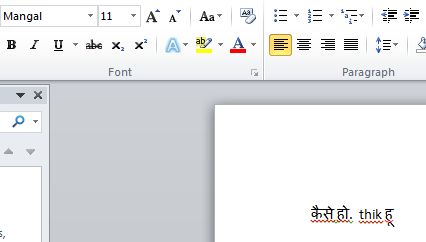
Hi ?Madhaw, can you send the screenshot of the problem which you are facing?
Because, I am not able to simulate the same error with the suggested settings given in this article.
Steps what I did:
Please, share your issues in detail step by step for better diagnosis. Here is the screenshot of my example.
Visitor Rating: 5 Stars
I think the admin of this website is ?n fact working hard for his w?b site, fo? the reason that he?e every material i? quality base? materi?l.
This information is priceless. Where can I find out more?
I waas suggestsd this blog by mmy cousin. I am not sure
whethsr this post is written by him as no one else know such detailed about myy problem.
You are incredible! Thanks!
Visitor Rating: 5 Stars
Visitor Rating: 5 Stars
Visitor Rating: 5 Stars
Visitor Rating: 4 Stars
Visitor Rating: 5 Stars
Visitor Rating: 5 Stars
Visitor Rating: 1 Stars
Visitor Rating: 5 Stars
Visitor Rating: 5 Stars
Visitor Rating: 5 Stars