Uncategorized

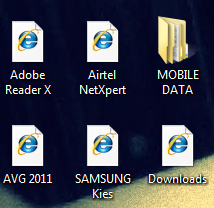
All shortcut icons changed to Internet Explorer Icon

All icons changed to IE Most of the people double click on external devices like flash drive, external HDD, pen drive, memory card and due to which sometimes we get into trouble either serious one or simpler one.  We can’t expect everyone to open any executable thing with caution and do right click then use explore while opening external devices. I would try to provide a basic solution to one problem which seems to be common in Vista, Win 7 (I have tested on these right now).

At the moment you tried double click on external devices, it will try to associate .lnk (shortcuts) files with Microsoft Internet Explorer (MS IE) without even notifying you (See the gievn image to understand what I meant) .

Symbolic link means shortcut icon here, which means, if you click on any such shortcut icon like kmplayer, msword etc, it will open IE or control panel as such. It is very easy to spread such annoying pranks, but almost impossible to remove it if you are not from computer background. (How many of you pay with regedit often?). This is because there is no possibility for the user to “unlink” a file extension and put it back to its original symbolic link.

Problem: All shortcut icons, both on the desktop and in the start menu are changed to  Microsoft Internet Explorer Icon after accessing external devices. When clicking on them a Save as dialog opens or opens IE or open control panel. The problem is that the .lnk file extensions of all files have been associated with Microsoft Internet Explorer.

Solution: You need to tackle with a hidden monster called “registry editor”. Perform any action with great care which is associated with registry editor and remember the changes, as it involves manually editing the system registry. If you do a simple mistake here, it may cause your even crash your memory (not generally).  If you feel unsure, get help from an experienced computer expert (like me 😉 ). Better take back of registry editor then perform any action.

Steps to recover back all original icons:

  • Open run command by pressing windows key (windows logo) and R together.
  • Type “regedit” and press enter.
  • Browse the computer system registry into
  • “HKEY_CURRENT_USER\Software\Microsoft\Windows\CurrentVersion\Explorer\FileExts\.lnk” (It may take time to reach there, so be patient)
  • Delete all subfolders under “.lnk” directory  but please never ever  delete the “.lnk” folder.
  • Close registry editor (regedit).
  • The shortcuts on your desktop will still not work now although clicking on it will work fine. So better reboor your system.
Bingo! You are done. You solved a mystery case here. Now say me thanks with your comments 😛

Image Source: One of my friend's laptop 😛

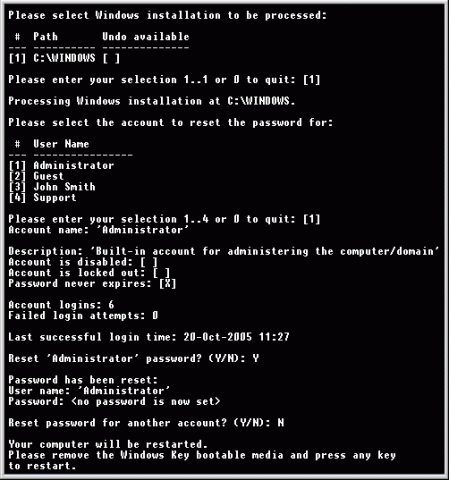
Reset any password in windows through windows key enterprise

Windows Key EnterpriseHave you ever imagined, what will happen, if you would forget or compromised your login password in Windows O.S.?
There may be a situation when your friends or relatives may play prank with you and will change administrator password. What you will do then?

In short, if you are using Windows Operating Systems and want to get rid of forgotten/lost password or want to reset almost all the existing password at one go. Then “Windows Key Enterprise Edition is for you only.”

Here are the listed features of this particular software:
Just burn it into CD and you are done!

Features

  • 100% recovery rate
  • All passwords are reset instantly
  • Windows 7 New!, Vista, Vista SP1 supported
  • All Windows Workstations supported
  • All Windows Servers supported, including Server 2008 (Windows Key Professional and Enterprise editions only) New!
  • Resets passwords with a bootable CD-ROM
  • Resets passwords with a bootable USB drive (Windows Key Professional and Enterprise editions only)
  • Burns password reset CD
  • Resets local Administrator passwords
  • Resets Domain Administrator passwords (Windows Key Enterprise edition only)
  • Resets local policy settings
  • Resets secure boot options: startup password or startup key disk
  • Displays account properties
  • Supports all Service Packs
  • Supports RAID/SCSI/SATA drives Updated!

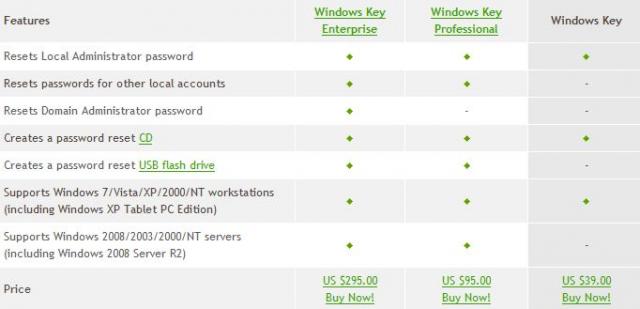
Its latest version is: 10.3.2585 whose archived size is: 5.12 MB (8.2 MB approx in iso format). It’s a shareware software. So you need to pay to use its full version. You can try demo though.

Other versions are Windows Key Professional and Windows Key only which has limited features.
Features of Windows Key Enterprise

Image Source: http://www.lostpassword.com

Download its Torrent file form here


4 simple steps to use fonts other than English in MS word

[caption id="" align="alignleft" width="155"]Windows Custom font Windows Custom font[/caption]

Most of the internet or computer users use Microsoft Office word for document purpose (Those who use Microsoft Operating Systems). This blog will show you how to use different text fonts other than English text.
For example: How to use Hindi , Punjabi, Bengali, Tamil, Malayalam fonts in MS word.

Follow these steps to install your desired fonts:

  1. Download the fonts that you wish to use in MS word. Foe ex: Hindi, Marathi, Bengali, Punjabi, Tamil, Malayalam etc.   It should have .tff extension. Ex: hindi_font.tff
  2. Save this font anywhere in your system and then copy it to fonts directory. You can reach to Fonts directory in 2 ways
    1. Open C:/Windows/Fonts (will work in Any Windows O.S. like XP, Vista, Win7 etc)
    2. Got to Control panel there you will see Fonts Directory in Windows XP and Control Panel\Appearance and Personalization\Fonts for Windows Vista users
  3. Open that Fonts Directory and just paste the fonts. You are Done!
  4. Now open MS word and you will see that font name or font style in your font field.

I have tested it on Windows XP and Windows Vista only. If you find any issues in installing fonts into your system or  facing problem in using it. Please let us know we may solve your issues.

You can download few common fonts that may be useful for you from the attached links shown below:

Uncategorized

Minimal Keyboard shortcuts for Windows users

There are many websites, where you can find Keyboard shortcuts for windows users. So I just though t why not to put it in our blog too Here are few essential keyboard shortcuts that you will need in day to day life.
Most common Keyboard Shortcuts:

  1. Windows key + R = Run menu
  2. cmd = Command Prompt (open run menu then type cmd)
  3. iexplore + "web address" = Internet Explorer  (under run menu. Ex: iexplore “www.aliencoders.org”)
  4. CTRL + Shift + Esc = Task Manager (ctrl + alt +del may do the same thing but its specific one)
  5. Windows key + Break = System properties
  6. Windows key + F = Search (I have installed Ava Find for this purpose ;P )
  7. Windows key + D = Hide/Display all windows
  8. Ctrl + H = Opens the history bar  (for browsers)
  9. Ctrl + C = Copy
  10. Ctrl + X = Cut
  11. Ctrl + V = Paste
  12. Ctrl + Z = Undo
  13. Ctrl + A = Selet All
  14. Alt and Esc = Switch between running applications
  15. Alt + Tab = switch through opened items (you can toggle here)
  16. Try windows key + tab (in windows vista it shows all running  application in 3-d style)
  17. Ctrl + Esc = Program Menu
  18. Del = deletes the selected item (will be there in recycle bin if size is not more than 2 GB  approx.)
  19. Shift + Del = deletes selected items permanently
  20. Alt +F4 =  Close the active item, or quit the active program.
  21. F2 = renames selected item(s)
  22. F4 = Display the Address bar list in My Computer or Windows Explorer.
  23. F5 = Refresh the active window.
  24. WIN Key+D = Shows the desktop.
  25. WIN Key+M = Minimizes all windows
  26. WIN Key+Shift+M = Restores minimized windows.
  27. Windows key + L = to lock your computer or to switch over other user

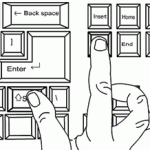
Note:  pressing SHIFT when you insert a CD into the CD-ROM drive will  Prevent the CD from automatically playing. There are  few commands which you can use after open run menu (win key + R):

  1. devmgmt.msc = Device Manager
  2. compmgmt.msc  = Computer management
  3. msinfo32 = System Information
  4. cleanmgr = Disk Cleanup
  5. mmc = Microsoft Management Console
  6. excel = Microsoft Excel (If Installed)
  7. msaccess = Microsoft Access (If Installed)
  8. powerpnt = Microsoft PowerPoint (If Installed)
  9. winword = Microsoft Word (If Installed)
  10. notepad = Notepad
  11. wordpad = WordPad
  12. calc = Calculator
  13. mspaint = Microsoft Paint
  14. wmplayer = Windows Media Player
  15. rstrui = System Restore
  16. control = Opens the Control Panel
  17. control printers = Opens the Printers Dialog
  18. mstsc = Remote Control window
  19. conf = to start net meeting (works in win XP, does not work in Vista and Win7)

For more details visit here:

Uncategorized

How to change logo in system properties

Want to see your organization or your picture in System information in System Properties window below to the windows logo? Follow the following easy steps to see your logo there.