Top 5 Browsers of year 2010/2011(predicted)

Browser imageIn internet world, we can’t get any info without web browsers. Isn’t it? Whatever we are looking for over internet, browsers will only display it. Right now you are reading this blog through some browser for sure. You might have used few different browsers and have rated according to your taste (requirements, comfort, efficient, add-ons support etc) . In 2009, Internet Explore was at the top. Mozilla Firefox at second position and Google chrome was at third position.
But in 2010, situation got changed. According to my observation/opinion (after doing some search on google and doing some analysis using Google analytics), browsers rank would be:

  1. Mozilla FirefoxFirefox

    • Well it’s my one of the favorite browsers too! I like its simplicity, customizing options, navigation speed, tabbed browsing (now common to every browser), integrated search engine etc.
    • It has more than 10 thousand active add-ons  which you can customize and enhance your web browsing experience.
    • It supports HTML 5 audio and video too!
    • It’s there by default in Linux Distros.
    • Its features are more useful and powerful but designed in very simple way, which I like in it.
    • Its much much faster now in comparison to version 3. Try to have Firefox v3.6+ and feel the difference
    • Firefox 3.5+ has integrated private browsing too that you can easily enter and leave the private mode, browsing seamlessly in complete stealth mode. I have tried it few times.
    • Lots of documents are there to support its features, where you can get in detail about its features and add-ons
    • Firefox is a FREE to download and most of the  add–ons are also free.
  2. Google Chrome Google chrome

    • If Google has developed something then how we can deny its greatness, name is enough to describe it. It uses complex features but have made it simple (but not so simpler like Firefox, as I felt).
    • It has also lots of updated features that you may need and tools are there.
    • Private more is also there, similar to Firefox. So security is there of course!
    • I liked its drag and drop feature (anywhere you wish)
    • I liked its another  unique tab feature that simplifies your browsing is “related tabs”. When a new tab opened, the new tab is placed next to the originating or parent tab, rather than at the end of your list of tabs. (This is not there in Firefox yet)
    • It uses “sandboxing”, which makes every tab to run independently in the browser. This is great because if a certain application crashes, it will stay isolated to that tab only, it will not affect any other tabs. Different processes run separately in their own tab. This technique helps  computer to stop  one tab from taking control of all others. Once you close a tab, that process is completely terminated.
    • It uses online task manager feature too, which comes handy for internet geeks.
    • Its also very fast and I have both browsers in my system along with other 3 browsers.
  3. Internet Explorer Internet Explorer

    • Although IE 9 is there in market, but still I like IE 7. IE 8 was a big flop, it seems. As most of the computer market has been captured by Microsoft’s Operating System which has Internet Explorer by default. That’s why, it is mostly used for browsing.
    • Its startup time is bit faster but navigation time is little slower than Firefox and Chrome
    • Now newer version is having add-ons, tabbed feature is also there and integrated search window is present too.
    • Internet Explorer 7+ has enhanced security features. It provides security for the entire family and offers extensive parental controls to protect children against web predators and inappropriate content.
  4. Opera opera

    • Another browser that enticed me towards it.  Best thing is you can configure Opera to fit your needs and your style. Arrange panels, toolbars and buttons and choose from several unique skins and various widgets.
    • Its everywhere, talk about any O.S. and mobile phone; it will be there J . Its one of the only browsers that has interactive voice commands. You can navigate the web by talking to the browser, and Opera will even read text to you.
    • Visual tabs, mouse gesture, opera turbo (double your speed in lower connection), Speed dial are some really amazing features in Opera.
    • Its free and more than 150 million are using it. I didn’t like its downloading features as it starts downloading my torrent files too L (not a big issue though)
  5. Safari Safari

    • Earlier when we use to hear this word, we thought that oh its only for Mac users but now not anymore, anyone can use it. Its look and feel is too cool. After all its apple’s product J
    • I like its colored progress bar on the toolbar that shows how fast a page is loading and how close it is to being complete.
    • You may feel tough at first site but its very user friendly like our top rated browsers
    • Its very fast and popular. Still I need to explorer its various features
    • Its secured too!

Other popular browsers are: -> Avant (UI effect is really cool and its user friendly too), ->Maxthon(It uses Internet Explorer engine internally and features lots of add-ons too. Very popular in China as it’s a Chinese product J ) and ->Flock (social networking website, so its popular because of Facebook, twitter and youtube integration)

Uncategorized

Enable disable USB port using registry editor

When I was in college, many times I needed to disable system's USB port so that nobody other than me can use that port. So what I was doing is simply editing registry editor for USB port everytime. When I had to use it, I was enabling it else I would be keeping it inactive and would rather say to my friends that "buddy! USB port has some problem in my system :(" 

I know you might have seen such a common topic here there always but whats the harm in keeping such stuffs in our site too! So I shared it here (may be little bit late, but i am sure it will still help many people from our blog :))
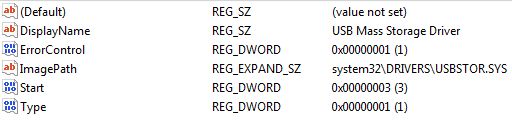
Now the trick lies here in registry editor USBSTOR keyword which is under HKEY_LOCAL_MACHINE\SYSTEM\CurrentControlSet\Services To disable the access to USB port, in Vista/Windows XP and 2000, follow the steps below  (I have not tested it on Win 7. Please someone verify it and let us know)

1. Click Start, and then click Run.
2. In the Open box, type regedit, and then click OK.
3. Locate, and then click the following registry key: HKEY_LOCAL_MACHINE\SYSTEM\CurrentControlSet\Services\USBSTOR
4. In the right pane, double-click Start.
5. In the Value data box, type 4 (REG_DWORD), click Hexadecimal (if it is not already selected), and then click OK. 6. Quit Registry Editor.

To re-enable a disabled port, follow these steps below:
1. Click Start, and then click Run.
2. In the Open box, type regedit, and then click OK.
3. Locate, and then click the following registry key: HKEY_LOCAL_MACHINE\SYSTEM\CurrentControlSet\Services\USBSTOR
4. In the right pane, double-click Start.
5. In the Value data box, type 3, click Hexadecimal (if it is not already selected), and then click OK.
6. Quit Registry Editor. Or else If you are lazy person like me 🙂 then just save two different .reg files one for enabling and other for disabling purpose.

Steps To make one click working for enbaleUSB:
1. Open Your favorite editor or simply notepad
2. Type these lines there: REGEDIT4 [HKEY_LOCAL_MACHINE\SYSTEM\CurrentControlSet\Services\USBSTOR] "Start"="3"
3. Save it as enableUSB.reg (You could save it as anything but for our comfortness I wrote like that. extension should be .reg anyhow)

In the same way to disable USB port follow these steps:
1. Open Your favorite editor or simply notepad
2. Type these lines there: REGEDIT4 [HKEY_LOCAL_MACHINE\SYSTEM\CurrentControlSet\Services\USBSTOR] "Start"="4"
3.Save it as disableUSB.reg

Brief introduction on Computer Virus

Virus imageWhat is a Virus?
A virus is a self replicating code that produces its own code by attaching copies of itself into other executable codes and operates without the knowledge or desire of a computer user. Virus was discovered in early 1980s. Viruses require human activity such as booting a computer, executing an autorun on a CD, or opening an email attachment.

In day today life most of computers get attacked or infected with the viruses or worms. 4% attacks are due to viruses and worms are reported,  rest are due to human error (53%) and so on. But that 53% also includes viruses and worms which get attached to our system due to human error. So, whatever be the matter , every computer user should at least know the basics of viruses and worms and how one can try to avoid such stuffs from the system.

There are three basic ways viruses propagate through the computer world: Master boot record: This is the original method of attack.. It works by attacking the master boot record of floppy disks or the hard drive. This was effective in the days when everyone passed around floppy disks.

  • Document Virus: A slightly newer form of virus that relies on the user to execute the file.. Extensions, such as .com and .exe, are typically used. Some form of social engineering is normally used to get the user to execute the program. Techniques include renaming the program or trying to mask the .exe extension and make it appear as a graphic or .bmp.
  • Macro Virus: The most modern type of virus began appearing in the 1990s. Macro viruses exploit scripting services installed on your computer. Most of you probably remember the I Love You virus, a prime example of a macro infector.

Viruses must place their payload somewhere so that  they can overwrite a portion of the infected file. Most virus writers want to avoid detection for as long as possible One way the virus writer can accomplish this is to place the virus code either at the beginning or end of the infected file. 

Prependers infect programs by placing their viral code at the beginning of the infected file. Appenders infect files by placing their code at the end of the infected file.. This leaves the file intact while the malicious code is added to the beginning or end of the file or append at both sides.

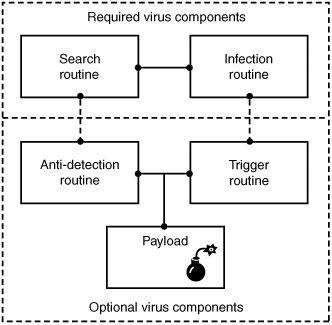
Component/Working of a Virus: Working of VirusViruses that can spread without human intervention are known as worms. ->The search routine is responsible for locating new files, disk space, or RAM to infect -> Infection Routine is responsible for copying the virus and attaching it to a suitable host. ->Trigger Routine: is to launch the pay-load at a given date and time. The trigger can be set to perform a given action at a given time.

Characteristics of Virus

  • Virus resides in the memory and replicates itself.
  • It does not reside in the memory after completing its task
  • It may transform itself into other programs to hide its identity

Reason for the creation of Viruses:

  • It may be created for research purpose
  • May be to play pranks with friend and foes what we usually do J
  • Someone may intentionally wish to harm others computer i.e. vandalism
  • To gain over some companies content for financial or threat purpose i.e extortion
  • To have an eye over the people say in a computer lab or on any product distribution i.e Spyware.
  • For spreading threats and terrors at the people through internet by thefting others identity and misusing that and many more may be the reason.

Symptoms that computer get an attack

  • System will work in unmannered way
  • Process may take more time that its expected.
  • floppy drive or disk drive suddenly get opened
  • Hang up at the starting time.
  • Computer name gets changed.
  • Drive names get changed
  • Firefox or other browsers not working properly
  • Getting sudden restart or freezes fast on warning
  • Other gets vulgar messages what you have not sent to them and so on.

Basic Difference between Virus  and worm:

  • A worm is a special kind of virus that can replicate itself and use memory, but don’t attach itself to other programs what a virus does.
  • A worm spread through the infected network automatically but virus does not.

Types of Viruses:

What they infect

  • Boot virus: infects disk boot sectors and records.
  • File Virus: infects executables files in OS file system.
  • Macro Virus: infects documents, data sheets etc like word, excel
  • Network Virus: spread through email using command and protocols of computer network.
  • Source Code Virus: override host codes by adding Trojan code in it

How they infect

  • Parasitic Virus: attach itself to executable files and replicates itself
  • Memory resident Virus: resides and do changes in main memory
  • Stealth Virus: which can hide itself from anti-virus programs
  • Polymorphic Virus: A virus that mutates and changes accordingly.
  • Cavity Virus: overwrites a host file with constant null but with the same size and functionality
  • Famous Viruses and Worms: I love you which is a win-32 email based worm
  • Melissa Virus: it’s a Microsoft word macro virus
  • JS.spth: It’s a JavaScript internet worm which spreads through e-mail, p2p networks etc.
  • Klez virus: its an email attachment that automatically runs when viewed with MS word and uses its own SMTP engine to spread mail
  • Slammer/Sapphire worm: it was the fastest worm in history which doubles itself within 9 seconds. others are top rated viruses in 2008 detnat,  netsky,  mytob , bagle, mywife, virut, Zafi, mydoom, Lovegate and bagz.

Always remember Prevention is better than cure so don’t accept strange files, don’t do double click on everything, try to check file’s extension and learn little bit batch file commands.

Install good antivirus(Nod32, AVG, McAfee, Bitdefender , Kaspersky etc.) and regulary scan your whole sytem, always try to check processes and all.

For more information check Wikipedia, howstuffsworks.com , Ec-council CEH guide and don’t forget to google to get latest news and stuffs related to this topic. This was just an introduction!

The best multimedia player: KMPlayer (freeware)

The KMPlayer is a versatile media player which can cover various types of container format such as VCD, DVD, AVI, MKV, Ogg Theora, OGM, 3GP, MPEG-1/2/4, WMV, RealMedia, and QuickTime among others. It handles a wide range of subtitles and allows you to capture audio, video, and screenshots in many ways.

Minimal thing that one should know about CSS 3 -Part I

CSS Logo-aliencodersMinimal Introduction About CSS 😉 CSS means Cascaded Style Sheet which is a style sheet language used to describe the layout (look and feel) of a document in Markup Language. CSS is designed primarily to enable the separation of document content (written in HTML or a similar markup language) from document presentation, including elements such as the layout, colors, and fonts.

This separation can improve content accessibility, provide more flexibility and control in the specification of presentation characteristics, enable multiple pages to share common formatting, and reduce complexity and repetition in the structural content (such as by allowing for tableless web design).

CSS can also allow the same markup page to be presented in different styles for different rendering methods, such as on-screen, in print, by voice (when read out by a speech-based browser or screen reader) and on Braille-based, tactile devices. While the author of a document typically links that document to a CSS style sheet, readers can use a different style sheet, perhaps one on their own computer, to override the one the author has specified.

CSS specifies a priority scheme to determine which style rules apply if more than one rule matches against a particular element. In this so-called cascade, priorities or weights are calculated and assigned to rules, so that the results are predictable. The CSS specifications are maintained by the World Wide Web Consortium (W3C).

Internet media type (MIME type) text/css is registered for use with CSS by RFC 2318 (March 1998). Its has gone through different version till date. Its lates version is CSS 3 which  has been under development since December 15, 2005. The minimal topic that one should know to use CSS 3 are written in structured way here and from the next post, we will try to explain all topics one by one.

1. External, Internal, Inline

2. Syntax h1{color:#FFFFFF;} or selector {property:value}

3. ID vs Class

4. Styling

  • Text styling

i. Color ii. Letter-spacing iii. Word-spacing iv. Text-align (left, center, justify, right) v. Text-indent vi. Text-transform (uppercase, lowercase, capitalize) vii. Text-decoration (none, overline, line-through, underline, blink) viii. Line-height

  • Font

i. Font-family ii. Font-style (normal, italic, oblique) iii. Font-size iv. Font-weight v. Font-variant (normal, small-caps)

  • List

i. List-style 1. List-style-image 2. List-style-type (circle, square, alpha, roman, latin, decimal-leading-zero) 3. List-style-position (inside, outside)

  • Table
  • Links

i. a:link ii. a:visited iii. a:hover iv. a:active

  • Background (color, image, position, attachment (scroll, fixed),repeat)

i. Background-color:#colorcode ii. Background-image: url(‘path of image’) iii. Background-position:left top/left center/left bottom/x pos y pos iv. Background-attachment:scroll/fixed/inherit v. Background-repeat: repeat/repeat-x/repeat-y/none 5. Box Properties

  • Model
  • Border
  • Margin
  • Padding
  • Outline

6. Dimension

  • Height
  • Width
  • Max-height
  • Min-width

7. Visibility and display

  • Visibility:hidden collapse(useful for table. Works in IE if !doctype is defined)
  • Display: block or inline or none

8. Positioning

  • Fixed (fixed position is positioned relative to the browser window)
  • Relative (relative positioned element is positioned relative to its normal position.)
  • Absolute (An absolute position element is positioned relative to the first parent element that has a position other than static. If no such element is found, the containing block is <html>)
  • Static (default)
  • Z-index

9. Float and clear

  • Float (left, right, none, inherit)
  • Clear (left, right, both, none, inherit)

10. Pseudo class

  • :focus (ex: input:focus { color:green;})
  • :first-child (ex: p:first-child{color:blue;})

11. Pseudo elements

  • :after
  • :before
  • :first-letter
  • :first-line

12. Opactiy (css3)

  • Opacity: 0-1 (FF)
  • filter:alpha(opacity=x). (for IE x=0-100)

Follow this link for CSS examples

CSS

  1. External, Internal, Inline
  2. Syntax h1{color:#FFFFFF;} or selector {property:value}
  3. ID vs Class
  4. Styling

    • Text styling

i. Color

ii. Letter-spacing

iii. Word-spacing

iv. Text-align (left, center, justify, right)

v. Text-indent

vi. Text-transform (uppercase, lowercase, capitalize)

vii. Text-decoration (none, overline, line-through, underline, blink)

viii. Line-height

    • Font

i. Font-family

ii. Font-style (normal, italic, oblique)

iii. Font-size

iv. Font-weight

v. Font-variant (normal, small-caps)

    • List

i. List-style

1. List-style-image

2. List-style-type (circle, square, alpha, roman, latin, decimal-leading-zero)

3. List-style-position (inside, outside)

    • Table
    • Links

i. a:link

ii. a:visited

iii. a:hover

iv. a:active

    • Background (color, image, position, attachment (scroll, fixed),repeat)

i. Background-color:#colorcode

ii. Background-image: url(‘path of image’)

iii. Background-position:left top/left center/left bottom/x pos y pos

iv. Background-attachment:scroll/fixed/inherit

v. Background-repeat: repeat/repeat-x/repeat-y/none

  1. Box Properties

    • Model
    • Border
    • Margin
    • Padding
    • Outline
  2. Dimension

    • Height
    • Width
    • Max-height
    • Min-width
  3. Visibility and display

    • Visibility:hidden collapse(useful for table. Works in IE if !doctype is defined)
    • Display: block or inline or none
  4. Positioning

    • Fixed (fixed position is positioned relative to the browser window)
    • Relative (relative positioned element is positioned relative to its normal position.)
    • Absolute (An absolute position element is positioned relative to the first parent element that has a position other than static. If no such element is found, the containing block is <html>)
    • Static (default)
    • Z-index
  5. Float and clear

    • Float (left, right, none, inherit)
    • Clear (left, right, both, none, inherit)
  6. Pseudo class

    • :focus (ex: input:focus { color:green;})
    • :first-child (ex: p:first-child{color:blue;})
  7. Pseudo elements

    • :after
    • :before
    • :first-letter
    • :first-line
  8. Opactiy (css3)

    • Opacity: 0-1 (FF)
    • filter:alpha(opacity=x). (for IE x=0-100)

Follow this link for CSS examples


Lock folder without any software

Sooner or later, you may require an application to lock down your important folder. So, why not to lock and unlock folder without any application. Just follow few simple steps and your work will be done.folder-lock-logoSooner or later, you may require an application to lock down your important folder. So, why not to lock and unlock folder without any application.  Just follow few simple steps and your work will be done.

Method 1:

Step 1: open your favorite editor and type: ren foldername foldername.{21EC2020-3AEA-1069-A2DD-08002B30309D}

Step 2: Save it as lock.bat or whatever name you wish to give but .bat extension should be there.

Step 3: Open text editor again and type: ren  foldername.{21EC2020-3AEA-1069-A2DD-08002B30309D} foldername

Step 4: Save it as key.bat or whatever name you wish to give but .bat extension should be there. Now double click on lock.bat to lock “foldername” and double click on key.bat to unlock “foldername”. For ex: say my foldername is jassi then just replace the word foldername to jassi. At one time you can use lock and key batch file for locking one folder only.

Method 2:

As we saw in method 1, that only one folder will work at one time and if someone knows about key.bat, he/she can unlock that folder. So better to have .exe or .com .bat file which can lock or unlock  any folder at your wish with initialized password that only you would know.

Step 1:

Open your favorite editor and type:

cls @ECHO off title Folder Locker color A echo Which folder you want to lock or unlock? set/p "folder=>" if EXIST "%folder%.{21EC2020-3AEA-1069-A2DD-08002B30309D}" goto UNLOCK if NOT EXIST %folder% goto MDfolder :CONFIRM echo Are you sure u want to Lock the folder(Y/N) set/p "cho=>" if %cho%==Y goto LOCK if %cho%==y goto LOCK if %cho%==n goto END if %cho%==N goto END echo Invalid choice. sleep 1 cls goto CONFIRM :LOCK ren %folder% "%folder%.{21EC2020-3AEA-1069-A2DD-08002B30309D}" attrib +h +s "%folder%.{21EC2020-3AEA-1069-A2DD-08002B30309D}" cls color C echo Folder locked sleep 2 goto End :UNLOCK echo Enter password to Unlock folder set/p "password=>" if NOT %password%==jassi  goto FAIL attrib -h -s "%folder%.{21EC2020-3AEA-1069-A2DD-08002B30309D}" ren "%folder%.{21EC2020-3AEA-1069-A2DD-08002B30309D}" %folder% echo Folder Unlocked successfully sleep 2 goto End :FAIL cls color 4A echo Invalid password goto UNLOCK :MDfolder cls echo %folder% was not there so md %folder% echo %folder% created successfully sleep 2 :End

Step 2:

Save it as locker.bat or any name but be sure that extension is .bat and yeah before saving it change password according to your ease. Right now its jassi . Find that keyword and change as you wish. Now double click on locker.bat, one command prompt will come and will ask for folder to lock and unlock. If folder is not there it will create too. It will not unlock unless and until you give correct password.
Being .bat extension people may edit it so at that time you may wish to change it in .com or .exe extension. You can do that by downloading  Bat_To_Exe_Converter.exe which is free ofcourse.


Note: Main important thing to note here {21EC2020-3AEA-1069-A2DD-08002B30309D} , its  nothing just the address of control panel. So We renamed our folder as control panel destination, which means if you click on that locked folder now. It will open control panel. Hope you will enjoy it!!!

Hide and Prevent Access to drives using diskpart utility

dispart utilityAlthough there are many ways to hide your drive and to prevent access to your drives. Either by setting regedit value for NoDrives and  NoViewOnDrive  or by using some system settings.

But I found one built-in tool “DISKPART”.

1. Go to Start > run > type "diskpart". A DOS window will appear with following description. DISKPART>

2. Then type "list volume" The result will look like: 

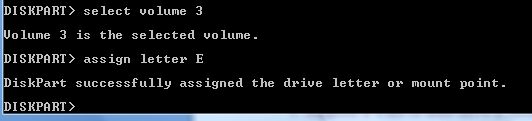
3. Suppose u want to hide drive E then type "select volume 3" Then a message will appear in same windows { Volume 3 is the selected volume}

4. Now type "remove letter E" Now a message will come { Diskpart Removed the Drive letter }
Sometime it requires the reboot the computer  or logoff and login will work. Diskpart will remove the letter. Now try to open that date even using at address bar. It will not open. Windows XP is not having capability to identify the unknown volume. Reassingning drive letters using dispartYour Data is safe now from all unauthorized users. Don’t worry it will not tamper any of your data.

To access the content of hidden Drive repeat the process mentioned above. But in 4th step replace “remove" to "assign" i.e. type "assign letter E" . Note: It will not work for drive which is having system files, boot files etc like C drive in most cases. And it works in Vista , XP too. Didn’t test in win 7 but I think it will work there also.

ID vs Class in CSS

CSS allowClass vs ID in CSSs us to define our own custom selectors also, which is known as ID and class selectors. IDs and classes are applied to (X)HTML elements as simple attributes that provide much tighter control over our design. Most of the time, we get confused IDs with classes, either failing to utilize the real purpose of each or simply using one instead of the other.

Let’s treat ID as identification, which is unique to you an is not shared with anyone else. A class is different, in that there can be many people in a class, be it at school, in society, or wherever. This translates to CSS where an ID can only be used once per page, whereas classescan be used an unlimited number of times.

Another Example could be Bar Code (class) and Serial Number (ID).

There are two kinds of selectors mainly in CSS: One is base selector like h1,h2, body, table or any existing HTML tags.
Such as the following rule which sets all paragraphs to red (font-color): p {color: #F00;}

CSS allows us to define our own custom selectors also, which is known as ID and class selectors. IDs and classes are applied to (X)HTML elements as simple attributes that provide much tighter control over  our design. Most  of the  time, we get  confused IDs with classes, either failing to utilize the real purpose of each or simply using one instead of the other.

Let’s  treat ID as identification. Which s unique to you an is not shared with anyone else. A class is different, in that there can be many people in a class, be it at school, in society, or wherever. This translates to CSS where an ID can only be used once per page, whereas classescan be used an unlimited number of times. Another Example could be Bar Code (class) and Serial Number (ID).

IDs An ID can only be used once per page, and is a unique identifier to an element.
Typically, an ID is used for any unique page element such as the header, main navigation, footer, or other key part of the user interface. Applying an ID The most common way to apply an ID is to reference it in the (X)HTML using the id="name" attribute immediately after the opening tag within an element. In this case, our two IDs are named highlight and default, respectively, and are applied to two paragraphs:

<p id="pred">This paragraph has red text.</p>
<p id="default">This paragraph has dark gray text.</p>

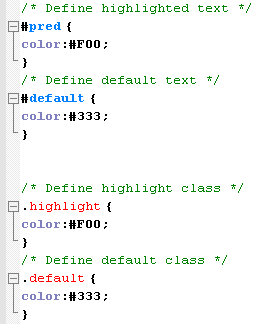
The corresponding CSS uses the hash (#) character to denote the rule is a unique ID. The hash is combined with the ID name to start the rule, followed by the property declarations:

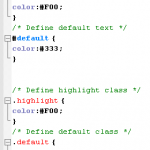
/* Define highlighted text */
#pred {color:#F00;}
/* Define default text */
#default {color:#333;}

Combining IDs with Selectors Existing or new IDs can be combined with selectors in the style sheet to add further control. In the following example, the base CSS defines all h2 headings as dark gray and 16 pixels in size: /* Basic heading style */ [code language="css"] h2 { color:#333; font-size:16px; } [/code] That is fine for most uses of <h2>, but let’s say the main <h2> on your page (the title of an article) needs to be emphasized with a different color. This calls for a new rule where the selector is defined in the form element#name:

/* Adjust the color of h2 when used as a title */
h2#title { color:#F00; }

Here the new rule will override the default <h2> color (color: #333;) with red (color: #F00;) whenever an <h2> is identified with in the (X)HTML. The new rule does not redefine font-size, so that will be carried over and unchanged. Simply add the unique identifier to the page:

<h2 id="title">Title Of My Article</h2>

Remember that title is a unique identifier, so it cannot be used again within that template. Any other instances of <h2> on the page will be rendered with the default styling.

When to Use an ID
Only one element on each page can be styled by each unique ID, and therefore IDs should be reserved for unique, single-use elements such as a header or sidebar, or the main navigation or page footer. This makes scanning your markup easier, as all ID attributes will denote unique content areas or special regions of the page, while also providing greater flexibility for more complex CSS application

When to Avoid an ID
IDs must be avoided when there is more than one requirement for the CSS rule. Do not use an ID for anything you are likely to multiply in the future, such as multiple images, link styles, or paragraphs where more than one will need to be styled a particular way.

Class
A class can be used an infinite number of times per page, making it a very flexible method of applying CSS. A class defines an element as belonging to a group, or as a reusable object or style. Classes solve problems in the short term, but can provide less flexibility for more complicated CSS designs.

Applying Classes The most common way to apply a class is to reference it in the (X)HTML using a class="name"attribute of an element. As with our ID example, the two classes are named highlight (for red text) and default (for dark gray text):

<p class="highlight">This paragraph has red text.</p>
<p class="default">This paragraph has dark gray text.</p>
<p class="default">This paragraph also has dark gray text.</p>

Note that as the identifiers are classes, they can be used more than once, hence in the example two paragraphs have been identified as default, so will be styled the same way. That would not be acceptable if using IDs. The corresponding CSS uses a full stop (.) character to denote the rule is a reusable class. The full stop is combined with the class name to start the rule, followed by the property declarations:

 /* Define highlight class */
.highlight {color:#F00;}
/* Define default class */
.default {color:#333;}

Combining IDs with Multiple Classes
Classes are especially useful when you wish to have control over a number of elements. Consider the following drinks list, the source code for which is available in the drinks.html file:

<ul id="drinks"> <li class="alcohol">Beer</li> <li class="alcohol">Spirits</li> <li class="mixer">Cola</li> <li class="mixer">Lemonade</li> <li class="hot">Tea</li> <li class="hot">Coffee</li> </ul>

Note first that the unordered list (<ul>) is given a unique ID. Thus, id="drinks" will not be used again on the page at any time, allowing that particular list to be styled uniquely. Note also that Beer and Spirits are within list elements defined with class="alcohol", Cola and Lemonade are within list elements defined with, and finally Tea and Coffee are defined in list elements with. This allows each drinks group to be treated individually. The CSS declares that the default text for that list will be red, so any list items without a class attribute will default to red text:

/* Drinks list styling */
ul#drinks {color:#F00;}

Next, the classes for each drink type are defined with unique shades of gray for font color:

/* Define alcohol color */
.alcohol {color:#333;}
/* Define mixer color */
.mixer {color:#999;}
/* Define hot drinks color */
.hot {color:#CCC;}

The result sees the list of items move through shades of gray (defined by the classes). Any further drinks added to the list can be assigned to a particular drinks group, such as <li>Wine</li>. Thus a logical color key is established using simple CSS classes.

Note: Before adding a class to an element, be sure that the element needs it. Too often web designers overuse classes when the (X)HTML is already providing more than enough hooks for the CSS. Make sure that the element cannot be targeted using a descendant selector or other method before opting for a class. This will help keep your code lean and make future redesigning much easier.

Overriding Base Styling with Classes Here is an example of base CSS rule that is being  used to turn all paragraphs red declaring all instances of paragraphs red and  add a class rule to the CSS that will bleach out any element it is identified with by turning text light gray:

/* Default styling for paragraphs */ p {color:#F00;font-size:12px;} /* Use this style to turn anything light gray */ .bleached {color:#CCC;}

All paragraphs will still be red by default, but this can still be overridden when necessary by identifying an element with the bleached class, as in this (X)HTML: <p>This paragraph has red text.</p> <p class="bleached">This paragraph has light gray text.</p> The second paragraph will now be light gray, as the color declaration in bleached overrides the red. Note that the paragraph is still rendered 12 pixels high, as bleached does not redefine font-size. Add a font-size declaration in bleached, and that value will override the original size for all paragraphs identified with.

Linking a Class Directly to an Element In this example, the CSS is constructed with the class attached directly to the element in the form element.classname, and like before, it is referenced using the class="classname" format within the (X)HTML.

/* Use this style to turn anything light gray */
.bleached {color:#CCC;}
/* Override the color of bleached when it identifies a paragraph */
p.bleached {color:#000;}

This method would be used when the standard declaration for the bleached class needs to be overruled. For example, any element given a class of bleached will remain light gray (color:#CCC;), but any instances of paragraph elements with a class of bleached will be rendered black (color: #000;). This method is useful when numerous instances of a class are littering your (X)HTML, and it would be too difficult to remove them all manually. Instead, simply target that class when it identifies the element you need to change using the form element.classname.

When to Use a Class
As described previously, classes are a very flexible method for applying your CSS rules, and can be used again and again within a page. Use classes to control elements that belong to a group, for temporary items, and also to enhance the behavior of an ID.

When Not to Use a Class
It is not recommended that classes be used for main structural elements within a page, such as headers and main navigation, although they will work. Doing so would decrease the flexibility of your design and make further customization difficult without overhaul or extra markup. Also, be sure a class is needed, and make sure the element cannot be targeted by defining a rule for the existing (X)HTML before getting class-happy. Remember that a class is used for exceptions to normal styling, and not to define the standard.

Elements can have BOTH
There is nothing stopping you from having both an ID and a Class on a single element. In fact, it is often a very good idea. Take for example the default markup for a WordPress comment list item: <li id="comment-27299" class="comment"> It has a class applied to it that you may want for styling all comments on the page, but it also has a unique ID value (dynamically generated by WordPress, nicely enough). This ID value is useful for direct linking. Now I can link directly do a particular comment on a particular page easily.

CSS doesn’t care
Regarding CSS, there is nothing you can do with an ID that you can’t do with a Class and vice- versa. I remember when I was first learning CSS and I was having a problem, sometimes I would try and troubleshoot by switching around these values. Nope. CSS doesn’t care.

Javascript cares
JavaScript people are already probably more in tune with the differences between classes and ID’s. JavaScript depends on there being only one page element with any particular, or else the commonly used getElementById function wouldn’t be dependable. For those familiar with jQuery, you know how easy it is to add and remove classes to page elements. It is a native and built in function of jQuery. Notice how no such function exists for ID’s. It is not the responsibility of JavaScript to manipulate these values, it would cause more problems than it would be worth.

If you don’t need them, don’t use them (try to avoid using if possible)

Smileys for all chat messenger at one place

Chatting is funNow a days, chatting over net is very very common. And use of smiley makes more sense than words sometimes. Specially when you are in sad mood, angry mood or in romantic mood 😛

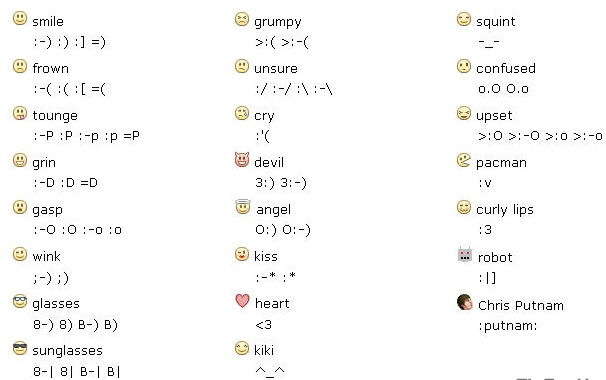
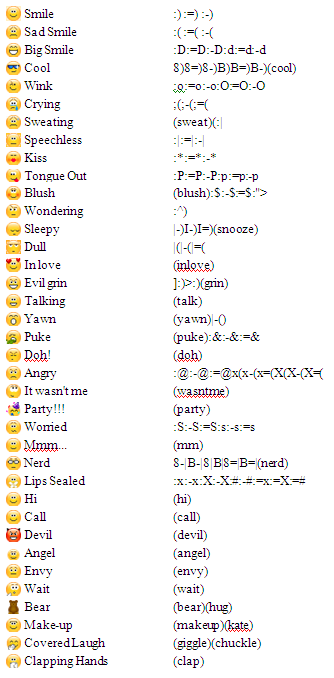
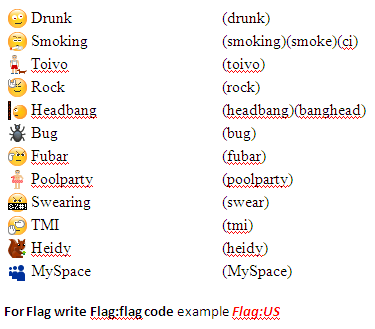
There are many keyboard shortcuts to send smiley or emoticons and in almost all chat messengers it will be more or less same. Most popular chats are Yahoo, GoogleTalk (Gtalk), Skype, FB emoticons too (FaceBook is at world rank 2)

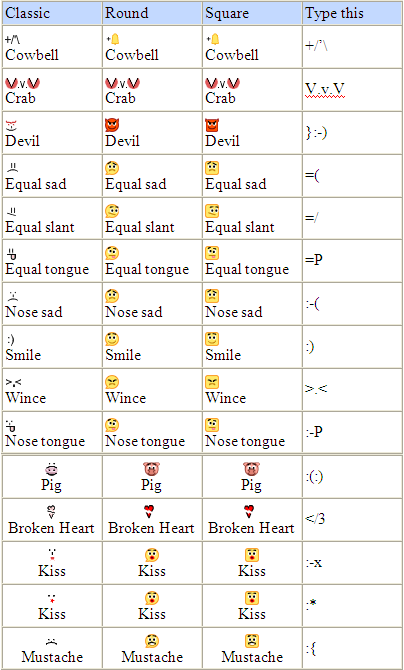
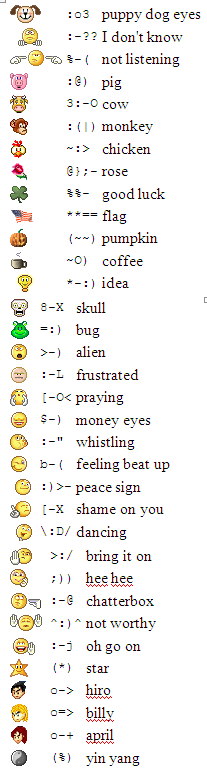
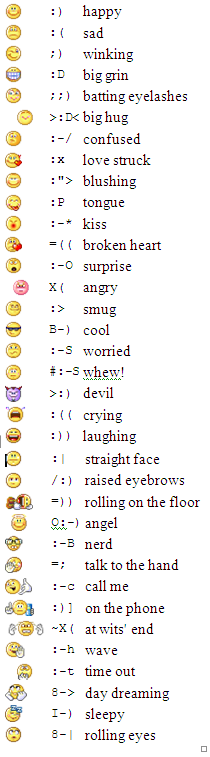
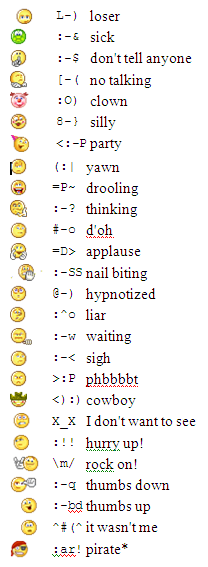
I will post images for all possible emoticons of most popular chat services that i collected from various sites. few are common to all messengers and few are hidden one like yahoo smiley for flag, rose etc. Gtalk is having three different tastes for emoticons: Classic, Round, Square:

Gtalk Emoticons-IGtalk Emoticon-IIFacebook EmoticonsSkype EmoticonsSkype Emoticons-IISkype Emoticons III Yahoo EmoticonsYahoo Emoticons-IIYahoo Emoticons-III

Enjoy All the Emoticons at one place. Happy Alien blogging !

Safety tips for mobile users

be safe while talking on mobile Hi friends, according to present scenario every people who are above 14 are having mobile (except those who can't afford it). Its good thing to have to be in touch with friends and families but it may turn into devil if you misuse it either knowingly or unknowingly. So, its the right time to know that what we should do and what we should not do with mobile.

  • Only give your mobile number out to people you know and trust. (Specially for girls)
  • Don't do any transaction through smart phone if password or any personal information is getting to be stored in your mobile.
  • Don't talk rubbish or don't harass anyone on phone, it comes under Cyber Crime. (while break up couples usually do so. So beware guys!)
  • Avoid, unless absolutely needed, connecting to an unsecured wireless network through your mobile (whici is having wi-fi facility)
  • Do not use your mobile phone to communicate with strangers. Only text and call people or businesses you know in real life.
  • Never reply to text messages from people you don’t know. (One or two messages you can do to know his/her identity, if possible)
  • Make sure you know how to block others from calling your phone. Using caller id ,you can block all incoming calls or block individual names and numbers.
  • Make a record of your Electronic Serial Number (ESN) and/or your International Mobile Equipment Identity (IMEI) number. You can find out your IMEI number by pressing *#06# on your mobile phone's keypad, it will display a 15 digit number – that is your IMEI number.
  • If your phone is lost or stolen, report it to your local police station and your network operator immediately.
  • Think about how a text message might be read before you send it. (Married couples may face many issues because of such messages. No need to explain i guess)
  • You should never give anyone else's number out without their permission.
  • You should never take pictures or videos of anyone with your phone if you do not have their permission.
  • Do not allow others to take pictures or videos of you without your permission. Remember – these pictures and videos can be posted to the Internet.
  • Be careful if you meet someone in real life who you only "know" through text messaging. Even though text messaging is often the "next step" after online chatting, that does not mean that it is safer.

We follow most of the steps but knowingly or unknowingly we do such mistakes which leads towards Cyber crime. So, play safe, be safe and make the nation Cyber crime free nation. Source: http://www.staysafeonline.org