Review of top anti-virus software for PCs

Anti-virus, these days has turned out to be one of the inevitable requirements for the personal computer. With the novel ideas of hacking erupting every now and then, there is a need for a perfect information security system that has all your confidential information safeguarded. Reviews of the latest top brands of anti virus systems are as follows.


Kaspersky Anti-Virus 2011

An anti virus system that has all the required features of any good anti virus software, though advanced is simple in installation and usage. It is designed in such a way that it protects, prevents and removes all the malware that causes harm to the PC and robs you of your secret information.

The protection that the software provides is from all the traditional computer virus types in addition to having the capacity of detecting new threats. There is also an online download and installation facility that keeps you at ease. Its usage of iChecker and iSwift scanning technology helps in keeping your resources safe. The other features include a virtual keyboard, desktop security gadget which offers better access to your system security and gamer mode.

Norton Anti-Virus 2011

This brand of anti virus has always been on the forefront ever since anti virus software saw its light of day. It supports a number of browsers like Chrome and Opera, email clients like Outlook and IM clients like Yahoo and MSN messenger. This is also known for its simple-to-use characteristic and easy installation. It provides information security to the hilt so that the ones who know how to create viruses and spread it can never ever cause harm.

The most important feature of this software is the bootable recovery tool that helps in the fixing of a crashed PC. The advantage of Norton Anti-virus 2011 is that there is a Norton Safe Web for Facebook. This scans the videos posted by your friends for virus

Bit Defender Anti-Virus Pro 2011

The best aspect of this easily accessible anti virus software is its flexibility. It can work when controlled manually or automatically. The feature of the Bit Defender Anti-Virus Pro 2011 that is worth a mention is the inclusion of the Search Advisor that provides protection while surfing on the net using any browser.

Apart from providing all the features that a reputable anti virus software provides, it does all the optimization with the maximum speed. Therefore, it provides a complete information security from different types of virus. A specialty mode is also offered for the laptop which can automatically run even when the laptop is left unplugged.

ESET NOD 32 Anti- Virus 4

The latest version from the house of ESET NOD 32 Anti-Virus has a number of features that were missing in the previous version. From keeping your PC safe from Trojans, spyware and viruses this high speed anti-virus version knows how to prevent computer viruses at all times.

It is provided with a smart scanner that detects even the hidden threats that can harm your system. Along with the email scanner it also has the necessary system tools that help in the cleaning of the infected system effectively with the help of Integrated SysInspector and SysRescue.

This article was submitted by one of our guest author: Sweta Menon

Uncategorized

Tips for writing faultless code in JavaScript

JavaScript is a programming language that is more prevalent these days due to its easy-to –use characteristic. This can be entrenched onto the header of the web pages thus improving the look of the page and providing many interactive features that is not found in the obsolete programming languages.

Some of the interactive features include special effects, games, graphics, etc. Most of them who are new to programming often misconstrue Java and JavaScript. It is a myth that Java and JavaScript are interlinked with each other.

The fact is that there is a huge difference between the two. Though Java is an equally significant programming language, JavaScript is the easier of the two. There are no requirements of applets and compiling in JavaScript as in Java. Writing codes in JavaScript is as easy as writing codes for UNIX and like there are UNIX tips for better code writing, there are ways for effectively writing Java Script codes too.

Code writing in JavaScript Before beginning with a proficient code in JavaScript, one needs to learn the practical measures that work. One such approach is writing a simple program which provides solution to a practical real life problem. After writing a simple one, fidget with it to get some different ideology.

The following step is to get the basics of JavaScript to get a legible code. Legibility is most important if one wants to effortlessly find the flaws in the coding. Usage of proper variable names is extremely important as far as JavaScript codes are concerned.

If you have an age old experience in writing PHP codes, try and avoid influencing the JavaScript code with a PHP one. Maintain a constant principle for naming of variables so that the code is easier to read and make changes when needed. A good Java Script convention consists of Class Names, the function names, the necessary local variables and names of the exception.

A hint for increasing the readability is to use more white spaces between letters in the variables. For more productivity, use a JavaScript library. These libraries are helpful in solving the issues in the browser compatibility and also act as a source of code. Some of the recommended libraries are the Yahoo UI library, Google Closure, AJS, Moo Tools and JQuery. Always keep the structures of the codes in directories and files.

When your Java Script code sprawls for more than 30 lines, splitting the codes and saving them in different directories and files it look more uncomplicated. The flaws in the codes can also be easily identified. The above are some of the basic tips for effectively writing codes for JavaScript. The author of the above article has also written many on streaming video problems and webcasting that you may find interesting.

For further details, kindly contact the author: Sweta Menon

Uncategorized

Minimal things to know about Mobile Number Portability

Mobile Number Portability is well and truly here after near unending delays over past couple of years. MNP is the facility that lets a mobile phone subscriber retain his/her original mobile number even after moving from one service provider to another.

To use MNP facility, the subscriber will have to pay a non-refundable fixed charge of Rs.19.Mobile Number Portability is well and truly here after near unending delays over past couple of years.

Telecom minister Kapil Sibal unveiled mobile number portability in Haryana on 25th November. Most of the country will have this facility by the New Year, while it will be available throughout the country by March 2011. But there are several things about MNP that are not known to the public. Let us take a look at what it is all about.

What is MNP all about?

MNP is the facility that lets a mobile phone subscriber retain his/her original mobile number even after moving from one service provider to another. To use MNP facility, the subscriber will have to pay a non-refundable fixed charge of Rs.19. Well Rs. 19 is nothing to get rid of single bar signals and call drops!! Moreover you don’t need to give out a new number to anyone, because it still remains the same!

After shifting to a new provider you need to stick with them for a minimum lock-in period of 90 days before shifting to another provider. It sounds fair enough but can be a nightmare for you if your new operator is even worse than the previous one. So, one thing you must ensure – Before moving your service providers, check all facets and pricing of services offered.

6 Simple steps to change your existing Telecom Provider!

1.       Send an SMS to 1900 in following format: PORT – eg. PORT 9822123456. 2.       You will get an SMS reply that contains a unique porting code. 3.       SMS to the preferred operator quoting the unique code. This code is valid only for a few days, and one must apply again if it expires. 4.       Your existing operator will check with new operator & if there are no dues then approval will be given for porting. 5.       You will get an SMS on the time and date when porting will take place. Rules mandate that process be completed within 4 days of applying. 6.       After porting is complete, wait for an SMS from your new operator confirming the switch. Your phone may be dead for about 2 hours when the porting takes place. Some of the terms of switching operators as defined for Haryana and in all likelihood for other cities, are: * User will have to obtain a unique porting number by sending a SMS. * The code along with filled forms and valid identity proof documents need to be submitted to the new operator. * Rs 19 is the switching fee. * A user can switch after 90 days of a new connection being activated. * Postpaid users need to clear all dues before applying to switch. * Prepaid users lose any remaining talk time after switching. * MNP request can be cancelled within 24 hours and a new request should be processed within 7 days. Before switching over the different networks, make sure that network coverage and other facilities are not worst that the previous one 🙂 Source: http://trak.in

Brief introduction on Computer Virus

Virus imageWhat is a Virus?
A virus is a self replicating code that produces its own code by attaching copies of itself into other executable codes and operates without the knowledge or desire of a computer user. Virus was discovered in early 1980s. Viruses require human activity such as booting a computer, executing an autorun on a CD, or opening an email attachment.

In day today life most of computers get attacked or infected with the viruses or worms. 4% attacks are due to viruses and worms are reported,  rest are due to human error (53%) and so on. But that 53% also includes viruses and worms which get attached to our system due to human error. So, whatever be the matter , every computer user should at least know the basics of viruses and worms and how one can try to avoid such stuffs from the system.

There are three basic ways viruses propagate through the computer world: Master boot record: This is the original method of attack.. It works by attacking the master boot record of floppy disks or the hard drive. This was effective in the days when everyone passed around floppy disks.

  • Document Virus: A slightly newer form of virus that relies on the user to execute the file.. Extensions, such as .com and .exe, are typically used. Some form of social engineering is normally used to get the user to execute the program. Techniques include renaming the program or trying to mask the .exe extension and make it appear as a graphic or .bmp.
  • Macro Virus: The most modern type of virus began appearing in the 1990s. Macro viruses exploit scripting services installed on your computer. Most of you probably remember the I Love You virus, a prime example of a macro infector.

Viruses must place their payload somewhere so that  they can overwrite a portion of the infected file. Most virus writers want to avoid detection for as long as possible One way the virus writer can accomplish this is to place the virus code either at the beginning or end of the infected file. 

Prependers infect programs by placing their viral code at the beginning of the infected file. Appenders infect files by placing their code at the end of the infected file.. This leaves the file intact while the malicious code is added to the beginning or end of the file or append at both sides.

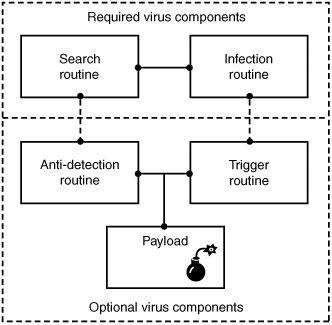
Component/Working of a Virus: Working of VirusViruses that can spread without human intervention are known as worms. ->The search routine is responsible for locating new files, disk space, or RAM to infect -> Infection Routine is responsible for copying the virus and attaching it to a suitable host. ->Trigger Routine: is to launch the pay-load at a given date and time. The trigger can be set to perform a given action at a given time.

Characteristics of Virus

  • Virus resides in the memory and replicates itself.
  • It does not reside in the memory after completing its task
  • It may transform itself into other programs to hide its identity

Reason for the creation of Viruses:

  • It may be created for research purpose
  • May be to play pranks with friend and foes what we usually do J
  • Someone may intentionally wish to harm others computer i.e. vandalism
  • To gain over some companies content for financial or threat purpose i.e extortion
  • To have an eye over the people say in a computer lab or on any product distribution i.e Spyware.
  • For spreading threats and terrors at the people through internet by thefting others identity and misusing that and many more may be the reason.

Symptoms that computer get an attack

  • System will work in unmannered way
  • Process may take more time that its expected.
  • floppy drive or disk drive suddenly get opened
  • Hang up at the starting time.
  • Computer name gets changed.
  • Drive names get changed
  • Firefox or other browsers not working properly
  • Getting sudden restart or freezes fast on warning
  • Other gets vulgar messages what you have not sent to them and so on.

Basic Difference between Virus  and worm:

  • A worm is a special kind of virus that can replicate itself and use memory, but don’t attach itself to other programs what a virus does.
  • A worm spread through the infected network automatically but virus does not.

Types of Viruses:

What they infect

  • Boot virus: infects disk boot sectors and records.
  • File Virus: infects executables files in OS file system.
  • Macro Virus: infects documents, data sheets etc like word, excel
  • Network Virus: spread through email using command and protocols of computer network.
  • Source Code Virus: override host codes by adding Trojan code in it

How they infect

  • Parasitic Virus: attach itself to executable files and replicates itself
  • Memory resident Virus: resides and do changes in main memory
  • Stealth Virus: which can hide itself from anti-virus programs
  • Polymorphic Virus: A virus that mutates and changes accordingly.
  • Cavity Virus: overwrites a host file with constant null but with the same size and functionality
  • Famous Viruses and Worms: I love you which is a win-32 email based worm
  • Melissa Virus: it’s a Microsoft word macro virus
  • JS.spth: It’s a JavaScript internet worm which spreads through e-mail, p2p networks etc.
  • Klez virus: its an email attachment that automatically runs when viewed with MS word and uses its own SMTP engine to spread mail
  • Slammer/Sapphire worm: it was the fastest worm in history which doubles itself within 9 seconds. others are top rated viruses in 2008 detnat,  netsky,  mytob , bagle, mywife, virut, Zafi, mydoom, Lovegate and bagz.

Always remember Prevention is better than cure so don’t accept strange files, don’t do double click on everything, try to check file’s extension and learn little bit batch file commands.

Install good antivirus(Nod32, AVG, McAfee, Bitdefender , Kaspersky etc.) and regulary scan your whole sytem, always try to check processes and all.

For more information check Wikipedia, howstuffsworks.com , Ec-council CEH guide and don’t forget to google to get latest news and stuffs related to this topic. This was just an introduction!

Five Reasons to prove Linux is Secure than Windows

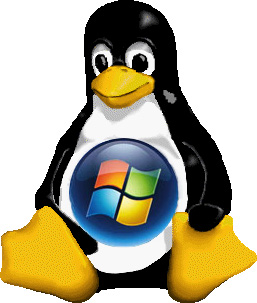
Linux vs Windows "Security through obscurity" may be a catchy phrase, but it's not the only thing that's catching among Windows users. The expression is intended to suggest that proprietary software is more secure by virtue of its closed nature.

If hackers can't see the code, then it's harder for them to create exploits for it–or so the thinking goes. Unfortunately for Windows users, that's just not true–as evidenced by the never-ending parade of patches coming out of Redmond.

In fact, one of Linux's many advantages over Windows is that it is more secure–much more. For small businesses and other organizations without a dedicated staff of security experts, that benefit can be particularly critical.

Five key factors underlie Linux's superior security:
1. Privileges
Linux systems are by no means infallible, but one of their key advantages lies in the way account privileges are assigned. In Windows, users are generally given administrator access by default, which means they pretty much have access to everything on the system, even its most crucial parts. So, then, do viruses. It's like giving terrorists high-level government positions. With Linux, on the other hand, users do not usually have such "root" privileges; rather, they're typically given lower-level accounts. What that means is that even if a Linux system is compromised, the virus won't have the root access it would need to do damage system wide; more likely, just the user's local files and programs would be affected. That can make the difference between a minor annoyance and a major catastrophe in any business setting.

2. Social Engineering Viruses and worms often spread by convincing computer users to do something they shouldn't, like open attachments that carry viruses and worms. This is called social engineering, and it's all too easy on Windows systems. Just send out an e-mail with a malicious attachment and a subject line like, "Check out these adorable puppies!"–or the porn equivalent–and some proportion of users is bound to click without thinking. The result? An open door for the attached malware, with potentially disastrous consequences organizationwide. Thanks to the fact that most Linux users don't have root access, however, it's much harder to accomplish any real damage on a Linux system by getting them to do something foolish. Before any real damage could occur, a Linux user would have to read the e-mail, save the attachment, give it executable permissions and then run the executable. Not very likely, in other words.

3. The Monoculture Effect However you want to argue the exact numbers, there's no doubt that Microsoft Windows still dominates most of the computing world. In the realm of e-mail, so too do Outlook and Outlook Express. And therein lies a problem: It's essentially a monoculture, which is no better in technology than it is in the natural world. Just as genetic diversity is a good thing in the natural world because it minimizes the deleterious effects of a deadly virus, so a diversity of computing environments helps protect users. Fortunately, a diversity of environments is yet another benefit that Linux offers. There's Ubuntu, there's Debian, there's Gentoo, and there are many other distributions. There are also many shells, many packaging systems, and many mail clients; Linux even runs on many architectures beyond just Intel. So, whereas a virus can be targeted squarely at Windows users, since they all use pretty much the same technology, reaching more than a small faction of Linux users is much more difficult. Who wouldn't want to give their company that extra layer of assurance?

4. Audience Size Hand-in-hand with this monoculture effect comes the not particularly surprising fact that the majority of viruses target Windows, and the desktops in your organization are no exception. Millions of people all using the same software make an attractive target for malicious attacks.

5. How Many Eyeballs "Linus' Law"–named for Linus Torvalds, the creator of Linux–holds that, "given enough eyeballs, all bugs are shallow." What that means is that the larger the group of developers and testers working on a set of code, the more likely any flaws will be caught and fixed quickly. This, in other words, is essentially the polar opposite of the "security through obscurity" argument. With Windows, it's a limited set of paid developers who are trying to find problems in the code.

They adhere to their own set timetables, and they don't generally tell anyone about the problems until they've already created a solution, leaving the door open to exploits until that happens. Not a very comforting thought for the businesses that depend on that technology. In the Linux world, on the other hand, countless users can see the code at any time, making it more likely that someone will find a flaw sooner rather than later.

Not only that, but users can even fix problems themselves. Microsoft may tout its large team of paid developers, but it's unlikely that team can compare with a global base of Linux user-developers around the globe. Security can only benefit through all those extra "eyeballs."

Once again, none of this is to say that Linux is impervious; no operating system is. And there are definitely steps Linux users should take to make their systems as secure as possible, such as enabling a firewall, minimizing the use of root privileges, and keeping the system up to date. For extra peace of mind there are also virus scanners available for Linux, including ClamAV.

These are particularly good measures for small businesses, which likely have more at stake than individual users do. It's also worth noting that security firm Secunia recently declared that Apple products have more security vulnerabilities than any others–including Microsoft's. Either way, however, when it comes to security, there's no doubt that Linux users have a lot less to worry about.

The best multimedia player: KMPlayer (freeware)

The KMPlayer is a versatile media player which can cover various types of container format such as VCD, DVD, AVI, MKV, Ogg Theora, OGM, 3GP, MPEG-1/2/4, WMV, RealMedia, and QuickTime among others. It handles a wide range of subtitles and allows you to capture audio, video, and screenshots in many ways.

Minimal thing that one should know about CSS 3 -Part I

CSS Logo-aliencodersMinimal Introduction About CSS 😉 CSS means Cascaded Style Sheet which is a style sheet language used to describe the layout (look and feel) of a document in Markup Language. CSS is designed primarily to enable the separation of document content (written in HTML or a similar markup language) from document presentation, including elements such as the layout, colors, and fonts.

This separation can improve content accessibility, provide more flexibility and control in the specification of presentation characteristics, enable multiple pages to share common formatting, and reduce complexity and repetition in the structural content (such as by allowing for tableless web design).

CSS can also allow the same markup page to be presented in different styles for different rendering methods, such as on-screen, in print, by voice (when read out by a speech-based browser or screen reader) and on Braille-based, tactile devices. While the author of a document typically links that document to a CSS style sheet, readers can use a different style sheet, perhaps one on their own computer, to override the one the author has specified.

CSS specifies a priority scheme to determine which style rules apply if more than one rule matches against a particular element. In this so-called cascade, priorities or weights are calculated and assigned to rules, so that the results are predictable. The CSS specifications are maintained by the World Wide Web Consortium (W3C).

Internet media type (MIME type) text/css is registered for use with CSS by RFC 2318 (March 1998). Its has gone through different version till date. Its lates version is CSS 3 which  has been under development since December 15, 2005. The minimal topic that one should know to use CSS 3 are written in structured way here and from the next post, we will try to explain all topics one by one.

1. External, Internal, Inline

2. Syntax h1{color:#FFFFFF;} or selector {property:value}

3. ID vs Class

4. Styling

  • Text styling

i. Color ii. Letter-spacing iii. Word-spacing iv. Text-align (left, center, justify, right) v. Text-indent vi. Text-transform (uppercase, lowercase, capitalize) vii. Text-decoration (none, overline, line-through, underline, blink) viii. Line-height

  • Font

i. Font-family ii. Font-style (normal, italic, oblique) iii. Font-size iv. Font-weight v. Font-variant (normal, small-caps)

  • List

i. List-style 1. List-style-image 2. List-style-type (circle, square, alpha, roman, latin, decimal-leading-zero) 3. List-style-position (inside, outside)

  • Table
  • Links

i. a:link ii. a:visited iii. a:hover iv. a:active

  • Background (color, image, position, attachment (scroll, fixed),repeat)

i. Background-color:#colorcode ii. Background-image: url(‘path of image’) iii. Background-position:left top/left center/left bottom/x pos y pos iv. Background-attachment:scroll/fixed/inherit v. Background-repeat: repeat/repeat-x/repeat-y/none 5. Box Properties

  • Model
  • Border
  • Margin
  • Padding
  • Outline

6. Dimension

  • Height
  • Width
  • Max-height
  • Min-width

7. Visibility and display

  • Visibility:hidden collapse(useful for table. Works in IE if !doctype is defined)
  • Display: block or inline or none

8. Positioning

  • Fixed (fixed position is positioned relative to the browser window)
  • Relative (relative positioned element is positioned relative to its normal position.)
  • Absolute (An absolute position element is positioned relative to the first parent element that has a position other than static. If no such element is found, the containing block is <html>)
  • Static (default)
  • Z-index

9. Float and clear

  • Float (left, right, none, inherit)
  • Clear (left, right, both, none, inherit)

10. Pseudo class

  • :focus (ex: input:focus { color:green;})
  • :first-child (ex: p:first-child{color:blue;})

11. Pseudo elements

  • :after
  • :before
  • :first-letter
  • :first-line

12. Opactiy (css3)

  • Opacity: 0-1 (FF)
  • filter:alpha(opacity=x). (for IE x=0-100)

Follow this link for CSS examples

CSS

  1. External, Internal, Inline
  2. Syntax h1{color:#FFFFFF;} or selector {property:value}
  3. ID vs Class
  4. Styling

    • Text styling

i. Color

ii. Letter-spacing

iii. Word-spacing

iv. Text-align (left, center, justify, right)

v. Text-indent

vi. Text-transform (uppercase, lowercase, capitalize)

vii. Text-decoration (none, overline, line-through, underline, blink)

viii. Line-height

    • Font

i. Font-family

ii. Font-style (normal, italic, oblique)

iii. Font-size

iv. Font-weight

v. Font-variant (normal, small-caps)

    • List

i. List-style

1. List-style-image

2. List-style-type (circle, square, alpha, roman, latin, decimal-leading-zero)

3. List-style-position (inside, outside)

    • Table
    • Links

i. a:link

ii. a:visited

iii. a:hover

iv. a:active

    • Background (color, image, position, attachment (scroll, fixed),repeat)

i. Background-color:#colorcode

ii. Background-image: url(‘path of image’)

iii. Background-position:left top/left center/left bottom/x pos y pos

iv. Background-attachment:scroll/fixed/inherit

v. Background-repeat: repeat/repeat-x/repeat-y/none

  1. Box Properties

    • Model
    • Border
    • Margin
    • Padding
    • Outline
  2. Dimension

    • Height
    • Width
    • Max-height
    • Min-width
  3. Visibility and display

    • Visibility:hidden collapse(useful for table. Works in IE if !doctype is defined)
    • Display: block or inline or none
  4. Positioning

    • Fixed (fixed position is positioned relative to the browser window)
    • Relative (relative positioned element is positioned relative to its normal position.)
    • Absolute (An absolute position element is positioned relative to the first parent element that has a position other than static. If no such element is found, the containing block is <html>)
    • Static (default)
    • Z-index
  5. Float and clear

    • Float (left, right, none, inherit)
    • Clear (left, right, both, none, inherit)
  6. Pseudo class

    • :focus (ex: input:focus { color:green;})
    • :first-child (ex: p:first-child{color:blue;})
  7. Pseudo elements

    • :after
    • :before
    • :first-letter
    • :first-line
  8. Opactiy (css3)

    • Opacity: 0-1 (FF)
    • filter:alpha(opacity=x). (for IE x=0-100)

Follow this link for CSS examples


Lock folder without any software

Sooner or later, you may require an application to lock down your important folder. So, why not to lock and unlock folder without any application. Just follow few simple steps and your work will be done.folder-lock-logoSooner or later, you may require an application to lock down your important folder. So, why not to lock and unlock folder without any application.  Just follow few simple steps and your work will be done.

Method 1:

Step 1: open your favorite editor and type: ren foldername foldername.{21EC2020-3AEA-1069-A2DD-08002B30309D}

Step 2: Save it as lock.bat or whatever name you wish to give but .bat extension should be there.

Step 3: Open text editor again and type: ren  foldername.{21EC2020-3AEA-1069-A2DD-08002B30309D} foldername

Step 4: Save it as key.bat or whatever name you wish to give but .bat extension should be there. Now double click on lock.bat to lock “foldername” and double click on key.bat to unlock “foldername”. For ex: say my foldername is jassi then just replace the word foldername to jassi. At one time you can use lock and key batch file for locking one folder only.

Method 2:

As we saw in method 1, that only one folder will work at one time and if someone knows about key.bat, he/she can unlock that folder. So better to have .exe or .com .bat file which can lock or unlock  any folder at your wish with initialized password that only you would know.

Step 1:

Open your favorite editor and type:

cls @ECHO off title Folder Locker color A echo Which folder you want to lock or unlock? set/p "folder=>" if EXIST "%folder%.{21EC2020-3AEA-1069-A2DD-08002B30309D}" goto UNLOCK if NOT EXIST %folder% goto MDfolder :CONFIRM echo Are you sure u want to Lock the folder(Y/N) set/p "cho=>" if %cho%==Y goto LOCK if %cho%==y goto LOCK if %cho%==n goto END if %cho%==N goto END echo Invalid choice. sleep 1 cls goto CONFIRM :LOCK ren %folder% "%folder%.{21EC2020-3AEA-1069-A2DD-08002B30309D}" attrib +h +s "%folder%.{21EC2020-3AEA-1069-A2DD-08002B30309D}" cls color C echo Folder locked sleep 2 goto End :UNLOCK echo Enter password to Unlock folder set/p "password=>" if NOT %password%==jassi  goto FAIL attrib -h -s "%folder%.{21EC2020-3AEA-1069-A2DD-08002B30309D}" ren "%folder%.{21EC2020-3AEA-1069-A2DD-08002B30309D}" %folder% echo Folder Unlocked successfully sleep 2 goto End :FAIL cls color 4A echo Invalid password goto UNLOCK :MDfolder cls echo %folder% was not there so md %folder% echo %folder% created successfully sleep 2 :End

Step 2:

Save it as locker.bat or any name but be sure that extension is .bat and yeah before saving it change password according to your ease. Right now its jassi . Find that keyword and change as you wish. Now double click on locker.bat, one command prompt will come and will ask for folder to lock and unlock. If folder is not there it will create too. It will not unlock unless and until you give correct password.
Being .bat extension people may edit it so at that time you may wish to change it in .com or .exe extension. You can do that by downloading  Bat_To_Exe_Converter.exe which is free ofcourse.


Note: Main important thing to note here {21EC2020-3AEA-1069-A2DD-08002B30309D} , its  nothing just the address of control panel. So We renamed our folder as control panel destination, which means if you click on that locked folder now. It will open control panel. Hope you will enjoy it!!!

Hide and Prevent Access to drives using diskpart utility

dispart utilityAlthough there are many ways to hide your drive and to prevent access to your drives. Either by setting regedit value for NoDrives and  NoViewOnDrive  or by using some system settings.

But I found one built-in tool “DISKPART”.

1. Go to Start > run > type "diskpart". A DOS window will appear with following description. DISKPART>

2. Then type "list volume" The result will look like: 

3. Suppose u want to hide drive E then type "select volume 3" Then a message will appear in same windows { Volume 3 is the selected volume}

4. Now type "remove letter E" Now a message will come { Diskpart Removed the Drive letter }
Sometime it requires the reboot the computer  or logoff and login will work. Diskpart will remove the letter. Now try to open that date even using at address bar. It will not open. Windows XP is not having capability to identify the unknown volume. Reassingning drive letters using dispartYour Data is safe now from all unauthorized users. Don’t worry it will not tamper any of your data.

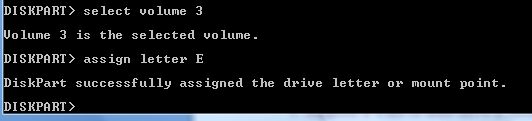
To access the content of hidden Drive repeat the process mentioned above. But in 4th step replace “remove" to "assign" i.e. type "assign letter E" . Note: It will not work for drive which is having system files, boot files etc like C drive in most cases. And it works in Vista , XP too. Didn’t test in win 7 but I think it will work there also.

ID vs Class in CSS

CSS allowClass vs ID in CSSs us to define our own custom selectors also, which is known as ID and class selectors. IDs and classes are applied to (X)HTML elements as simple attributes that provide much tighter control over our design. Most of the time, we get confused IDs with classes, either failing to utilize the real purpose of each or simply using one instead of the other.

Let’s treat ID as identification, which is unique to you an is not shared with anyone else. A class is different, in that there can be many people in a class, be it at school, in society, or wherever. This translates to CSS where an ID can only be used once per page, whereas classescan be used an unlimited number of times.

Another Example could be Bar Code (class) and Serial Number (ID).

There are two kinds of selectors mainly in CSS: One is base selector like h1,h2, body, table or any existing HTML tags.
Such as the following rule which sets all paragraphs to red (font-color): p {color: #F00;}

CSS allows us to define our own custom selectors also, which is known as ID and class selectors. IDs and classes are applied to (X)HTML elements as simple attributes that provide much tighter control over  our design. Most  of the  time, we get  confused IDs with classes, either failing to utilize the real purpose of each or simply using one instead of the other.

Let’s  treat ID as identification. Which s unique to you an is not shared with anyone else. A class is different, in that there can be many people in a class, be it at school, in society, or wherever. This translates to CSS where an ID can only be used once per page, whereas classescan be used an unlimited number of times. Another Example could be Bar Code (class) and Serial Number (ID).

IDs An ID can only be used once per page, and is a unique identifier to an element.
Typically, an ID is used for any unique page element such as the header, main navigation, footer, or other key part of the user interface. Applying an ID The most common way to apply an ID is to reference it in the (X)HTML using the id="name" attribute immediately after the opening tag within an element. In this case, our two IDs are named highlight and default, respectively, and are applied to two paragraphs:

<p id="pred">This paragraph has red text.</p>
<p id="default">This paragraph has dark gray text.</p>

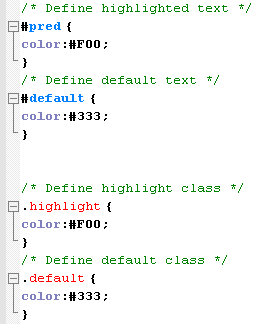
The corresponding CSS uses the hash (#) character to denote the rule is a unique ID. The hash is combined with the ID name to start the rule, followed by the property declarations:

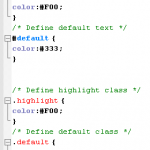
/* Define highlighted text */
#pred {color:#F00;}
/* Define default text */
#default {color:#333;}

Combining IDs with Selectors Existing or new IDs can be combined with selectors in the style sheet to add further control. In the following example, the base CSS defines all h2 headings as dark gray and 16 pixels in size: /* Basic heading style */ [code language="css"] h2 { color:#333; font-size:16px; } [/code] That is fine for most uses of <h2>, but let’s say the main <h2> on your page (the title of an article) needs to be emphasized with a different color. This calls for a new rule where the selector is defined in the form element#name:

/* Adjust the color of h2 when used as a title */
h2#title { color:#F00; }

Here the new rule will override the default <h2> color (color: #333;) with red (color: #F00;) whenever an <h2> is identified with in the (X)HTML. The new rule does not redefine font-size, so that will be carried over and unchanged. Simply add the unique identifier to the page:

<h2 id="title">Title Of My Article</h2>

Remember that title is a unique identifier, so it cannot be used again within that template. Any other instances of <h2> on the page will be rendered with the default styling.

When to Use an ID
Only one element on each page can be styled by each unique ID, and therefore IDs should be reserved for unique, single-use elements such as a header or sidebar, or the main navigation or page footer. This makes scanning your markup easier, as all ID attributes will denote unique content areas or special regions of the page, while also providing greater flexibility for more complex CSS application

When to Avoid an ID
IDs must be avoided when there is more than one requirement for the CSS rule. Do not use an ID for anything you are likely to multiply in the future, such as multiple images, link styles, or paragraphs where more than one will need to be styled a particular way.

Class
A class can be used an infinite number of times per page, making it a very flexible method of applying CSS. A class defines an element as belonging to a group, or as a reusable object or style. Classes solve problems in the short term, but can provide less flexibility for more complicated CSS designs.

Applying Classes The most common way to apply a class is to reference it in the (X)HTML using a class="name"attribute of an element. As with our ID example, the two classes are named highlight (for red text) and default (for dark gray text):

<p class="highlight">This paragraph has red text.</p>
<p class="default">This paragraph has dark gray text.</p>
<p class="default">This paragraph also has dark gray text.</p>

Note that as the identifiers are classes, they can be used more than once, hence in the example two paragraphs have been identified as default, so will be styled the same way. That would not be acceptable if using IDs. The corresponding CSS uses a full stop (.) character to denote the rule is a reusable class. The full stop is combined with the class name to start the rule, followed by the property declarations:

 /* Define highlight class */
.highlight {color:#F00;}
/* Define default class */
.default {color:#333;}

Combining IDs with Multiple Classes
Classes are especially useful when you wish to have control over a number of elements. Consider the following drinks list, the source code for which is available in the drinks.html file:

<ul id="drinks"> <li class="alcohol">Beer</li> <li class="alcohol">Spirits</li> <li class="mixer">Cola</li> <li class="mixer">Lemonade</li> <li class="hot">Tea</li> <li class="hot">Coffee</li> </ul>

Note first that the unordered list (<ul>) is given a unique ID. Thus, id="drinks" will not be used again on the page at any time, allowing that particular list to be styled uniquely. Note also that Beer and Spirits are within list elements defined with class="alcohol", Cola and Lemonade are within list elements defined with, and finally Tea and Coffee are defined in list elements with. This allows each drinks group to be treated individually. The CSS declares that the default text for that list will be red, so any list items without a class attribute will default to red text:

/* Drinks list styling */
ul#drinks {color:#F00;}

Next, the classes for each drink type are defined with unique shades of gray for font color:

/* Define alcohol color */
.alcohol {color:#333;}
/* Define mixer color */
.mixer {color:#999;}
/* Define hot drinks color */
.hot {color:#CCC;}

The result sees the list of items move through shades of gray (defined by the classes). Any further drinks added to the list can be assigned to a particular drinks group, such as <li>Wine</li>. Thus a logical color key is established using simple CSS classes.

Note: Before adding a class to an element, be sure that the element needs it. Too often web designers overuse classes when the (X)HTML is already providing more than enough hooks for the CSS. Make sure that the element cannot be targeted using a descendant selector or other method before opting for a class. This will help keep your code lean and make future redesigning much easier.

Overriding Base Styling with Classes Here is an example of base CSS rule that is being  used to turn all paragraphs red declaring all instances of paragraphs red and  add a class rule to the CSS that will bleach out any element it is identified with by turning text light gray:

/* Default styling for paragraphs */ p {color:#F00;font-size:12px;} /* Use this style to turn anything light gray */ .bleached {color:#CCC;}

All paragraphs will still be red by default, but this can still be overridden when necessary by identifying an element with the bleached class, as in this (X)HTML: <p>This paragraph has red text.</p> <p class="bleached">This paragraph has light gray text.</p> The second paragraph will now be light gray, as the color declaration in bleached overrides the red. Note that the paragraph is still rendered 12 pixels high, as bleached does not redefine font-size. Add a font-size declaration in bleached, and that value will override the original size for all paragraphs identified with.

Linking a Class Directly to an Element In this example, the CSS is constructed with the class attached directly to the element in the form element.classname, and like before, it is referenced using the class="classname" format within the (X)HTML.

/* Use this style to turn anything light gray */
.bleached {color:#CCC;}
/* Override the color of bleached when it identifies a paragraph */
p.bleached {color:#000;}

This method would be used when the standard declaration for the bleached class needs to be overruled. For example, any element given a class of bleached will remain light gray (color:#CCC;), but any instances of paragraph elements with a class of bleached will be rendered black (color: #000;). This method is useful when numerous instances of a class are littering your (X)HTML, and it would be too difficult to remove them all manually. Instead, simply target that class when it identifies the element you need to change using the form element.classname.

When to Use a Class
As described previously, classes are a very flexible method for applying your CSS rules, and can be used again and again within a page. Use classes to control elements that belong to a group, for temporary items, and also to enhance the behavior of an ID.

When Not to Use a Class
It is not recommended that classes be used for main structural elements within a page, such as headers and main navigation, although they will work. Doing so would decrease the flexibility of your design and make further customization difficult without overhaul or extra markup. Also, be sure a class is needed, and make sure the element cannot be targeted by defining a rule for the existing (X)HTML before getting class-happy. Remember that a class is used for exceptions to normal styling, and not to define the standard.

Elements can have BOTH
There is nothing stopping you from having both an ID and a Class on a single element. In fact, it is often a very good idea. Take for example the default markup for a WordPress comment list item: <li id="comment-27299" class="comment"> It has a class applied to it that you may want for styling all comments on the page, but it also has a unique ID value (dynamically generated by WordPress, nicely enough). This ID value is useful for direct linking. Now I can link directly do a particular comment on a particular page easily.

CSS doesn’t care
Regarding CSS, there is nothing you can do with an ID that you can’t do with a Class and vice- versa. I remember when I was first learning CSS and I was having a problem, sometimes I would try and troubleshoot by switching around these values. Nope. CSS doesn’t care.

Javascript cares
JavaScript people are already probably more in tune with the differences between classes and ID’s. JavaScript depends on there being only one page element with any particular, or else the commonly used getElementById function wouldn’t be dependable. For those familiar with jQuery, you know how easy it is to add and remove classes to page elements. It is a native and built in function of jQuery. Notice how no such function exists for ID’s. It is not the responsibility of JavaScript to manipulate these values, it would cause more problems than it would be worth.

If you don’t need them, don’t use them (try to avoid using if possible)