Reset any password in windows through windows key enterprise

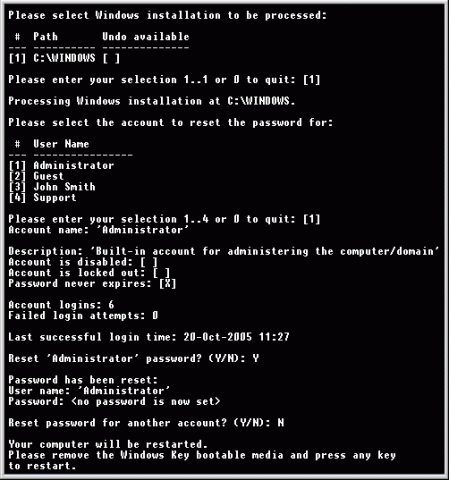
Windows Key EnterpriseHave you ever imagined, what will happen, if you would forget or compromised your login password in Windows O.S.?
There may be a situation when your friends or relatives may play prank with you and will change administrator password. What you will do then?

In short, if you are using Windows Operating Systems and want to get rid of forgotten/lost password or want to reset almost all the existing password at one go. Then “Windows Key Enterprise Edition is for you only.”

Here are the listed features of this particular software:
Just burn it into CD and you are done!

Features

  • 100% recovery rate
  • All passwords are reset instantly
  • Windows 7 New!, Vista, Vista SP1 supported
  • All Windows Workstations supported
  • All Windows Servers supported, including Server 2008 (Windows Key Professional and Enterprise editions only) New!
  • Resets passwords with a bootable CD-ROM
  • Resets passwords with a bootable USB drive (Windows Key Professional and Enterprise editions only)
  • Burns password reset CD
  • Resets local Administrator passwords
  • Resets Domain Administrator passwords (Windows Key Enterprise edition only)
  • Resets local policy settings
  • Resets secure boot options: startup password or startup key disk
  • Displays account properties
  • Supports all Service Packs
  • Supports RAID/SCSI/SATA drives Updated!

Its latest version is: 10.3.2585 whose archived size is: 5.12 MB (8.2 MB approx in iso format). It’s a shareware software. So you need to pay to use its full version. You can try demo though.

Other versions are Windows Key Professional and Windows Key only which has limited features.
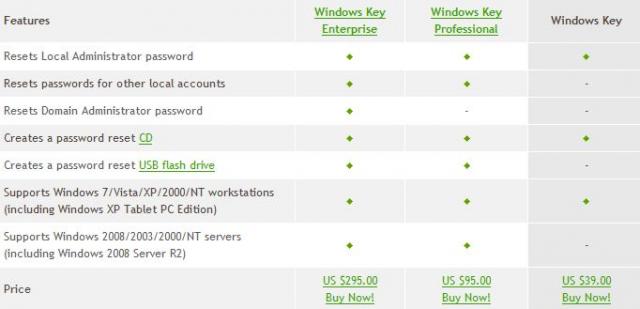
Features of Windows Key Enterprise

Image Source: http://www.lostpassword.com

Download its Torrent file form here

 

Top 5 Browsers of year 2010/2011(predicted)

Browser imageIn internet world, we can’t get any info without web browsers. Isn’t it? Whatever we are looking for over internet, browsers will only display it. Right now you are reading this blog through some browser for sure. You might have used few different browsers and have rated according to your taste (requirements, comfort, efficient, add-ons support etc) . In 2009, Internet Explore was at the top. Mozilla Firefox at second position and Google chrome was at third position.
But in 2010, situation got changed. According to my observation/opinion (after doing some search on google and doing some analysis using Google analytics), browsers rank would be:

  1. Mozilla FirefoxFirefox

    • Well it’s my one of the favorite browsers too! I like its simplicity, customizing options, navigation speed, tabbed browsing (now common to every browser), integrated search engine etc.
    • It has more than 10 thousand active add-ons  which you can customize and enhance your web browsing experience.
    • It supports HTML 5 audio and video too!
    • It’s there by default in Linux Distros.
    • Its features are more useful and powerful but designed in very simple way, which I like in it.
    • Its much much faster now in comparison to version 3. Try to have Firefox v3.6+ and feel the difference
    • Firefox 3.5+ has integrated private browsing too that you can easily enter and leave the private mode, browsing seamlessly in complete stealth mode. I have tried it few times.
    • Lots of documents are there to support its features, where you can get in detail about its features and add-ons
    • Firefox is a FREE to download and most of the  add–ons are also free.
  2. Google Chrome Google chrome

    • If Google has developed something then how we can deny its greatness, name is enough to describe it. It uses complex features but have made it simple (but not so simpler like Firefox, as I felt).
    • It has also lots of updated features that you may need and tools are there.
    • Private more is also there, similar to Firefox. So security is there of course!
    • I liked its drag and drop feature (anywhere you wish)
    • I liked its another  unique tab feature that simplifies your browsing is “related tabs”. When a new tab opened, the new tab is placed next to the originating or parent tab, rather than at the end of your list of tabs. (This is not there in Firefox yet)
    • It uses “sandboxing”, which makes every tab to run independently in the browser. This is great because if a certain application crashes, it will stay isolated to that tab only, it will not affect any other tabs. Different processes run separately in their own tab. This technique helps  computer to stop  one tab from taking control of all others. Once you close a tab, that process is completely terminated.
    • It uses online task manager feature too, which comes handy for internet geeks.
    • Its also very fast and I have both browsers in my system along with other 3 browsers.
  3. Internet Explorer Internet Explorer

    • Although IE 9 is there in market, but still I like IE 7. IE 8 was a big flop, it seems. As most of the computer market has been captured by Microsoft’s Operating System which has Internet Explorer by default. That’s why, it is mostly used for browsing.
    • Its startup time is bit faster but navigation time is little slower than Firefox and Chrome
    • Now newer version is having add-ons, tabbed feature is also there and integrated search window is present too.
    • Internet Explorer 7+ has enhanced security features. It provides security for the entire family and offers extensive parental controls to protect children against web predators and inappropriate content.
  4. Opera opera

    • Another browser that enticed me towards it.  Best thing is you can configure Opera to fit your needs and your style. Arrange panels, toolbars and buttons and choose from several unique skins and various widgets.
    • Its everywhere, talk about any O.S. and mobile phone; it will be there J . Its one of the only browsers that has interactive voice commands. You can navigate the web by talking to the browser, and Opera will even read text to you.
    • Visual tabs, mouse gesture, opera turbo (double your speed in lower connection), Speed dial are some really amazing features in Opera.
    • Its free and more than 150 million are using it. I didn’t like its downloading features as it starts downloading my torrent files too L (not a big issue though)
  5. Safari Safari

    • Earlier when we use to hear this word, we thought that oh its only for Mac users but now not anymore, anyone can use it. Its look and feel is too cool. After all its apple’s product J
    • I like its colored progress bar on the toolbar that shows how fast a page is loading and how close it is to being complete.
    • You may feel tough at first site but its very user friendly like our top rated browsers
    • Its very fast and popular. Still I need to explorer its various features
    • Its secured too!

Other popular browsers are: -> Avant (UI effect is really cool and its user friendly too), ->Maxthon(It uses Internet Explorer engine internally and features lots of add-ons too. Very popular in China as it’s a Chinese product J ) and ->Flock (social networking website, so its popular because of Facebook, twitter and youtube integration)

SPEED UP UR ACROBAT READER (ALMOST LIKE NOTEPAD)

. Steps to follow:
1. Go to the installation folder of acrobat reader (C:\program files\adobe\acrobat7.0\reader\.. whatever)

2. Move all the files and folders from the "plug_ins" directory to the "Optional" directory. (I repeat.. cut and paste the files NOT copy & paste).

Also make sure that acrobat reader is not open else it will lock the files and not allow you to move the files). Now your acrobat reader will load very fast and almost as good as notepad.. enjoy it…….

Hide and Prevent Access to drives using diskpart utility

dispart utilityAlthough there are many ways to hide your drive and to prevent access to your drives. Either by setting regedit value for NoDrives and  NoViewOnDrive  or by using some system settings.

But I found one built-in tool “DISKPART”.

1. Go to Start > run > type "diskpart". A DOS window will appear with following description. DISKPART>

2. Then type "list volume" The result will look like: 

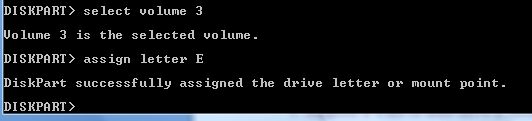
3. Suppose u want to hide drive E then type "select volume 3" Then a message will appear in same windows { Volume 3 is the selected volume}

4. Now type "remove letter E" Now a message will come { Diskpart Removed the Drive letter }
Sometime it requires the reboot the computer  or logoff and login will work. Diskpart will remove the letter. Now try to open that date even using at address bar. It will not open. Windows XP is not having capability to identify the unknown volume. Reassingning drive letters using dispartYour Data is safe now from all unauthorized users. Don’t worry it will not tamper any of your data.

To access the content of hidden Drive repeat the process mentioned above. But in 4th step replace “remove" to "assign" i.e. type "assign letter E" . Note: It will not work for drive which is having system files, boot files etc like C drive in most cases. And it works in Vista , XP too. Didn’t test in win 7 but I think it will work there also.

Ava Find: An alternate to windows search

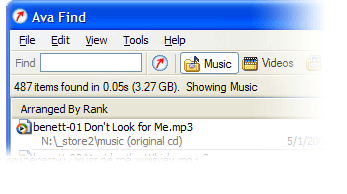
Ava FindHi friends, Have you ever noticed that searching any file on a clattered system is how tough through windows search mechanism? I feel irritated sometimes when windows search is on and on and after few minutes , saying that no match found. I have left even thinking that Windows is having such feature and i started using Ava Find 1.5. Its in my favorite application list now. Its fast searching features really amazed me. Some of its features are listed below:

  • Search without delay. (very very fast if its cached)
  • Searches accurately and will show you all the details you might want.
  • Scout Bot finds newly downloaded files automatically. You don’t even have to enter a search or have to refresh it again.
  • Browse Music/Videos/Programs etc folder at single click or you can select select all also.
  • Find documents you just saved: Suppose you forgot, where you have saved it. Not an issue at all if you have Ava Find. 🙂
  • Suppose you don’t the exact file name or folder name, no worries Ava Find does Advanced Name Search i.e. Match file names using * and ? wildcards.
  • Same right-click menu options are there for each file as it is in Windows Explorer.
  • Folders are shown with their sizes next to them. So, you need not to wait for windows properties to show their size.

Fair enough to use it freely or buy it. Ifs its Ava Find Pro then you can do network drive search also and if its free then you might not be able to do all right click stuffs too. You can use free version but after 30 days, it will disable few of the features that you may have in Pro. Its latest version is still 1.5 only Its of less than one MB in size. It costs 40 US Dollar approx. (can use trial version too.) You can download it from here Don’t forget to comment if you like this application.

What is Google WAVE and PROJECT NATAL

natalA GOOGLE Wave is an application by google that collaborates several Google features. A user who has installed Google wave will be able to access and use Google features like Orkut, Google Talk and Gmail efficiently.
Google wave can also check for errors (grammatical and spelling) as well translate text to forty different languages. Google has not yet announced when Wave will be released.

For the User’s Convenience, Google will open source part of the code so that users can develop or Modify the features of the program. Upcoming days ,  no need to use of different browser , in Single place you can use all features of google.    Microsoft is working on Project Known as ‘NATAL’ , which on completion would probably be the new face of gaming. It involves gaming without the use of any controllers. End users will be able to play games or interact with the interface with gestures and spoken commands on their existing Xbox consoles. The device would be around nine inches and a motion sensor would be placed either above or below the device. It would feature face and voice recognition as well as full body 3D  motion capturing capabilities.

Observers are expecting it to be launched up to end of 2010.

How to find out , who is Invisible (In Gmail)

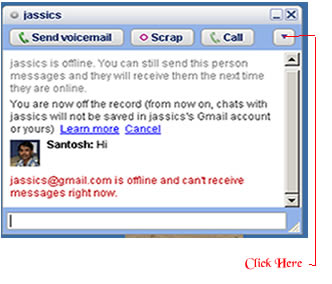
offline line User There is simple trick to find out Invisible user. The Gmail Chat application that is present on the left pane of the site allows users to appear 'Invisible'  to their contact. For this , You will need the 'Google Talk' desktop application. One you have logged on to your account, follow these steps to determine which of your contacts is invisible :

  • Open 'Google Talk' chat application
  • Search for contact by typing his/her name in the search box
  • Once the name of the contact shows up in the contact list click the entry to open the chat window.

  • Click the dropdown arrow present under the close button and click ‘Go off the record’ .
  • If you  receive a message saying , “<user ID> @ gmail.com is offline and can’t receive messages right now’  then user is logged off".
  • If the above message does not appear after you send a message then user is invisible mode.

This trick is working in most cases so far. However , there may be varying results in case of users who log on to Google talkusing third party tools like mobile chat applications.