You want to know WordPress version of site which is not owned or administered by you or in simple word you want to know WordPress version without logging in to the site? First let’s see how we can find WordPress version with logging in to the site.
With logging in to the site
Using Dashboard page
If you are an admin then getting WordPress version is very easy, login and check dashboard page or at Footer bottom Right side, you will have the version info.
Footer after successful login.

Dashboard Page

Using PHP Code
Or You can get the WP version using PHP code at the same place where WordPress is installed.
[php]
<?php
bloginfo(‘version’);
?>
[/php]
By reading version.php
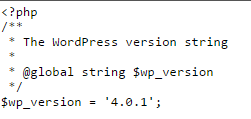
Or the below file is having Version details ,just open below file and look for version :
wp-includes/version.php
Without Logging into the site
But you are not the owner and want to know which WP Version a site is running?
Using readme.html file
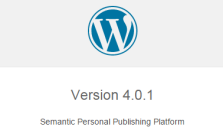
Just type sitename/readme.html for the site whose version you want to know. Ex: padhokhelo.com/readme.html
You will see something like below shown image:

Note: Web-admin or site owner may delete readme.html file, in that case you will not be able to find through this method, but usually it exists in majority.
Using meta tag
Open wordpress site then right click->view page source
Look for meta tag name=”generator” i.e. <meta name=”generator” content=”WordPress 4.0.1″ />
This method will also not work if this tag has been edited. But By default it exists in lower WordPress version.
By viewing source page of wp-login.php
If you don’t find WordPress version through meta tag name generator or through readme.html then thic could be real handy. There are many sites which just removes or hides readme.html and latest WP version may not show meta tag name generator.
But when you see the source of wp-login.php page (because it will have less code and easy to find version), you would find w-content/themes/*, wp-includes/plugins/* wp-admin/*
Look for these keywords and see what version it is displaying at the last of such lines You will observe mostly correct by comparing few such ?ver=<numbers> i.e. ?ver=4.1

Note: I have written perl script to find WordPress Version manually using above three methods and it is working for most of the cases. If you find any edge cases or have to ponder some inputs then you are most welcome.
Using Add-ons (Not as accurate as it should be )
Firefox add-on: https://addons.mozilla.org/en-us/firefox/addon/wordpress-version-check/?src=search
Chrome Add-on: https://chrome.google.com/webstore/detail/wordpress-version-check/
Please let me know, if you know any other way to find WordPress version 🙂
 When you discuss about online life and PHP development, having an efficient and reliable,
  Magento is one of the most innovative and fastest developing, flexible content management systems which effectively manages and bridges the traffic between design and online sales. It comes with a great load of features. It has a great feature-packed admin panel with escalating collection of extensions which will truly help your site. With its flexibility, you can easily manage multiple websites and more than 50 payment gateways. It is available in various editions, but if you are not technically very sound at PHP development, the free downloadable ‘Community’ edition will be more suitable for you.


 Zen Cart is a greatly accessible shopping cart which was branched out from osCommerce. It has extra architectural augmentations with supplementary features. It includes features like newsletter manager, multiple sales and quantity discounts, multiple display modes, etc. One of the most significant features is its gift certificate module which enables the users to generate, dispatch and even control digital coupons for various offers.
 Blogging works best when it’s well written. Blogs are most enjoyable when they’re easy to navigate and when the content they offer is interesting to read and has some depth to it. Search engines are looking for these types of blogs because they’re exactly what people are looking for when they search for information on a given topic.