Uncategorized

Minimal keyboard shortcuts for Microsoft Word

If you are using Windows O.S.  , then I am damn sure either you have already used Microsoft Word or will use sooner/later, but anyhow you will come to use it for sure 😛 So I thought Why not to put few important and frequently used keyboard shortcuts for it. Here is the list:

  • CTRL  + A : Selects all in the current document.
  • CTRL  + B Bold text.
  • CTRL  + C Copies the item or text to the Clipboard  and can be pasted using CTRL  + V.
  • CTRL  + D Displays the Font dialogue box.
  • CTRL  + E Centre Alignment.
  • CTRL  + F Displays the Find dialog box, to search the current document.
  • CTRL  + G Displays the Go to dialog box, to go to a specific location in the current document.
  • CTRL  + H Displays the Replace dialogue box.
  • CTRL  + I  Italic text.
  • CTRL  + J  does Full Justification.
  • CTRL  + K Creates  Hyperlink
  • CTRL  + L is for Left Alignment
  • CTRL  + M puts a  Tab in the present line.
  • CTRL  + N Creates a new document.
  • CTRL  + O Displays the Open File dialogue box.
  • CTRL  + P Displays the Print dialog box.
  • CTRL  + R Right Alignment.
  • CTRL  + S Displays the Save dialog box.
  • CTRL  + U Underline text
  • CTRL  + V Pastes the copied item or text from the Clipboard into the current position in the document.
  • CTRL  + X Cuts the item or text selected to the Clipboard.
  • CTRL  + Y Redo the last undone action.
  • CTRL  + Z Undoes the last action.
  • CTRL  + ENTER Insert Page Break.
  • CTRL  + F2 Show Print preview.
  • CTRL  + F4 Closes the active document window.
  • CTRL  + F6 Opens the next document window.
  • F1 key Get help or use the Office assistant.
  • SHIFT  + F1 Key Context sensitive help.
  • F2 Key Move text or image.
  • SHIFT  + F2 Key Copy Text.
  • F3  , Key Insert an auto text entry.  rem
  • SHIFT  + F3 Key Change the case of the selected text.
  • F4 Key Perform last action again.
  • SHIFT  + F4 Key Perform a Find or Go to action again.
  • F5 Key Displays the Go to dialogue box, from here you can also Find  + Replace.
  • SHIFT  + F5 Key Move to a previous revision.
  • F6 Key Go to the next frame or pane.
  • SHIFT  + F6 Key Go to the previous frame or pane.
  • F7 Key Launch the Spell checker.
  • SHIFT  + F7 Key Launch the Thesaurus.
  • F8 Key Extend the current selection.
  • SHIFT  + F8 Key Shrink the current selection.
  • F9 Key Update the selected fields.
  • SHIFT  + F9 Key Switch between a field code  + it's result.
  • F10 Key Activate the menu bar.
  • SHIFT  + F10 Key Display a Shortcut Menu. Its same as right clicking.
  • F11 Key Go to the next field.
  • SHIFT  + F11 Key Go to the previous field.
  • F12 Key Save file As
  • SHIFT  + F12 Key Save document

I hope it will help you in manipulating MS Word easily and efficiently. Note: There are many shortcuts using ctrl, alt, alt+ctrl. Ex: alt+F7. You can give it a trial too. ?For more information click here.
5 essential Multimedia players for windows users

Whatever be your profession, it doesn’t matter how busy you are in your life. You will listen songs, watch movies for sure and computer plays an important role for such entertainment stuffs always.
You must be using any one of your favorite Multimedia player to play songs, watch movies, video tutorials, etc. So which player is your favorite one?  Mine is all time favorite KMplayer.
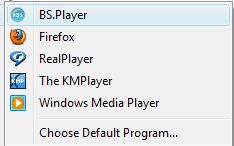
5 Multimedia players that I have are  (Ranks may differ person to person):
1. KMPlayer  

  1. First things its free and plays almost any video formats at its best. Takes very less space and runs audios/videos hassle free.

  2. Keyboard shortcuts make it very easy and comfortable to use. Its very user friendly too.
  3. The KMPlayer is a versatile media player which can cover various types of container format such as VCD, DVD, AVI, MKV, Ogg Theora, OGM, 3GP, MPEG-1/2/4, WMV, RealMedia, and QuickTime among others.
  4. It handles a wide range of subtitles and allows you to capture audio, video, and screenshots in many ways.
  5. Click here to download.   For more details about it, read our previous article on it.

2.   vlc logo VLC Multimedia Player

  1. It is also open source and latest VLC player also plays almost everything. But its not so user friendly like KMPlayer. After using it for few days, you may be habituated for it too.
  2. VLC comes with nearly every codec built in, so no need to update for codecs.
  3. It plays damaged files too! Which means Missing or broken pieces won’t stop VLC to play undamaged part of it.
  4. Its available for all Operating Systems which makes it most popular all over the computer users.
  5. You can download VLC Player from here.

3.  real player logo Real Player

  • a. If you use internet to watch videos, downloads audio/video files from youtube, apniisp etc then You might need Real Player too!
  • b. Very few players supports .rmvb.  It plays .flv, .mpeg, .avi and other various formats too
  • c. Real player is also available in all O.S. flavors and its available for free and for premius use too (paid one)
  • d. You can download videos, share through FB, youtube, twitter and can burn too!
  • e. For more details and to download this player Visit here

4.  wmp logo Windows Media Player

  • a. Most computer users would have windows Operating system by default and it contains WMP already. So people get used of it. WMP 11 is really cool and has really all features that other media players have.
  • b. A tree-style file directory makes it easy to find the music you want quickly, and a simple search box gets you where you want to go immediately.
  • c. A five-star rating system lets you rate your music, then organize it by rating, so it's easy to group your favorite songs
  • d. Download it for free from here

5.  bsplayer logo BS Player/Winamp/Jukebox

  1. I have used winamp, jukebox and BS Player too. BS Player is the newest one and winamp is all time favorite for listening audio songs.
  2. Winamp is available for android too. Its skin, and playing features can attract anyone to have it in their system.
  3. Download Winamp from here
  4. BSPLayer is very light, so don’t take much CPU space, downloads and saves subtitles automatically. Plays high resolution video smoothly. HD Laptop users should have it .
  5. Download BSPlayer from here.

SPEED UP UR ACROBAT READER (ALMOST LIKE NOTEPAD)

. Steps to follow:
1. Go to the installation folder of acrobat reader (C:\program files\adobe\acrobat7.0\reader\.. whatever)

2. Move all the files and folders from the "plug_ins" directory to the "Optional" directory. (I repeat.. cut and paste the files NOT copy & paste).

Also make sure that acrobat reader is not open else it will lock the files and not allow you to move the files). Now your acrobat reader will load very fast and almost as good as notepad.. enjoy it…….

Uncategorized

Multi yahoo messenger and google talk without any patch or any software!!!!

Multi yahoo messenger & google talk without any patch or any software!!!! Yahoo Messenger:
Follow these steps
1. Go to Start —-> Run . Type regedit, then enter .
2.Navigate to HKEY_CURRENT_USER ——–> Software —>yahoo —–>pager—->Test
3.On the right pane , right-click and choose new Dword value .
4.Rename it as Plural.
5.Double click and assign a decimal value of  1.

Restart It's done!! Now close registry and restart yahoo messenger .

For signing in with new id open another messenger.

Goolge Talk: Follow these steps:
1. Go to the properties of the google talk Start -> gtalk -> Right Click & select properties
2. Under "Target" change the last word with /nomutex that is in place of /startup u hav to write /nomutex thas it.

i.e Target:   "C:\Users\sujit\AppData\Roaming\Google\Google Talk\googletalk.exe" /startmenu 
It should be: Target:   "C:\Users\sujit\AppData\Roaming\Google\Google Talk\googletalk.exe" /nomutex

Your gtalk is now multi login. Enjoy!

The best multimedia player: KMPlayer (freeware)

The KMPlayer is a versatile media player which can cover various types of container format such as VCD, DVD, AVI, MKV, Ogg Theora, OGM, 3GP, MPEG-1/2/4, WMV, RealMedia, and QuickTime among others. It handles a wide range of subtitles and allows you to capture audio, video, and screenshots in many ways.

Lock folder without any software

Sooner or later, you may require an application to lock down your important folder. So, why not to lock and unlock folder without any application. Just follow few simple steps and your work will be done.folder-lock-logoSooner or later, you may require an application to lock down your important folder. So, why not to lock and unlock folder without any application.  Just follow few simple steps and your work will be done.

Method 1:

Step 1: open your favorite editor and type: ren foldername foldername.{21EC2020-3AEA-1069-A2DD-08002B30309D}

Step 2: Save it as lock.bat or whatever name you wish to give but .bat extension should be there.

Step 3: Open text editor again and type: ren  foldername.{21EC2020-3AEA-1069-A2DD-08002B30309D} foldername

Step 4: Save it as key.bat or whatever name you wish to give but .bat extension should be there. Now double click on lock.bat to lock “foldername” and double click on key.bat to unlock “foldername”. For ex: say my foldername is jassi then just replace the word foldername to jassi. At one time you can use lock and key batch file for locking one folder only.

Method 2:

As we saw in method 1, that only one folder will work at one time and if someone knows about key.bat, he/she can unlock that folder. So better to have .exe or .com .bat file which can lock or unlock  any folder at your wish with initialized password that only you would know.

Step 1:

Open your favorite editor and type:

cls @ECHO off title Folder Locker color A echo Which folder you want to lock or unlock? set/p "folder=>" if EXIST "%folder%.{21EC2020-3AEA-1069-A2DD-08002B30309D}" goto UNLOCK if NOT EXIST %folder% goto MDfolder :CONFIRM echo Are you sure u want to Lock the folder(Y/N) set/p "cho=>" if %cho%==Y goto LOCK if %cho%==y goto LOCK if %cho%==n goto END if %cho%==N goto END echo Invalid choice. sleep 1 cls goto CONFIRM :LOCK ren %folder% "%folder%.{21EC2020-3AEA-1069-A2DD-08002B30309D}" attrib +h +s "%folder%.{21EC2020-3AEA-1069-A2DD-08002B30309D}" cls color C echo Folder locked sleep 2 goto End :UNLOCK echo Enter password to Unlock folder set/p "password=>" if NOT %password%==jassi  goto FAIL attrib -h -s "%folder%.{21EC2020-3AEA-1069-A2DD-08002B30309D}" ren "%folder%.{21EC2020-3AEA-1069-A2DD-08002B30309D}" %folder% echo Folder Unlocked successfully sleep 2 goto End :FAIL cls color 4A echo Invalid password goto UNLOCK :MDfolder cls echo %folder% was not there so md %folder% echo %folder% created successfully sleep 2 :End

Step 2:

Save it as locker.bat or any name but be sure that extension is .bat and yeah before saving it change password according to your ease. Right now its jassi . Find that keyword and change as you wish. Now double click on locker.bat, one command prompt will come and will ask for folder to lock and unlock. If folder is not there it will create too. It will not unlock unless and until you give correct password.
Being .bat extension people may edit it so at that time you may wish to change it in .com or .exe extension. You can do that by downloading  Bat_To_Exe_Converter.exe which is free ofcourse.


Note: Main important thing to note here {21EC2020-3AEA-1069-A2DD-08002B30309D} , its  nothing just the address of control panel. So We renamed our folder as control panel destination, which means if you click on that locked folder now. It will open control panel. Hope you will enjoy it!!!

Hide and Prevent Access to drives using diskpart utility

dispart utilityAlthough there are many ways to hide your drive and to prevent access to your drives. Either by setting regedit value for NoDrives and  NoViewOnDrive  or by using some system settings.

But I found one built-in tool “DISKPART”.

1. Go to Start > run > type "diskpart". A DOS window will appear with following description. DISKPART>

2. Then type "list volume" The result will look like: 

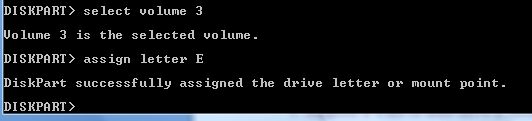
3. Suppose u want to hide drive E then type "select volume 3" Then a message will appear in same windows { Volume 3 is the selected volume}

4. Now type "remove letter E" Now a message will come { Diskpart Removed the Drive letter }
Sometime it requires the reboot the computer  or logoff and login will work. Diskpart will remove the letter. Now try to open that date even using at address bar. It will not open. Windows XP is not having capability to identify the unknown volume. Reassingning drive letters using dispartYour Data is safe now from all unauthorized users. Don’t worry it will not tamper any of your data.

To access the content of hidden Drive repeat the process mentioned above. But in 4th step replace “remove" to "assign" i.e. type "assign letter E" . Note: It will not work for drive which is having system files, boot files etc like C drive in most cases. And it works in Vista , XP too. Didn’t test in win 7 but I think it will work there also.

Ava Find: An alternate to windows search

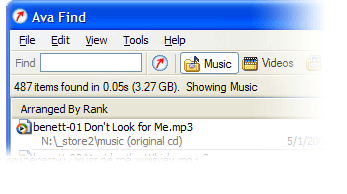
Ava FindHi friends, Have you ever noticed that searching any file on a clattered system is how tough through windows search mechanism? I feel irritated sometimes when windows search is on and on and after few minutes , saying that no match found. I have left even thinking that Windows is having such feature and i started using Ava Find 1.5. Its in my favorite application list now. Its fast searching features really amazed me. Some of its features are listed below:

  • Search without delay. (very very fast if its cached)
  • Searches accurately and will show you all the details you might want.
  • Scout Bot finds newly downloaded files automatically. You don’t even have to enter a search or have to refresh it again.
  • Browse Music/Videos/Programs etc folder at single click or you can select select all also.
  • Find documents you just saved: Suppose you forgot, where you have saved it. Not an issue at all if you have Ava Find. 🙂
  • Suppose you don’t the exact file name or folder name, no worries Ava Find does Advanced Name Search i.e. Match file names using * and ? wildcards.
  • Same right-click menu options are there for each file as it is in Windows Explorer.
  • Folders are shown with their sizes next to them. So, you need not to wait for windows properties to show their size.

Fair enough to use it freely or buy it. Ifs its Ava Find Pro then you can do network drive search also and if its free then you might not be able to do all right click stuffs too. You can use free version but after 30 days, it will disable few of the features that you may have in Pro. Its latest version is still 1.5 only Its of less than one MB in size. It costs 40 US Dollar approx. (can use trial version too.) You can download it from here Don’t forget to comment if you like this application.

Tool to get information about site: whois and whosip (for windows)

Hi friends, you might be using some whosip informationonline site to know the details about any ip address or website like ip-adress.com or whois.domaintools.com In Linux or Unix based O.S there is a utility call whois , if you are familiar with whois and wish to do the same operation in windows then you might find whois and whosip tools useful.

How to get work done on Windows:
Step 1: Download whois or whosip (or both ,depending upon your interest). These software will be in zip format.

Step 2:

  1. Make a folder anywhere in your PC, like C:/whois/
  2. go to that folder i.e. whois (here in example)
  3. extract any one of these or both (again on your interest)

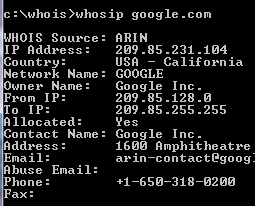
Step 3: open run command type cmd then go to c:/whois location and type whois domainname hostname(optional) or whosip domainname hostname (for summary) or whosip -r domainname (for detailed information)

Here domain name can be either website name or its IP address. Ex: whois google.com whosip google.com whosip -r google.com Note: the information that you will see through whois and whosip may differ What I observed from the output is whois <domain name> will give you the information about domain name whereas whosip <domain name> would give you the information about registrar where that domain name got registered etc. So, if you wish to know something about hostname use whois or if you wish to know where that domain name got registered and all then use whosip.


An alternative to winrar : 7-zip

compression softwareIn our day today life, we use at least one of the rar application  for sure. It may be used to compress your codes, files, movies, songs whatever it is.
Winrar seems bit popular in this area but it now freeware or open source application. And I get annoyed when I double click on any .rar files it open winrar application and says buy it or use trial version. Then I was trying to find better compression application than winrar and guess I got success in that.

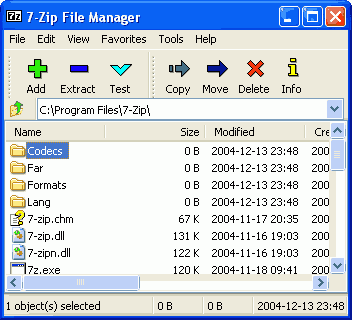
7-zip is the alternative to winrar or any compression application. It supports nearly all feasible format for your system. Its an open source software, so you can download it freely from  here (32 bit) and from here for 64 bit pc

  • It is of 1 MB size and supports near around 70 languages.
  • Its latest version is 9.13 in beta relaease and 4.65 under stable release
  • It supports under any windows platform like XP/Vista/ME/2000, hopefully it would work on 7 also
  • 7-Zip compresses to zip format 2-10% better than most of other zip compatible programs.
  • 7-Zip compresses to 7z format 30-70% better than to zip format

Compression ratio depends upon what you are  going to compress. Like if you are going to compress any .exe file then it will not compress much because its already compressed. Use it and revert back your feedback here.