CSS allow s us to define our own custom selectors also, which is known as ID and class selectors. IDs and classes are applied to (X)HTML elements as simple attributes that provide much tighter control over our design. Most of the time, we get confused IDs with classes, either failing to utilize the real purpose of each or simply using one instead of the other.
Let’s treat ID as identification, which is unique to you an is not shared with anyone else. A class is different, in that there can be many people in a class, be it at school, in society, or wherever. This translates to CSS where an ID can only be used once per page, whereas classescan be used an unlimited number of times.
Another Example could be Bar Code (class) and Serial Number (ID).
There are two kinds of selectors mainly in CSS: One is base selector like h1,h2, body, table or any existing HTML tags.
Such as the following rule which sets all paragraphs to red (font-color): p {color: #F00;}
CSS allows us to define our own custom selectors also, which is known as ID and class selectors. IDs and classes are applied to (X)HTML elements as simple attributes that provide much tighter control over our design. Most of the time, we get confused IDs with classes, either failing to utilize the real purpose of each or simply using one instead of the other.
Let’s treat ID as identification. Which s unique to you an is not shared with anyone else. A class is different, in that there can be many people in a class, be it at school, in society, or wherever. This translates to CSS where an ID can only be used once per page, whereas classescan be used an unlimited number of times. Another Example could be Bar Code (class) and Serial Number (ID).
IDs An ID can only be used once per page, and is a unique identifier to an element.
Typically, an ID is used for any unique page element such as the header, main navigation, footer, or other key part of the user interface. Applying an ID The most common way to apply an ID is to reference it in the (X)HTML using the id="name" attribute immediately after the opening tag within an element. In this case, our two IDs are named highlight and default, respectively, and are applied to two paragraphs:
<p id="pred">This paragraph has red text.</p>
<p id="default">This paragraph has dark gray text.</p>
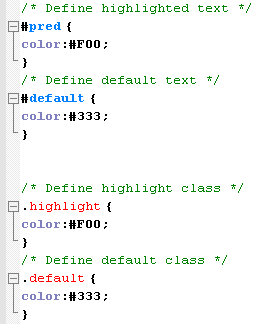
The corresponding CSS uses the hash (#) character to denote the rule is a unique ID. The hash is combined with the ID name to start the rule, followed by the property declarations:
/* Define highlighted text */

	#pred {color:#F00;}

	/* Define default text */

	#default {color:#333;}
Combining IDs with Selectors Existing or new IDs can be combined with selectors in the style sheet to add further control. In the following example, the base CSS defines all h2 headings as dark gray and 16 pixels in size: /* Basic heading style */ [code language="css"] h2 { color:#333; font-size:16px; } [/code] That is fine for most uses of <h2>, but let’s say the main <h2> on your page (the title of an article) needs to be emphasized with a different color. This calls for a new rule where the selector is defined in the form element#name:
/* Adjust the color of h2 when used as a title */

	h2#title { color:#F00; }
Here the new rule will override the default <h2> color (color: #333;) with red (color: #F00;) whenever an <h2> is identified with in the (X)HTML. The new rule does not redefine font-size, so that will be carried over and unchanged. Simply add the unique identifier to the page:
<h2 id="title">Title Of My Article</h2>
Remember that title is a unique identifier, so it cannot be used again within that template. Any other instances of <h2> on the page will be rendered with the default styling.
When to Use an ID
Only one element on each page can be styled by each unique ID, and therefore IDs should be reserved for unique, single-use elements such as a header or sidebar, or the main navigation or page footer. This makes scanning your markup easier, as all ID attributes will denote unique content areas or special regions of the page, while also providing greater flexibility for more complex CSS application
When to Avoid an ID
IDs must be avoided when there is more than one requirement for the CSS rule. Do not use an ID for anything you are likely to multiply in the future, such as multiple images, link styles, or paragraphs where more than one will need to be styled a particular way.
Class
A class can be used an infinite number of times per page, making it a very flexible method of applying CSS. A class defines an element as belonging to a group, or as a reusable object or style. Classes solve problems in the short term, but can provide less flexibility for more complicated CSS designs.
Applying Classes The most common way to apply a class is to reference it in the (X)HTML using a class="name"attribute of an element. As with our ID example, the two classes are named highlight (for red text) and default (for dark gray text):
<p class="highlight">This paragraph has red text.</p>

	<p class="default">This paragraph has dark gray text.</p>

	<p class="default">This paragraph also has dark gray text.</p>
Note that as the identifiers are classes, they can be used more than once, hence in the example two paragraphs have been identified as default, so will be styled the same way. That would not be acceptable if using IDs. The corresponding CSS uses a full stop (.) character to denote the rule is a reusable class. The full stop is combined with the class name to start the rule, followed by the property declarations:
 /* Define highlight class */

	.highlight {color:#F00;}

	/* Define default class */

	.default {color:#333;}
Combining IDs with Multiple Classes
Classes are especially useful when you wish to have control over a number of elements. Consider the following drinks list, the source code for which is available in the drinks.html file:
<ul id="drinks"> <li class="alcohol">Beer</li> <li class="alcohol">Spirits</li> <li class="mixer">Cola</li> <li class="mixer">Lemonade</li> <li class="hot">Tea</li> <li class="hot">Coffee</li> </ul>
Note first that the unordered list (<ul>) is given a unique ID. Thus, id="drinks" will not be used again on the page at any time, allowing that particular list to be styled uniquely. Note also that Beer and Spirits are within list elements defined with class="alcohol", Cola and Lemonade are within list elements defined with, and finally Tea and Coffee are defined in list elements with. This allows each drinks group to be treated individually. The CSS declares that the default text for that list will be red, so any list items without a class attribute will default to red text:
/* Drinks list styling */

	ul#drinks {color:#F00;}
Next, the classes for each drink type are defined with unique shades of gray for font color:
/* Define alcohol color */

	.alcohol {color:#333;}

	/* Define mixer color */

	.mixer {color:#999;}

	/* Define hot drinks color */

	.hot {color:#CCC;}
The result sees the list of items move through shades of gray (defined by the classes). Any further drinks added to the list can be assigned to a particular drinks group, such as <li>Wine</li>. Thus a logical color key is established using simple CSS classes.
Note: Before adding a class to an element, be sure that the element needs it. Too often web designers overuse classes when the (X)HTML is already providing more than enough hooks for the CSS. Make sure that the element cannot be targeted using a descendant selector or other method before opting for a class. This will help keep your code lean and make future redesigning much easier.
Overriding Base Styling with Classes Here is an example of base CSS rule that is being used to turn all paragraphs red declaring all instances of paragraphs red and add a class rule to the CSS that will bleach out any element it is identified with by turning text light gray:
/* Default styling for paragraphs */ p {color:#F00;font-size:12px;} /* Use this style to turn anything light gray */ .bleached {color:#CCC;}
All paragraphs will still be red by default, but this can still be overridden when necessary by identifying an element with the bleached class, as in this (X)HTML: <p>This paragraph has red text.</p> <p class="bleached">This paragraph has light gray text.</p> The second paragraph will now be light gray, as the color declaration in bleached overrides the red. Note that the paragraph is still rendered 12 pixels high, as bleached does not redefine font-size. Add a font-size declaration in bleached, and that value will override the original size for all paragraphs identified with.
Linking a Class Directly to an Element In this example, the CSS is constructed with the class attached directly to the element in the form element.classname, and like before, it is referenced using the class="classname" format within the (X)HTML.
/* Use this style to turn anything light gray */

	.bleached {color:#CCC;}

	/* Override the color of bleached when it identifies a paragraph */

	p.bleached {color:#000;}
This method would be used when the standard declaration for the bleached class needs to be overruled. For example, any element given a class of bleached will remain light gray (color:#CCC;), but any instances of paragraph elements with a class of bleached will be rendered black (color: #000;). This method is useful when numerous instances of a class are littering your (X)HTML, and it would be too difficult to remove them all manually. Instead, simply target that class when it identifies the element you need to change using the form element.classname.
When to Use a Class
As described previously, classes are a very flexible method for applying your CSS rules, and can be used again and again within a page. Use classes to control elements that belong to a group, for temporary items, and also to enhance the behavior of an ID.
When Not to Use a Class
It is not recommended that classes be used for main structural elements within a page, such as headers and main navigation, although they will work. Doing so would decrease the flexibility of your design and make further customization difficult without overhaul or extra markup. Also, be sure a class is needed, and make sure the element cannot be targeted by defining a rule for the existing (X)HTML before getting class-happy. Remember that a class is used for exceptions to normal styling, and not to define the standard.
Elements can have BOTH
There is nothing stopping you from having both an ID and a Class on a single element. In fact, it is often a very good idea. Take for example the default markup for a WordPress comment list item: <li id="comment-27299" class="comment"> It has a class applied to it that you may want for styling all comments on the page, but it also has a unique ID value (dynamically generated by WordPress, nicely enough). This ID value is useful for direct linking. Now I can link directly do a particular comment on a particular page easily.
CSS doesn’t care
Regarding CSS, there is nothing you can do with an ID that you can’t do with a Class and vice- versa. I remember when I was first learning CSS and I was having a problem, sometimes I would try and troubleshoot by switching around these values. Nope. CSS doesn’t care.
Javascript cares
JavaScript people are already probably more in tune with the differences between classes and ID’s. JavaScript depends on there being only one page element with any particular, or else the commonly used getElementById function wouldn’t be dependable. For those familiar with jQuery, you know how easy it is to add and remove classes to page elements. It is a native and built in function of jQuery. Notice how no such function exists for ID’s. It is not the responsibility of JavaScript to manipulate these values, it would cause more problems than it would be worth.
If you don’t need them, don’t use them (try to avoid using if possible)