Hi Alien Coders….its not an alien thing to write about cd. Yeah cd(change directory) not CD(Compact Disc) 😛 . Either you are working on Windows or Unix flavors O.S, the most easiest and usual command is cd, correct?
cd means change directory (as everyone knows) and its more powerful in Unix rather than Windows i guess. Window is having only cd path_of_the_diretory or cd .. but in Unix or specifically in Linux cd command is having lots of options. Lets explore one by one:
1. cd path_of_directory This command is used to enter into the directory whichever is specified either absolute or relative Ex: # cd /home/jaiswal/songs/audio/bollywood (absolute path) # cd songs/audio/bollywood (relative path when u r already at /home/jaiswal)
2.cd .. This command is used to move one step up form the current directory. If you are at /home/jaiswal/songs/audio/bollywood (keep it as a base of the examples) and want to move one directory up use cd .. Ex: # cd .. (now current directory will be /home/jaiswal/songs/audio) # cd ../../../movies (moved up three directories and entered into movies directory now i.e. /home/jaiswal/movies)
3. cd –This command comes very handy when you are working with files and one is at other directory and one is at another directory. For example: suppose one file is at /opt/bin/perl/codes and other is at /opt/bin/perl/modules/jaiswal/modules Now go to one directory using cd. Like cd /opt/bin/perl/codes then again type cd /opt/bin/perl/modules/jaiswal/modules and now use cd – You will be returned back to previous one which you used with cd. now use cd – as many time as you wish to switch over those two directories.
Ex:
# cd /opt/bin/perl/codes

# cd /opt/bin/perl/modules/jaiswal/modules

# cd - /opt/bin/perl/codes

# cd - /opt/bin/perl/modules/jaiswal/modules
Yes , you are right cd – is doing two work at a time.
1. Bringing back to previous used cd directory path and 2. also print the current directory path just like pwd
4. cd — or cd ~ or cd Yes all three commands will let you drive to user’s home directory most probably /home/user_name like /home/jaiswal ex: # cd — or cd ~ or cd (don’t write all three commands all together just i wrote. use any one if at one time buddy.) Windows have no such option as far as i have tried (if it is there let me know ) # pwd /home/jaiswal # I hope you will like it although even you know all these commands, you will find rarely any article on this which will explain like this. What say?
Runlevels are meant for specifying different configuration of running services. With the help of runlevel we can control the installed services.
Runlevels are also available in windows system but it is very complex to set in windows.
I know u guys are well familliar with various Windows Client like uTorrent, BitComet, Vuze etc etc, Transmission for Mac …And well yaa kTorrent for Linux Distros.
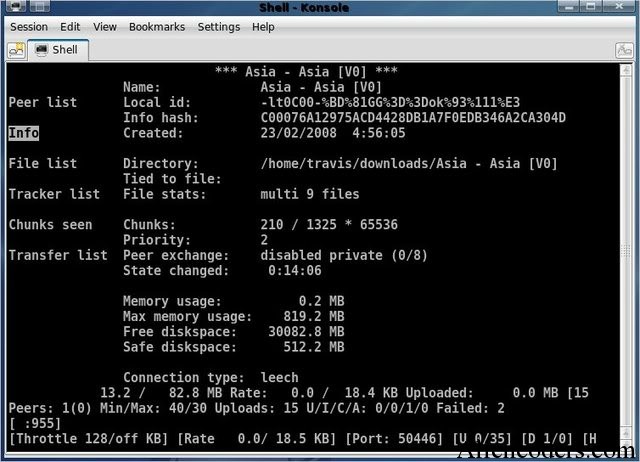
But Do u guys know about one great text based torrent client. rTorrent. This is the most popular torrent client used by hardcore uploaders with Seed Boxes. (More on Seed Boxes later) Just imagine running 100 torrents on a P4 machine with 0% CPU usage. Isnt that awsome?
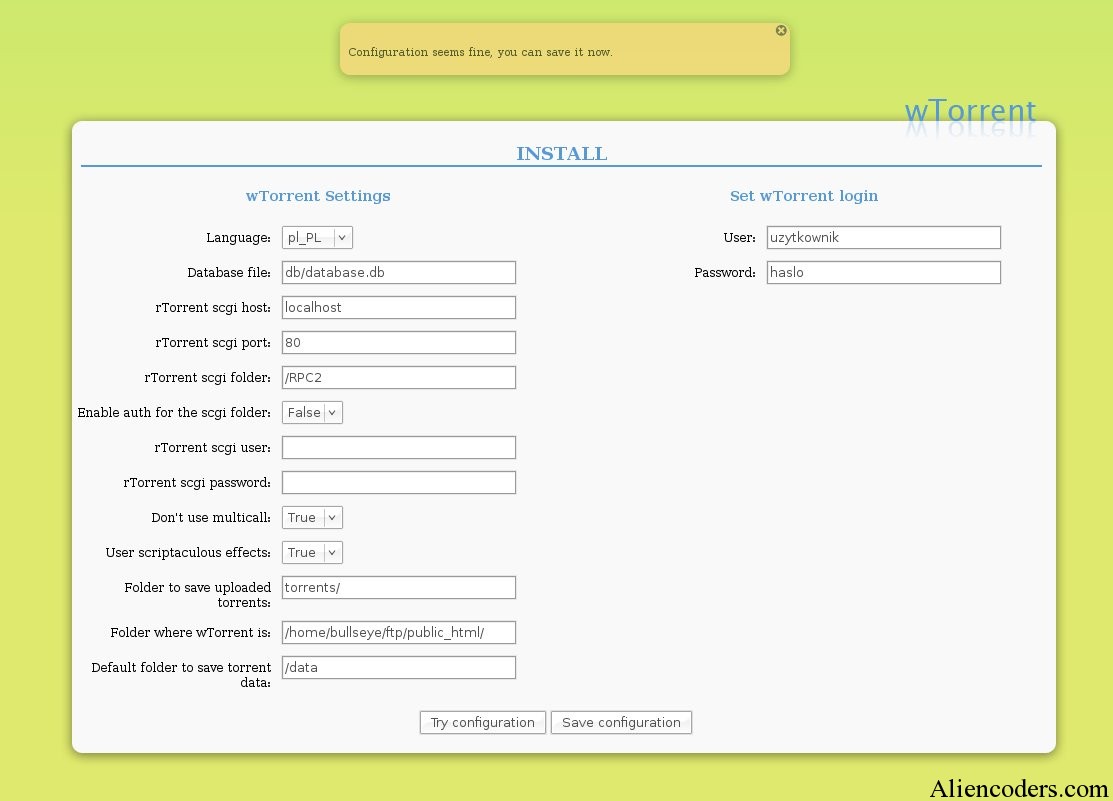
So lets start the tutorial For running rTorrent you will need a front end else you will need to perform different operations on torrent file using the konsole. There are many front ends available for rTorrent on internet e.g wTorrent, rtGUI, nTorrent etc etc. So How to set up rTorrent with xmlrpc and with wTorrent as front end ? Many other tutorials are ofcourse easily available for other distros like ubuntu and Debian. Here we go
-: Dependencies and pre-requisite:-
First of all we need to install various dependencies
gcc(GNU C Compiler) g++(GNU C++ Compiler) automake libsigc++20-devel libopenssl libopenssl-devel libtool ncurses-devel subversion libcurl libcurl-devel texinfo
for installing all these dependencies you can use
sudo zypper install <packae name>
If u want to search for a specific package and choose then use
sudo zypper se <package name>
This will display a list of names of packages matching your search name. If on any step you find that you are missing something you can always use
cnf <missingfunction>
It will tell whaether it is available on your system or not and what packages are required for that specifically missing e.g Suppose make is missing then use
cnf make
It will tell you either the exact path(if it is installed) or what packages are required for this and will suggest u like try
zypper install thispackage
Get the xmlrpc package from its svn repository, compile, configure and install it. on bash
(If executing ./autogen.sh gives error please check for what reason the error is coming. If its lacking some packages like aclocal not found, make not found, makeinfo not found etc etc, Use cnf functionality and see if you have required packages if you are missing any please install it using zypper.)
./configure –enable-tools –prefix=/usr/local make make install
or u can also run all at once by using
./configure –enable-tools –prefix=/usr/local && make && make install
-: rTorrent compilation :- Download the latest rTorrent packages from Index of /downloads type on bash
cd .. mkdir rtorrent cd rtorrent svn co svn://rakshasa.no/libtorrent/trunk svn up cd trunk cd libtorrent ./autogen.sh ./configure –prefix=/usr/local && make && make install cd ../rtorrent (Change it to rtorrent directory) PKG_CONFIG_PATH=/usr/local/lib/pkgconfig/ ./configure –with-xmlrpc-c && make && make install
After these steps your rtorrent will e ready to run but wait you still need .rtorrent.rc file in your home directory. Contents of my .rtorrent.rc is below.
scgi_port = localhost:5000 # Move completed torrents to /home/rt/torrents/done/ on_finished = move_complete,"execute=mv,-u,$d.get_base_path=,/Maxtor/rtorrent/done/ ;d.set_directory=/Maxtor/rtorrent/done/" # Maximum and minimum number of peers to connect to per torrent. #min_peers = 40 #max_peers = 100 # Same as above but for seeding completed torrents (-1 = same as downloading) #min_peers_seed = 10 #max_peers_seed = 50 # Maximum number of simultanious uploads per torrent. #max_uploads = 15 # Global upload and download rate in KiB. "0" for unlimited. #download_rate = 0 #upload_rate = 0 # Default directory to save the downloaded torrents. directory = /Maxtor/rtorrent/doing # Default session directory. Make sure you don't run multiple instance # of rtorrent using the same session directory. Perhaps using a # relative path? session = /home/deshbandhu/.rtsession # Watch a directory for new torrents, and stop those that have been # deleted. schedule = watch_directory,5,5,load_start=/Maxtor/rtorrent/watch/*.torrent schedule = untied_directory,5,5,stop_untied= # Close torrents when diskspace is low. #schedule = low_diskspace,5,60,close_low_diskspace=100M # Stop torrents when reaching upload ratio in percent, # when also reaching total upload in bytes, or when # reaching final upload ratio in percent. # example: stop at ratio 2.0 with at least 200 MB uploaded, or else ratio 20.0 #schedule = ratio,60,60,"stop_on_ratio=200,200M,2000" # The ip address reported to the tracker. #ip = 127.0.0.1 #ip = rakshasa.no # The ip address the listening socket and outgoing connections is # bound to. #bind = 127.0.0.1 #bind = rakshasa.no # Port range to use for listening. port_range = 45000-50000 # Start opening ports at a random position within the port range. #port_random = no # Check hash for finished torrents. Might be usefull until the bug is # fixed that causes lack of diskspace not to be properly reported. #check_hash = no # Set whetever the client should try to connect to UDP trackers. #use_udp_trackers = yes # Alternative calls to bind and ip that should handle dynamic ip's. #schedule = ip_tick,0,1800,ip=rakshasa #schedule = bind_tick,0,1800,bind=rakshasa # Encryption options, set to none (default) or any combination of the following: # allow_incoming, try_outgoing, require, require_RC4, enable_retry, prefer_plaintext # # The example value allows incoming encrypted connections, starts unencrypted # outgoing connections but retries with encryption if they fail, preferring # plaintext to RC4 encryption after the encrypted handshake # # encryption = allow_incoming,enable_retry,prefer_plaintext # Enable DHT support for trackerless torrents or when all trackers are down. # May be set to "disable" (completely disable DHT), "off" (do not start DHT), # "auto" (start and stop DHT as needed), or "on" (start DHT immediately). # The default is "off". For DHT to work, a session directory must be defined. # # dht = auto # UDP port to use for DHT. # # dht_port = 6881 # Enable peer exchange (for torrents not marked private) # # peer_exchange = yes # # Do not modify the following parameters unless you know what you're doing. # # Hash read-ahead controls how many MB to request the kernel to read # ahead. If the value is too low the disk may not be fully utilized, # while if too high the kernel might not be able to keep the read # pages in memory thus end up trashing. #hash_read_ahead = 10 # Interval between attempts to check the hash, in milliseconds. #hash_interval = 100 # Number of attempts to check the hash while using the mincore status, # before forcing. Overworked systems might need lower values to get a # decent hash checking rate. #hash_max_tries = 10
Change the name of directories as per your choice. Please check that your .rtorrnt.rc file contains
scgi_port = localhost:5000
You can use what ever port you want to use
-:Setting up Webserver for wTorrent with scgi support :-
I will use lampp Get lampp servers and untar them to /opt
After this do the following cd to the directory where you downloaded this tarball an execute the following.
tar zxfv scgi-1.12.tar.gz cd scgi-1.12 cd apache2 /opt/lampp/bin/apxs -i -c mod_scgi.c
Now we need to edit Apche config file a little so let us go to its directories
cd /opt/lampp/etc vi httpd.conf
Now find the sequence of lines where modules are being loaded Append another load module directive
LoadModule scgi_module modules/mod_scgi.so
After adding this navigate to the end of the file and adding
SCGIMount /RPC2 127.0.0.1:5000
Note that here you have to use the same port as specified in .rtorrent.rc If U have used 5000 as me then use 5000 here else you should use your own specific port.
-: Seting up wTorrent :-
Download latest wTorrent from its svn repository. On bash write
cd /opt/lampp/htdocs svn co svn://wtorrent-project.org/repos/trunk/wtorrent/
Now change the ownership of wtorrent directory by using
If you are confused with the server user and group then plz do the following On Bash
vi /opt/lampp/etc/httpd.conf
find the server user and group and change the user to your user name (not root) and change the group name to users and then change the permission of wtorrent directory. e.g. Suppose for me
server user = deshbandhu server group= users
then I will use the command
chown -R deshbandhu.users /opt/lampp/htdocs/
Now start lampp
/opt/lampp/lampp start
It ill start Apche with ssl, MySQL, Phpmyadmin by default but if you want to start simply apache
/opt/lampp/lampp startapache
Start rtorrent in its screen
su <username> -c 'screen -d -m rtorrent'
e.g. I use
su deshbandhu -c 'screen -d -m rtorrent'
It will ask for yuor password , enter it . If u suspect that rtorrent is not running check
netstat -lnp |grep 5000
It should return some result else if it does not then open a terminal and simply write
rtorrent
Whoa !!!!! rTorrent and wTorrent is set up now. But U need to create accounts for wtorrent. For this Open mozilla go to
Gnu Privacy Guard or GnuPG or popularly known as GPG is a GPL Licensed alternative to PGP (Pretty Good Privacy) and its openPGP complaint program for *nix people based on rfc 4880. It is part of GNU software project started in 1991 by Werner Koch and majorly funded by German Government. Download its pdf format from here.
Its basic use is to send encrypted mails or files to the recipient who can decrypt these using its private key. It is based on public and private key mechanism for encryption/decryption. We can encrypt any of our data using our own key pair and send it to the person who can read the message if he has the proper key to decrypt it! Many people use public key generated by gpg to verify his email signature too!
It uses following algorithm for various purposes used for safe message communication:
Pubkey: RSA, RSA-E, RSA-S, ELG-E, DSA
Cipher: 3DES, CAST5, BLOWFISH, AES, AES192, AES256, TWOFISH
Hash: MD5, SHA1, RIPEMD160, SHA256, SHA384, SHA512, SHA224
Compression: Uncompressed, ZIP, ZLIB, BZIP2
Why GPG?
Because it is free and meant to be a replacement of PGP.
Gpg is a CLI program but there are many GUI also through which you can manage keys easily like seahorse for GNOME (yum install seahorse) and KGpg for KDE.
It allows you to encrypt and sign your data, includes a key management system as well as access modules for all kind of public key directories.
If you wish to encrypt your message while sending mail to someone important, you may try this method.
You can share your public key and other users can download it to verify signature in mails/files sent by you for authenticity. It would stop social engineering through email even would stop spams send in the name of your friend’s id.
Applications of GPG
GPG encryption has been added to graphical email client like Evolution for email security.
There is a GNOME front-end application for managing PGP and SSH keys called “Seahorse” which integrates with Nautilus, gedit and Evolution too for encryption, decryption etc.
Enigmail is a data encryption/decryption extension for Mozilla Thunderbird and the SeaMonkey which uses GPG
Mozilla Firefox also gets GPG enabled using Enigform.
GnuPG is being used for Windows Explorer and Outlook through GPG4win tool which are wrapped in the standard Windows installer to make GnuPG easier to get installed and to be used in Windows systems.
It uses hybrid encryption techniques i.e. it uses a combination of symmetric key cryptography for speed and public-key cryptography for easy secured key exchange. By default GnuPG uses the CAST5 symmetrical algorithm.
As a matter of fact, GnuPG does not use patented or otherwise restricted software or algorithms. Instead, GnuPG uses a variety of other, non-patented algorithms.
It will be clearer that how GnuPG works once we see the working of gpg commands step by step:
Which version of gpg we are going to use?
gpg command to generate keys
Analysis of freshly created directory (.gnupg) and files inside it.
Once you get public and private key. You must keep private key safe, once you forget it then you will never be able to decrypt the data. So, better take private key backup.
Want to see the list of public and private keys?
Encrypt the message for specific recipient
Decrypt the encrypted message
GPG commands explained
Which version of gpg we are going to use?
[vim][sjaiswal@AlienCoders ~]$ gpg –version
gpg (GnuPG) 1.4.5
Copyright (C) 2006 Free Software Foundation, Inc.
This program comes with ABSOLUTELY NO WARRANTY.
This is free software, and you are welcome to redistribute it
under certain conditions. See the file COPYING for details.
[vim][sjaiswal@AlienCoders ~/gpg_test]$ gpg –gen-key
gpg (GnuPG) 1.4.5; Copyright (C) 2006 Free Software Foundation, Inc.
This program comes with ABSOLUTELY NO WARRANTY.
This is free software, and you are welcome to redistribute it
under certain conditions. See the file COPYING for details.
Please select what kind of key you want:
(1) DSA and Elgamal (default)
(2) DSA (sign only)
(5) RSA (sign only)
Your selection? 1
DSA keypair will have 1024 bits.
ELG-E keys may be between 1024 and 4096 bits long.
What keysize do you want? (2048) 4094
Requested keysize is 4094 bits
rounded up to 4096 bits
Please specify how long the key should be valid.
0 = key does not expire
<n> = key expires in n days
<n>w = key expires in n weeks
<n>m = key expires in n months
<n>y = key expires in n years
Key is valid for? (0) 3m
Key expires at Mon 03 Feb 2014 04:46:09 AM MST
Is this correct? (y/N) y
You need a user ID to identify your key; the software constructs the user ID
from the Real Name, Comment and Email Address in this form:
"Heinrich Heine (Der Dichter) <heinrichh@duesseldorf.de>"
Real name: Sanjeev Jaiswal
Email address: sjaiswal@gmail.com
Comment: "GPG Key Test"
You selected this USER-ID:
"Sanjeev Jaiswal ("GPG Key Test") <sjaiswal@gmail.com>"
Change (N)ame, (C)omment, (E)mail or (O)kay/(Q)uit? O
You need a Passphrase to protect your secret key.
We need to generate a lot of random bytes. It is a good idea to perform
some other action (type on the keyboard, move the mouse, utilize the
disks) during the prime generation; this gives the random number
generator a better chance to gain enough entropy.
.++++++++++.+++++++++++++++..+++++..++++++++++++++++++++.+++++++++++++++++++++++++.
+gpg: /home/sjaiswal/.gnupg/trustdb.gpg: trustdb created
gpg: key CBE9BE42 marked as ultimately trusted
public and secret key created and signed.
To generate keys using gpg, it would ask which kind of key you wish to use; you can choose any of the given option. Type 1 or 2 or 5.
Type the keysize between the given range
Then provide the expiration date of key. You can use days,weeks, months, years.
Once you are done with expiration days, use the next option carefully. Type Real name, Email and comment appropriately as it will be used while encrypting the data and will ask the recipient name. it will match recipient name before matching the keys.
Then type anything using keyboard, do mouse activities etc to speed up random generation of keys else it may take lot of time.
Once it will get created, .gnupg directory under your home directory will be there. Use ls to see what all files got created.
Analysis of freshly created directory (.gnupg) and files inside it
gpg.conf -> it contains all options set by you. Unless you specify which option file to use (with the command line option "–options filename"), GnuPG uses the file ~/.gnupg/gpg.conf by default. Check strings gpg.conf for more details.
pubring.gpg -> public key stored here. You should export it in ASCII format to send it to others.
pubring.gpg~ -> backup of public key
random_seed -> it contains all random keys used for encryption that you might be typing while generating keys.
secring.gpg -> it’s the secret key ring and one should keep it safe. Better have its backup
trustdb.gpg -> its trusted db which contains signatures, expiration date etc. and from time to time the trust database must be updated so that expired keys or signatures and the resulting changes in the Web of Trust can be tracked.
Normally, GnuPG will calculate when this is required and do it automatically.
Type the message and save it in text file, let’s say message.txt
[vim][sjaiswal@AlienCoders ~/.gnupg]$gpg recipient Sanjeev Jaiswal –encrypt message.txt
[/vim]
It will create message.txt.gpg , which is an encrypted file. To decrypt it, you need to type passphrase that you had typed while generating keys.
Or
[vim]gpg -r real-name –out secrets_to_aliencoders –encrypt secrets
[/vim]
which will have encrypted message in secrets_to_aliencoders
You need a passphrase to unlock the secret key for
user: "Sanjeev Jaiswal ("GPG Key Test") <sjaiswal@gmail.com>"
4096-bit ELG-E key, ID 38765DB9, created 2013-11-05 (main key ID CBE9BE42)
gpg: encrypted with 4096-bit ELG-E key, ID 38765DB9, created 2013-11-05
"Sanjeev Jaiswal ("GPG Key Test") <sjaiswal@gmail.com>"
Hi
This is Sabnjeev
Or
[vim][sjaiswal@AlienCoders ~/.gnupg]$ gpg –output secrets_from_tom –decrypt secrets_to_aliencoders
[/vim]
Which would save the decrypted message in secrets_from_sanjeev
Editing Key
[vim]gpg –edit-key sjaiswal@gmail.com
[/vim]
There is more:
Photo IDs
GnuPG has the ability to add a photo ID to a public key, exactly as in recent Windows versions of PGP. A photo ID attached to a public key can help other users to identify the owner of the key. To add a photo ID to your own public key, use the command "gpg –edit-key <name>" and then enter "addphoto". GnuPG will ask for the filename of a suitable JPEG. No other types of image files can be used.
If you want to see a photo ID on a particular key, enter the command "–show-photos" before using the command "gpg –list-keys <name>". If <name> is omitted, GnuPG will display all the photos (if any) after listing all the keys in your public keyring. Alternatively, if you want photos to be displayed in all cases by default, you should uncomment the line "# show-photos" in the options file inside !GnuPGUser.
Output of trustdb
[vim][Sanjeev@AlienCoders]$ gpg –update-trustdb
gpg: 3 marginal(s) needed, 1 complete(s) needed, PGP trust model
gpg: depth: 0 valid: 1 signed: 7 trust: 0-, 0q, 0n, 0m, 0f, 1u
gpg: depth: 1 valid: 7 signed: 3 trust: 0-, 0q, 4n, 3m, 0f, 0u
gpg: the next trustdb check will be done on 2014-02-04
[/vim]
The first line shows you the actual trust policy used by your GnuPG installation, and which you can modify at your needs. It states that a key in your keyring is valid if it has been signed by at least 3 marginally trusted keys, or by at least one fully trusted key.
The second line describes the key of level 0, that is the key owned by you. It states that in your keyring you have one level zero key, which is signed by 7 keys. Furthermore among all the level zero keys, you have 0 of them for which you haven't yet evaluated the trust level. 0 of them are the keys for which you have no idea of which validity level to assign (q="I don't know or won't say"). You also have 0 keys that you do not trust at all (n="I do NOT trust"), 0 marginally trusted keys (m="I trust marginally"), 0 fully trusted keys (f="I trust fully") and 1 ultimately trusted keys (u="I trust ultimately").
The third line analyzes the keys of level 1 in your keyring. You have 7 fully valid keys, because you have personally signed them. Furthermore, among the keys that are stored in your keyring, you have 3 of them that are not signed directly by you, but are at least signed by one of the fully valid keys. The trust status counters have the same meaning of the ones in the second line. This time you have 4 keys signed by you but for which you do not trust at all the owner as signer of third party's keys. On the other side, 3 of the 7 keys that you have signed are marginally trusted. This means that you are only marginally confident that the owners of those keys can verify well the keys that they sign.
[vim][Sanjeev@AlienCoders]$ gpg –check-trustdb
gpg: 3 marginal(s) needed, 1 complete(s) needed, PGP trust model
gpg: depth: 0 valid: 1 signed: 7 trust: 0-, 0q, 0n, 0m, 0f, 1u
gpg: next trustdb check due at 2014-02-04
[/vim]
If you wish to know other commands that you may use using gpg then try
[vim]man gpg
[/vim] or
[vim]gpg –help
[/vim]
 Hi Alien Coders….its not an alien thing to write about cd. Yeah cd(change directory) not CD(Compact Disc) 😛 . Either you are working on Windows or Unix flavors O.S, the most easiest and usual command is cd, correct?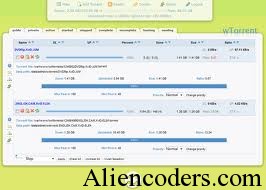


Visitor Rating: 5 Stars