Internet Transfer speed (MBps vs Mbps or MBps vs mbps)

.MBps is an abbreviation for Megabytes per second, whereas mbps and Mbps are abbreviations for megabits per second. Eight megabits equal one Megabyte. These abbreviations are commonly used to specify how much data can be transferred per second between two points.

To put megabits and Megabytes in perspective, lets back up for just a moment. One bit of data is a single “on” or “off” digit, a one or zero. It takes eight bits to represent a single character, or one byte of data. * 8 bits = 1 byte * 1000 bytes = 8 kilobits (kb) = 1 Kilobyte (KB) * 1000 Kilobytes (KB) = 8 megabits (mb) = 1 Megabyte (MB)

We must also translate speed to value when considering Internet service plans, advertised by download and upload speeds expressed in kilobits per second (kbps) or megabits per second.

For example, a typical Digital Subscriber Line (DSL) plan might have an upper transfer limit of 1,500 kbps, which can also be expressed as 1.5 mbps. A cable plan might be advertised with speeds up to 5,000 kbps or 5 mbps; and fiber optic Internet can reach speeds of 50 mbps or more.

Keep in mind that today all internet speed is coming in the multiple of Mega/Kilo bit per second(m/kbps), not in Mega/Kilo byte per second(M/KBps). For converting KB/s to kbps (bit rate from Byte values), the equation is basically as follows: <K> KiloBytes * 1,024 = <t> total Bytes <t> total Bytes * 8 = <b> bits <b> bits / 1,000 = <k> kilobits For example: 30 KB/s * 1,024 = 30,720 Bytes per second 30,720 Bytes per second * 8 = 245,760 bits per second 245,760 bits per second (bps) / 1,000 = (approximately) 246 kbps (245.8 kb/s)

And for kbps to KB/s (Byte values from bit rates), you switch the equations: <k> kilobits per second * 1,000= <b> total bits per second; <b> bits / 8 = <t> total Bytes per second; and <t> / 1,024 = <K> KiloBytes per second.

For example: 128 kbps (k) = 128,000 bits per second (k*1000=b) = 16,000 Bytes per second (b/8=t) , or about 15.6 KB/s (t/1,024=K) . So a 512\128 internet connection would give you about 62.5 KB/s maximum download, and about 15.6 KB/s upload (max). And a 1500\128 service (1.5 mbps download cap) would give you about 183.1 KiloBytes per second, maxium download and about 15.6 KB/s upload(max).

Note: "These are optimum bandwidths. Actual bandwidth may vary due to network traffic and and are not guaranteed. The difference between maximum speed and average speed can be especially large in wireless technology, or cable internet. The varying amount of data traffic on the Internet (and your own LAN, if applicable) and the condition of your computer equipment affect the speed of any connection at any given time." ;

"Keep in mind that [even with a 1.5 mbps connection] you will not normally see 1.5 megabits in a speed test … due to overhead the more commonly seen speed with this type of connection is in the neighborhood of 1200-1250."

Secure your PC – Online Banking : Essential Security Measures

Online banking is quite a handy way to keep track of your finances. You simply log on through your bank's website, and you can do things like set up standing orders, transfer money to people or other accounts, and order cheque books. Online banking also allows you to get financial deals that are just not on offer in the offline world. For convenience sake, you can't beat an online bank! However, this popularity of online banking has not gone unnoticed by the criminal fraternity. We'll show you some popular attacks on your money, and what you can do to prevent them.

Phishing

One of the most common ways that a criminal will attempt to part you with your money is through something known as Phishing. Phishing is pronounced FISH-ING. It's the Internet's equivalent of this popular sport. The fisherman is a criminal, the bait is usually an email that attempts to panic you into action, and the fish is you! The criminal will send out thousands of email using a list he got from a spammer. The email that is sent pretends to be from a bank. Let's call it the Wee Bank.

Most people the criminal sends the email to will not have an account with the Wee Bank. But some will. It's those few that he's after. In the email, you may be warned that your banking details need updating, and that it's essential that you act now to protect your account. They'll usually try to scare you into taking action. And there's always a link for you to click on. All you need to do is to click on the link and you'll be taken to a secure area where you can enter your details. If you click on any of these links, you'll be taken to a page that does indeed look like your bank's website. Except it's not.
One trick the criminal may use is to have an address that looks similar to your bank's.
Your real bank is this: Real Address Take a closer look at the address bar, though, and you may see something like this: Spoofed Address The address has been spoofed. The "w" is now "vv" – two V's and not one W. But some spoofed addresses are quite difficult to spot, and even fool the more experienced surfers. You need to look for other clues in your browser. One thing that all browsers will have are padlock icons. These are supposed to tell you that the site is using security measures. If you're using Internet Explorer 7, you'll see this to the right of the address bar:
Click on the padlock and you'll see information about the security certificate (the one in the image below is for 2checkout – a genuine source): Internet Explorer 7 Security Click the link that says View Certificates, and you'll see something like this: View Certificates Click the Details and


Certification Path tabs at the top. There should be plenty of details for you to view. Make sure the certificate has not expired. In the image above, the security certificate is from a good source, and it's still valid (at least, it was when this article was written). The Firefox browser has more visual clues than Internet Explorer. Notice the address bar from Firefox: The address bar will turn yellow on a secure site, and the padlock is just to the left of the blue down arrow. Firefox also has another padlock. Look in the bottom left and you'll see this: Double click the padlocks and you'll see the security certificate. Notice the name of the website to the left of the padlock.

This one is from a legitimate source – 2checkout.com One more thing to note. The address for a secure site normally starts with https. If the "s" is missing, it's not a secure site! A last word of warning, however: these visual clues have been know to be spoofed by the criminals!

If in doubt, remember this: You bank will NEVER send you an email asking for your login details! If you receive such an email, forward it to your bank. And DON'T click on the link! The same is true for other secure websites that hold your money – PayPal never send you emails asking you to confirm your details!

For a more detailed look at Phishing, there's an excellent Wikipedia article here: Phishing Article The latest versions of Firefox and Internet Explorer have anti-Phishing measures built in. You should make sure these are turned on when accessing secure websites. (In Internet Explorer 7, click Tools > Phishing Filter > Check this Website.)

Password Protection

We've all got passwords. In fact we've all got LOTS of passwords! We've got so many that it's become increasingly difficult to keep track of them all. Banking passwords are no different. But the recommendation is to keep changing each one every few months or so! Because the whole password process is cumbersome, some people have one password for all of the sites on the internet that ask for them. This is something you should NEVER do! You need a different password for each site.

The reason is simple – if a criminal has your password for one website, he's got them for all your sites – he could clean you out! The problem is, how do you remember them all? One technique for password creation is to take letters and numbers from a favourite song, saying, or something that's special to you. For example, a favourite song of yours may be "happy birthday to you"!

To turn this into a password, take the initial letters of each word. You'd then have this: hbty Not very secure, but easy to remember. Let's complicate it a bit, by adding some capitals: HBty Slightly more secure. Let's add a number: HB2y Getting better. How about a non alpha-numeric character? HB_2y Adding non alpha-numeric character helps password security enormously. Let's make the password longer by singing Happy Birthday to Home and Learn: HB_2y_HBdhAL Now, not only is the password longer, but it has a mix of numbers, lowercase and uppercase letters, and non alpha-numeric character. This makes it more secure, and harder for criminals to guess. (The password is now "Happy Birthday to you. Happy Birthday dear Home and Learn".) A password like this is also easier for you to remember.

Passwords should never be just four characters long! The reason is that criminals may have password-cracking software. Using such software, short passwords can be cracked in no time at all. Use at least 8 characters. Duke University have a good page here that tells you how long it would take to crack a password of up to 8 characters. The amount of time needed to crack a password rises dramatically: Duke University Password Information

You and Your PC

You should never log in to your bank account using somebody else's computer. Simply because you have no idea what security measures they take, and whether or not the computer is infected. Internet cafes are also not somewhere you should be entering security information. In an internet cafe, all the data you enter is logged and saved by the owners (they may be forced to do this by law). You can never be sure that your data is safe from prying eyes. Also, what if you forget to log out properly?

The next person who uses the computer could see all of your details, and have access to your bank account! The only place you should be entering your bank details are from your own PC. Of course, you need to make sure that your own computer is safe from infection, and take sensible security measures when it comes to the emails you receive. Follow the suggesting on our site and your PC will be just that much more secure than it was yesterday! Source: http://www.homeandlearn.co.uk/BC/bcs5p7.html

Download Indian Rupee Font for Free

Want to download the Indian Rupee symbol font and test drive it on your computer? Thanks to Foradian Technologies, you can do just that. Although it would take time for the Indian Rupee (INR) symbol (approved by the Indian cabinet) to find its way in PC and laptop keyboards, mobile phone keypads, and other computing devices, Foradian Technologies has wasted no time in giving users an early glimpse into how the Indian Rupee font will look on the PC.

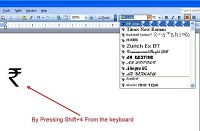
Download the TrueType Font (.ttf) for the Indian Rupee Symbol from Foradian Technologies' website for free and give it a try. By default, the Indian Rupee font is mapped to the grave accent (`) symbol on your PC's keyboard and you can use the Indian currency font immediately after installing it — just drag the Rupee font to Windows' Font folder.

The website also has an installation tutorial in case you need help installing the Indian Rupee font. The font works well, to say the least, and looks good. Check out and download the latest version of the free Indian Rupee font.

Brief introduction on Computer Virus

Virus imageWhat is a Virus?
A virus is a self replicating code that produces its own code by attaching copies of itself into other executable codes and operates without the knowledge or desire of a computer user. Virus was discovered in early 1980s. Viruses require human activity such as booting a computer, executing an autorun on a CD, or opening an email attachment.

In day today life most of computers get attacked or infected with the viruses or worms. 4% attacks are due to viruses and worms are reported,  rest are due to human error (53%) and so on. But that 53% also includes viruses and worms which get attached to our system due to human error. So, whatever be the matter , every computer user should at least know the basics of viruses and worms and how one can try to avoid such stuffs from the system.

There are three basic ways viruses propagate through the computer world: Master boot record: This is the original method of attack.. It works by attacking the master boot record of floppy disks or the hard drive. This was effective in the days when everyone passed around floppy disks.

  • Document Virus: A slightly newer form of virus that relies on the user to execute the file.. Extensions, such as .com and .exe, are typically used. Some form of social engineering is normally used to get the user to execute the program. Techniques include renaming the program or trying to mask the .exe extension and make it appear as a graphic or .bmp.
  • Macro Virus: The most modern type of virus began appearing in the 1990s. Macro viruses exploit scripting services installed on your computer. Most of you probably remember the I Love You virus, a prime example of a macro infector.

Viruses must place their payload somewhere so that  they can overwrite a portion of the infected file. Most virus writers want to avoid detection for as long as possible One way the virus writer can accomplish this is to place the virus code either at the beginning or end of the infected file. 

Prependers infect programs by placing their viral code at the beginning of the infected file. Appenders infect files by placing their code at the end of the infected file.. This leaves the file intact while the malicious code is added to the beginning or end of the file or append at both sides.

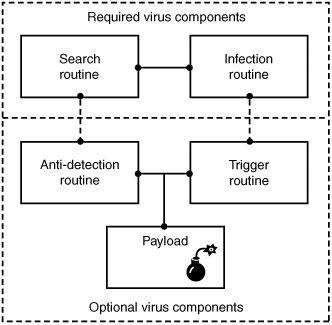
Component/Working of a Virus: Working of VirusViruses that can spread without human intervention are known as worms. ->The search routine is responsible for locating new files, disk space, or RAM to infect -> Infection Routine is responsible for copying the virus and attaching it to a suitable host. ->Trigger Routine: is to launch the pay-load at a given date and time. The trigger can be set to perform a given action at a given time.

Characteristics of Virus

  • Virus resides in the memory and replicates itself.
  • It does not reside in the memory after completing its task
  • It may transform itself into other programs to hide its identity

Reason for the creation of Viruses:

  • It may be created for research purpose
  • May be to play pranks with friend and foes what we usually do J
  • Someone may intentionally wish to harm others computer i.e. vandalism
  • To gain over some companies content for financial or threat purpose i.e extortion
  • To have an eye over the people say in a computer lab or on any product distribution i.e Spyware.
  • For spreading threats and terrors at the people through internet by thefting others identity and misusing that and many more may be the reason.

Symptoms that computer get an attack

  • System will work in unmannered way
  • Process may take more time that its expected.
  • floppy drive or disk drive suddenly get opened
  • Hang up at the starting time.
  • Computer name gets changed.
  • Drive names get changed
  • Firefox or other browsers not working properly
  • Getting sudden restart or freezes fast on warning
  • Other gets vulgar messages what you have not sent to them and so on.

Basic Difference between Virus  and worm:

  • A worm is a special kind of virus that can replicate itself and use memory, but don’t attach itself to other programs what a virus does.
  • A worm spread through the infected network automatically but virus does not.

Types of Viruses:

What they infect

  • Boot virus: infects disk boot sectors and records.
  • File Virus: infects executables files in OS file system.
  • Macro Virus: infects documents, data sheets etc like word, excel
  • Network Virus: spread through email using command and protocols of computer network.
  • Source Code Virus: override host codes by adding Trojan code in it

How they infect

  • Parasitic Virus: attach itself to executable files and replicates itself
  • Memory resident Virus: resides and do changes in main memory
  • Stealth Virus: which can hide itself from anti-virus programs
  • Polymorphic Virus: A virus that mutates and changes accordingly.
  • Cavity Virus: overwrites a host file with constant null but with the same size and functionality
  • Famous Viruses and Worms: I love you which is a win-32 email based worm
  • Melissa Virus: it’s a Microsoft word macro virus
  • JS.spth: It’s a JavaScript internet worm which spreads through e-mail, p2p networks etc.
  • Klez virus: its an email attachment that automatically runs when viewed with MS word and uses its own SMTP engine to spread mail
  • Slammer/Sapphire worm: it was the fastest worm in history which doubles itself within 9 seconds. others are top rated viruses in 2008 detnat,  netsky,  mytob , bagle, mywife, virut, Zafi, mydoom, Lovegate and bagz.

Always remember Prevention is better than cure so don’t accept strange files, don’t do double click on everything, try to check file’s extension and learn little bit batch file commands.

Install good antivirus(Nod32, AVG, McAfee, Bitdefender , Kaspersky etc.) and regulary scan your whole sytem, always try to check processes and all.

For more information check Wikipedia, howstuffsworks.com , Ec-council CEH guide and don’t forget to google to get latest news and stuffs related to this topic. This was just an introduction!

ID vs Class in CSS

CSS allowClass vs ID in CSSs us to define our own custom selectors also, which is known as ID and class selectors. IDs and classes are applied to (X)HTML elements as simple attributes that provide much tighter control over our design. Most of the time, we get confused IDs with classes, either failing to utilize the real purpose of each or simply using one instead of the other.

Let’s treat ID as identification, which is unique to you an is not shared with anyone else. A class is different, in that there can be many people in a class, be it at school, in society, or wherever. This translates to CSS where an ID can only be used once per page, whereas classescan be used an unlimited number of times.

Another Example could be Bar Code (class) and Serial Number (ID).

There are two kinds of selectors mainly in CSS: One is base selector like h1,h2, body, table or any existing HTML tags.
Such as the following rule which sets all paragraphs to red (font-color): p {color: #F00;}

CSS allows us to define our own custom selectors also, which is known as ID and class selectors. IDs and classes are applied to (X)HTML elements as simple attributes that provide much tighter control over  our design. Most  of the  time, we get  confused IDs with classes, either failing to utilize the real purpose of each or simply using one instead of the other.

Let’s  treat ID as identification. Which s unique to you an is not shared with anyone else. A class is different, in that there can be many people in a class, be it at school, in society, or wherever. This translates to CSS where an ID can only be used once per page, whereas classescan be used an unlimited number of times. Another Example could be Bar Code (class) and Serial Number (ID).

IDs An ID can only be used once per page, and is a unique identifier to an element.
Typically, an ID is used for any unique page element such as the header, main navigation, footer, or other key part of the user interface. Applying an ID The most common way to apply an ID is to reference it in the (X)HTML using the id="name" attribute immediately after the opening tag within an element. In this case, our two IDs are named highlight and default, respectively, and are applied to two paragraphs:

<p id="pred">This paragraph has red text.</p>
<p id="default">This paragraph has dark gray text.</p>

The corresponding CSS uses the hash (#) character to denote the rule is a unique ID. The hash is combined with the ID name to start the rule, followed by the property declarations:

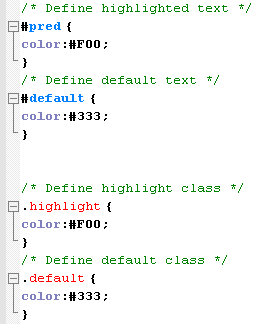
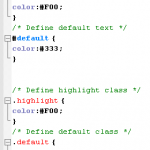
/* Define highlighted text */
#pred {color:#F00;}
/* Define default text */
#default {color:#333;}

Combining IDs with Selectors Existing or new IDs can be combined with selectors in the style sheet to add further control. In the following example, the base CSS defines all h2 headings as dark gray and 16 pixels in size: /* Basic heading style */ [code language="css"] h2 { color:#333; font-size:16px; } [/code] That is fine for most uses of <h2>, but let’s say the main <h2> on your page (the title of an article) needs to be emphasized with a different color. This calls for a new rule where the selector is defined in the form element#name:

/* Adjust the color of h2 when used as a title */
h2#title { color:#F00; }

Here the new rule will override the default <h2> color (color: #333;) with red (color: #F00;) whenever an <h2> is identified with in the (X)HTML. The new rule does not redefine font-size, so that will be carried over and unchanged. Simply add the unique identifier to the page:

<h2 id="title">Title Of My Article</h2>

Remember that title is a unique identifier, so it cannot be used again within that template. Any other instances of <h2> on the page will be rendered with the default styling.

When to Use an ID
Only one element on each page can be styled by each unique ID, and therefore IDs should be reserved for unique, single-use elements such as a header or sidebar, or the main navigation or page footer. This makes scanning your markup easier, as all ID attributes will denote unique content areas or special regions of the page, while also providing greater flexibility for more complex CSS application

When to Avoid an ID
IDs must be avoided when there is more than one requirement for the CSS rule. Do not use an ID for anything you are likely to multiply in the future, such as multiple images, link styles, or paragraphs where more than one will need to be styled a particular way.

Class
A class can be used an infinite number of times per page, making it a very flexible method of applying CSS. A class defines an element as belonging to a group, or as a reusable object or style. Classes solve problems in the short term, but can provide less flexibility for more complicated CSS designs.

Applying Classes The most common way to apply a class is to reference it in the (X)HTML using a class="name"attribute of an element. As with our ID example, the two classes are named highlight (for red text) and default (for dark gray text):

<p class="highlight">This paragraph has red text.</p>
<p class="default">This paragraph has dark gray text.</p>
<p class="default">This paragraph also has dark gray text.</p>

Note that as the identifiers are classes, they can be used more than once, hence in the example two paragraphs have been identified as default, so will be styled the same way. That would not be acceptable if using IDs. The corresponding CSS uses a full stop (.) character to denote the rule is a reusable class. The full stop is combined with the class name to start the rule, followed by the property declarations:

 /* Define highlight class */
.highlight {color:#F00;}
/* Define default class */
.default {color:#333;}

Combining IDs with Multiple Classes
Classes are especially useful when you wish to have control over a number of elements. Consider the following drinks list, the source code for which is available in the drinks.html file:

<ul id="drinks"> <li class="alcohol">Beer</li> <li class="alcohol">Spirits</li> <li class="mixer">Cola</li> <li class="mixer">Lemonade</li> <li class="hot">Tea</li> <li class="hot">Coffee</li> </ul>

Note first that the unordered list (<ul>) is given a unique ID. Thus, id="drinks" will not be used again on the page at any time, allowing that particular list to be styled uniquely. Note also that Beer and Spirits are within list elements defined with class="alcohol", Cola and Lemonade are within list elements defined with, and finally Tea and Coffee are defined in list elements with. This allows each drinks group to be treated individually. The CSS declares that the default text for that list will be red, so any list items without a class attribute will default to red text:

/* Drinks list styling */
ul#drinks {color:#F00;}

Next, the classes for each drink type are defined with unique shades of gray for font color:

/* Define alcohol color */
.alcohol {color:#333;}
/* Define mixer color */
.mixer {color:#999;}
/* Define hot drinks color */
.hot {color:#CCC;}

The result sees the list of items move through shades of gray (defined by the classes). Any further drinks added to the list can be assigned to a particular drinks group, such as <li>Wine</li>. Thus a logical color key is established using simple CSS classes.

Note: Before adding a class to an element, be sure that the element needs it. Too often web designers overuse classes when the (X)HTML is already providing more than enough hooks for the CSS. Make sure that the element cannot be targeted using a descendant selector or other method before opting for a class. This will help keep your code lean and make future redesigning much easier.

Overriding Base Styling with Classes Here is an example of base CSS rule that is being  used to turn all paragraphs red declaring all instances of paragraphs red and  add a class rule to the CSS that will bleach out any element it is identified with by turning text light gray:

/* Default styling for paragraphs */ p {color:#F00;font-size:12px;} /* Use this style to turn anything light gray */ .bleached {color:#CCC;}

All paragraphs will still be red by default, but this can still be overridden when necessary by identifying an element with the bleached class, as in this (X)HTML: <p>This paragraph has red text.</p> <p class="bleached">This paragraph has light gray text.</p> The second paragraph will now be light gray, as the color declaration in bleached overrides the red. Note that the paragraph is still rendered 12 pixels high, as bleached does not redefine font-size. Add a font-size declaration in bleached, and that value will override the original size for all paragraphs identified with.

Linking a Class Directly to an Element In this example, the CSS is constructed with the class attached directly to the element in the form element.classname, and like before, it is referenced using the class="classname" format within the (X)HTML.

/* Use this style to turn anything light gray */
.bleached {color:#CCC;}
/* Override the color of bleached when it identifies a paragraph */
p.bleached {color:#000;}

This method would be used when the standard declaration for the bleached class needs to be overruled. For example, any element given a class of bleached will remain light gray (color:#CCC;), but any instances of paragraph elements with a class of bleached will be rendered black (color: #000;). This method is useful when numerous instances of a class are littering your (X)HTML, and it would be too difficult to remove them all manually. Instead, simply target that class when it identifies the element you need to change using the form element.classname.

When to Use a Class
As described previously, classes are a very flexible method for applying your CSS rules, and can be used again and again within a page. Use classes to control elements that belong to a group, for temporary items, and also to enhance the behavior of an ID.

When Not to Use a Class
It is not recommended that classes be used for main structural elements within a page, such as headers and main navigation, although they will work. Doing so would decrease the flexibility of your design and make further customization difficult without overhaul or extra markup. Also, be sure a class is needed, and make sure the element cannot be targeted by defining a rule for the existing (X)HTML before getting class-happy. Remember that a class is used for exceptions to normal styling, and not to define the standard.

Elements can have BOTH
There is nothing stopping you from having both an ID and a Class on a single element. In fact, it is often a very good idea. Take for example the default markup for a WordPress comment list item: <li id="comment-27299" class="comment"> It has a class applied to it that you may want for styling all comments on the page, but it also has a unique ID value (dynamically generated by WordPress, nicely enough). This ID value is useful for direct linking. Now I can link directly do a particular comment on a particular page easily.

CSS doesn’t care
Regarding CSS, there is nothing you can do with an ID that you can’t do with a Class and vice- versa. I remember when I was first learning CSS and I was having a problem, sometimes I would try and troubleshoot by switching around these values. Nope. CSS doesn’t care.

Javascript cares
JavaScript people are already probably more in tune with the differences between classes and ID’s. JavaScript depends on there being only one page element with any particular, or else the commonly used getElementById function wouldn’t be dependable. For those familiar with jQuery, you know how easy it is to add and remove classes to page elements. It is a native and built in function of jQuery. Notice how no such function exists for ID’s. It is not the responsibility of JavaScript to manipulate these values, it would cause more problems than it would be worth.

If you don’t need them, don’t use them (try to avoid using if possible)

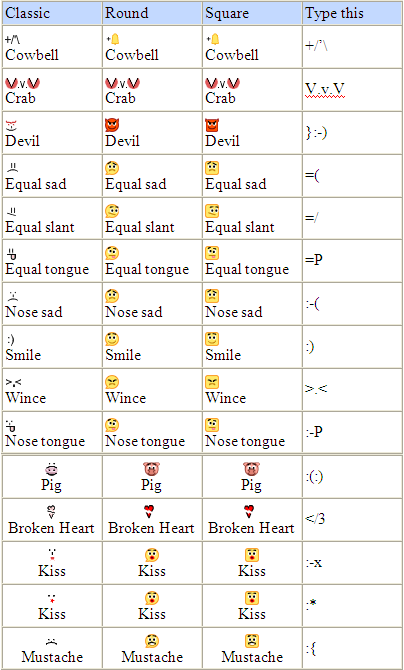
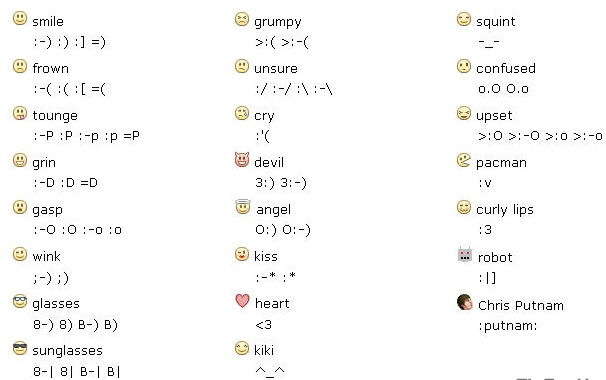
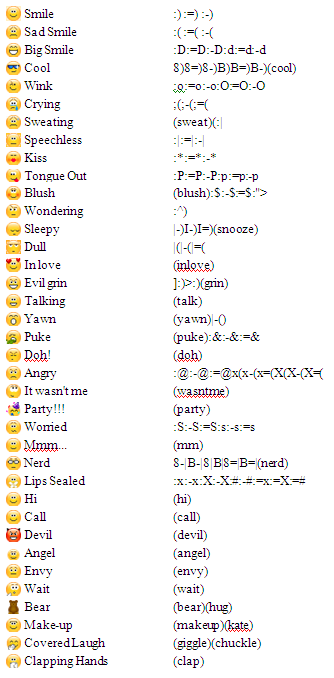
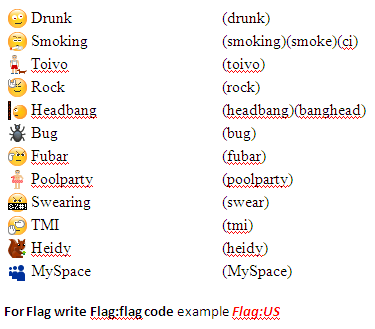
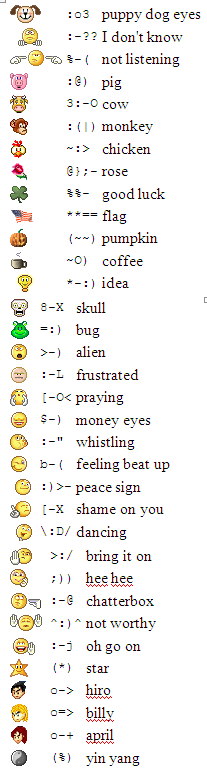
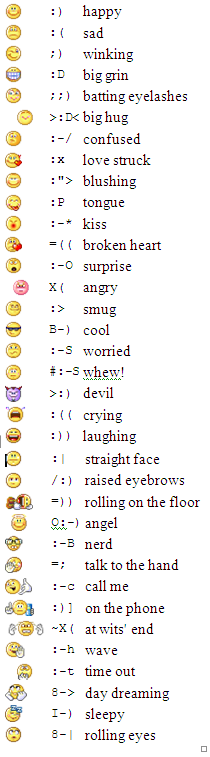
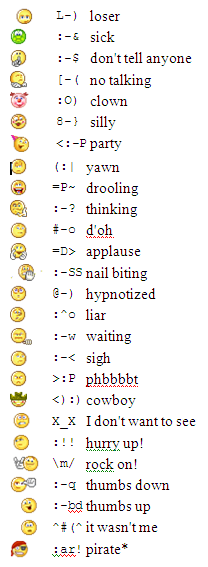
Smileys for all chat messenger at one place

Chatting is funNow a days, chatting over net is very very common. And use of smiley makes more sense than words sometimes. Specially when you are in sad mood, angry mood or in romantic mood 😛

There are many keyboard shortcuts to send smiley or emoticons and in almost all chat messengers it will be more or less same. Most popular chats are Yahoo, GoogleTalk (Gtalk), Skype, FB emoticons too (FaceBook is at world rank 2)

I will post images for all possible emoticons of most popular chat services that i collected from various sites. few are common to all messengers and few are hidden one like yahoo smiley for flag, rose etc. Gtalk is having three different tastes for emoticons: Classic, Round, Square:

Gtalk Emoticons-IGtalk Emoticon-IIFacebook EmoticonsSkype EmoticonsSkype Emoticons-IISkype Emoticons III Yahoo EmoticonsYahoo Emoticons-IIYahoo Emoticons-III

Enjoy All the Emoticons at one place. Happy Alien blogging !

Safety tips for mobile users

be safe while talking on mobile Hi friends, according to present scenario every people who are above 14 are having mobile (except those who can't afford it). Its good thing to have to be in touch with friends and families but it may turn into devil if you misuse it either knowingly or unknowingly. So, its the right time to know that what we should do and what we should not do with mobile.

  • Only give your mobile number out to people you know and trust. (Specially for girls)
  • Don't do any transaction through smart phone if password or any personal information is getting to be stored in your mobile.
  • Don't talk rubbish or don't harass anyone on phone, it comes under Cyber Crime. (while break up couples usually do so. So beware guys!)
  • Avoid, unless absolutely needed, connecting to an unsecured wireless network through your mobile (whici is having wi-fi facility)
  • Do not use your mobile phone to communicate with strangers. Only text and call people or businesses you know in real life.
  • Never reply to text messages from people you don’t know. (One or two messages you can do to know his/her identity, if possible)
  • Make sure you know how to block others from calling your phone. Using caller id ,you can block all incoming calls or block individual names and numbers.
  • Make a record of your Electronic Serial Number (ESN) and/or your International Mobile Equipment Identity (IMEI) number. You can find out your IMEI number by pressing *#06# on your mobile phone's keypad, it will display a 15 digit number – that is your IMEI number.
  • If your phone is lost or stolen, report it to your local police station and your network operator immediately.
  • Think about how a text message might be read before you send it. (Married couples may face many issues because of such messages. No need to explain i guess)
  • You should never give anyone else's number out without their permission.
  • You should never take pictures or videos of anyone with your phone if you do not have their permission.
  • Do not allow others to take pictures or videos of you without your permission. Remember – these pictures and videos can be posted to the Internet.
  • Be careful if you meet someone in real life who you only "know" through text messaging. Even though text messaging is often the "next step" after online chatting, that does not mean that it is safer.

We follow most of the steps but knowingly or unknowingly we do such mistakes which leads towards Cyber crime. So, play safe, be safe and make the nation Cyber crime free nation. Source: http://www.staysafeonline.org

Be friendly but use your brain while talking on Social networking sites

lets be frdHi friends, If you are using internet then you must be having accounts on Facebook or Orkut or Myspace etc. (may be in all :)) My question is: Why you joined social networking sites?

1. Just for fun,

2. To remain in touch with my friends and relatives,

3. To make new friends specially beautiful girls :D,

4. To remain updated about others

Let me guess in most cases it would case no. 2 or 3 (correct me if I am wrong). As far as you are safe at this site its ok even if you are addicted to it. But if you are sharing your social or personal information then be aware before talking even.
Bit Defender did survey on it and found more than 90% internet users share sensitive data within 2 hours of continuous talks over chat messenger or over Social sites.  According to Internet World Stats, people are spending increasingly more time online, with global Internet usage up by more than 390% between 2000 and 2009. Over this period of time, the popularity of social networks amplified as well.

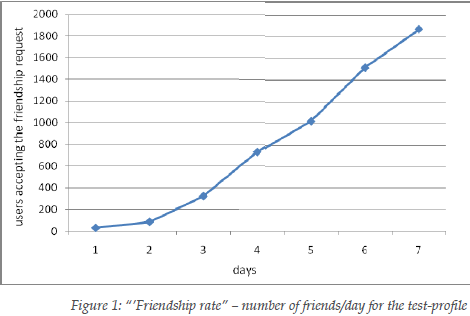
They did survey by making a fake profile and sending friend request to more than 2000 users (male and female included age varying from 20-65 of 27 years mean age). After a week, the friendship request form proved very successful: out of the 2,000 requests sent by the test-profile, 1,872 were accepted.

A first analysis of the gathered datasets revealed that usually, on a social network, the first impression counts a lot: a very nice looking young woman will always attract a lot of friends. 94% of the 2,000-user experimental sample accepted to become friends with the test-profile.
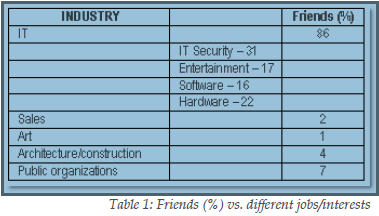
Surprisingly 86% of them were from IT field (isn’t it hilarious), and more interesting ,31 % of them were from IT Security field. An industry that has been stressing the risks of using social networking sites for many years. (This really surprised me) Most of them added because of display picture which was of a lovely girl.

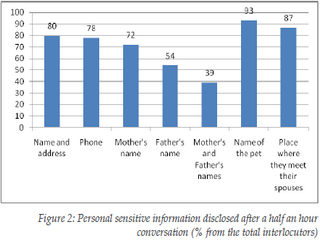
The worst thing with social networking site is, after having half an hour conversation with stranger they reveal many personal information like their parent’s names, address, spouse, children names (all these information can be use to crack passwords and in most of the cases it works).

They allow them to see their albums which may be copied for wrong purpose. In addition to that, after a 2 hour conversation, 73% revealed what appears to be confidential information from their work place, such as future strategies, plans, and unreleased technologies/software. The results of this study suggest not only that social network users accept unknown persons in their group just based on a nice profile photo, but also that they are willing to reveal personal, sensitive information after a short online conversation.

This means that social networks serve both as a meeting ground where people can present themselves and communicate, but also as a starting point for a virtual “friendship”, which brings people to divulge too much information because of the illusion of anonymity.
So, from the next time if someone sends you friend request or trying to talk to you over chat messenger, have patience do all investigations related to unknown profile (at least take help from Google) , if you feel O.K. then go on else reject it blindly. Never be too emotional over social sites and don’t reveal such things so easily. It may help them in social engineering and they may harm your system, your bank accounts, your reputation even you. See the images below for detailed analysis: frdship rateppl from diff jobpersonal info revealed Source: BitDefender

3 Easiest methods to make gmail your default Email Client

Love for GmailSometimes you don't need a bulky program just for sending an email like MS outlook, isn't it? And gmail lover would rather prefer sending any mail through their gmail account right? Sometimes you just need to send a website link, or just a screen-shot of  current web page  it really doesn't make much sense to start Outlook for these tiny things.

If you see any emailto: field, that will prompt you to open MS outlook by default which is annoying sometimes. (I really don't like). So if you click on that emailto: admin@aliencoders.org (say an example), it would rather shoot gmail instead of MS outlook. You can do this in three different easiest ways:

  1. Tweaking Firefox settings:

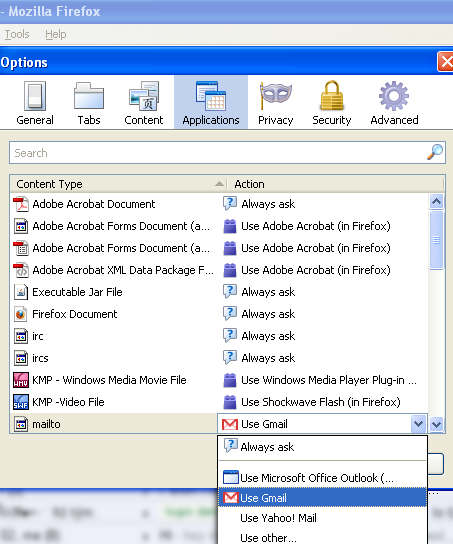
    • Click on  tools-> option
    • Click on Application tab
    • You will see content type and action column. Search for mailto content type and choose gmail from drop-down option against mailto column (you can choose yahoo mail or any other email client too)
    • I would prefer this method over any other methods, because there is no need to install any extra application.
    • It will work only if firefox is opened for sending mail
  2. Using Google-talk settings:

    • Double click on the Google Talk icon in the system tray(you need not to be logged in)
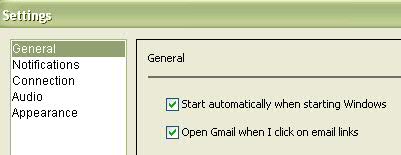
    • Click on the Settings link and go to general tab option
    • Now check the “Open Gmail when I click on email links” box in the Settings window.
    • Click “OK” and You are done hurray!
    • Many people use gtalk, so this is also fine and i would give it second preference
       
  3. Using Gmail notifier:

    • You need to have Gmail notifier installed in your system
    • Right click on its system tray icon
    • Select the Options menu and tick the box next to “Use Gmail for internet mailto: links”.
    • Select your favorite browser in the drop down menu and you are done now.
    • You may get error saying  “Cannot connect to your mailbox. and it always have an unnecessary pop-up to prompt whenever you try to connect gmail at startup.


    Personally i avoid installing unnecessary application, if that work will get accomplished by other easier way, isn't it. i would use Gmail notifier when i will not have any option (which will never happen unless and until Firefox or gtalk is there :P)

Firefox and Google Talk settings images:Gmail option in Firefox  Gtalk settings for gmail I hope you will surely like this. need your comments! Happy Alien browsing 🙂

Firefox tweak to bypass blocked sites

Firefox tweaks Hi folks!, Why to use any proxy server or any application when we can achieve the same thing just by tweaking firefox a little bit? Most of the people have account in facebook. People use to open it in an organization frequently. Second things that users wish to do is chat over yahoo or skype or gtalk or aol or jabber etc. Make Firefox to work for facebook:

  • Click on Tools->options
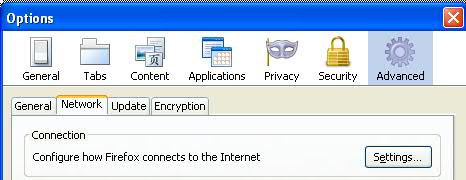
  • Click on advanced tab (you will see general, tabs, content….advanced at last)
  • Click on Network (second option after general)
  • Under connection click on setting button (a pop-up box will come out)
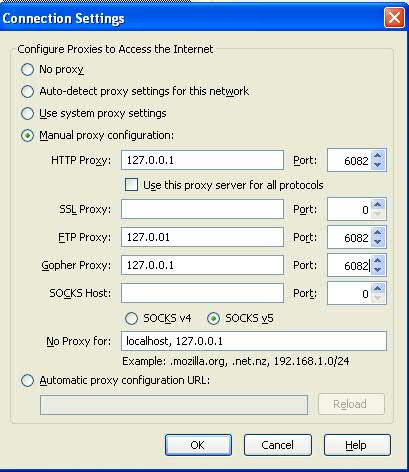
  • Check Manual proxy configuration radio button

    • Leave SSL and SOCKS host blank at  IP address and port no: 0
    • For the rest HTTP, FTP Gopher leave as it is being set by your organization

    You are done! Click on Ok and come out of all those options. Try to open facebook or meebo or chat based site (except orkut). If its saying access denied, try that link with https i.e. https://www.meebo.com or https://www.facebook.com Now it will open (working for me).

  • For chat option you can use https://www.meebo.com, https://www.imo.im(its having skype option too) or http://java2script.org (click on below shown chat icons)

Note:

  • You will not be able to open orkut anyhow.
  • If you gmail chat is disabled, then after setting your firefox option as above said, you will be able to chat through gmail.
  • You can't open youtube too

Check the images below: (click to view larger size) firefox proxy settingsProxy connection settings Let me how its works for you all? Happy Alien browsing !