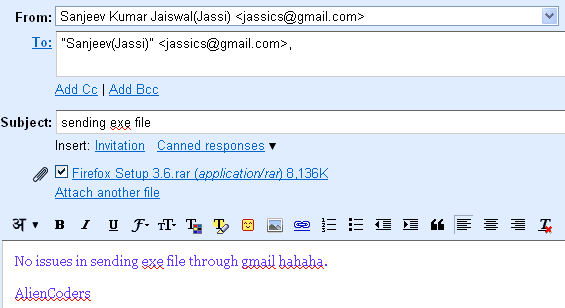
How to send executable files through mail

exe files attachedHave you ever noticed that you cannot send any executable file format through mail?
Whatever mail agent would be, say Gmail or Yahoo or Rediff. No one allows you to send files which have executable format like .chm, .exe, .js, .vbs etc

But there are two most common ways to send such files through your mail id. I would show it using Gmail Account.

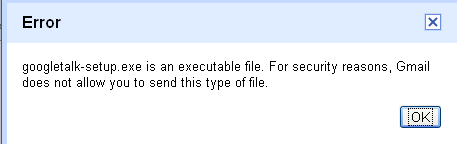
Problem:  While attaching above mentioned formats, I got error stating that it’s an executable file. For Security reason Gmail doesn’t allow you to send this type of file.

Solution:  There are two methods to bypass this security issue.

Method 1

Steps Included

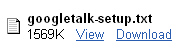
  • Error in gmail file attachmentRename the file’s extension  to most common extension which will not cause any security issues.  “txt” or “doc” or “pdf” would be the most useful extension to send executable files.
    For ex: If file name is testing.exe Change it to testing.txt
  • Now attach this converted file to your mail id and send. (Gmail would not show any error with such files)
  • Tell the recipient that after downloading that attached file change it to proper file extension. In this case, change it from testing.txt to testing.exe
  • Done! (It shows that Gmail only checks the file extension not the contents inside it. Even it is not checking for signature/pattern to determine whether it is proper file or not. )exe file download-gmail

Method 2

Problem: Method 1 would work if you have to single file or separate files in the same mail but by attaching one by one separately. What if you have lots of files of same or different extensions which you want to sent as a whole. Rather say you want to send a folder containing various executable files. 

Solution: We can send it through any compressing tool which has the feature to set password to your file or folder. Winrar being the best example for this scenario. Download it from the here


Steps Included:

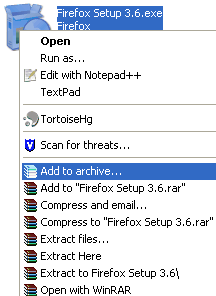
  • winrar optionsRight click on the file or folder that you want to send and click on add to archive option
  • Set the passwordset password in winrar

    • Click on Advanced tab 
    • Now click on set Password button (see at the right center )
    • Type the password and reconfirm it again.
    • Click Ok
    • Again click Ok to get out of making rar file.
  • Now you will see one new file with .rar extensions. Ex: If you have file called abc.chm or a folder called setup which is have lots of executables files inside. Then after doing above steps, you would get abc.chm.rar or folder-name.rar.
  • Attach that file in your Gmail account and send to the specific user.(Maximum file size allowed by Gmail per mail is 25 MB)
  • Done! It shows that It checks the files and contents inside it but cannot scan the files which is password protected. So it simply allows it!password protected file

If you know any other way to send such files, please do comment. I tested it on Gmail but I think it would work in almost all mail clients.

 

Top 10 Gmail labs for Gmail lovers

Gmail LabGmail is one of the most popular free Email service from Google. Gmail has a feature call Gmail labs, using it you can add many new features to your Gmail account. You can access Gmail lab under Setting -> Labs.

Gmail settingsgmail labs


If you will enable at least one of the lab then a shortcut will create at the top right corner as shown below:


As if Gmail wasn’t powerful enough, you can find all sorts of goodies and extra features in Gmail Labs. The list is pretty massive, so I’ve narrowed down to 10 favourite labs to help increase your email productivity.

1. Multiple Inboxes This is one of our favorite Gmail features —there’s just so much you can do with it. Multiple Inboxes has you covered by letting you stack extra lists of emails—whether they are labels, starred messages, or any other Gmail search—in your main inbox window. There’s no limit to what you can do with Multiple Inboxes, so if you’ve ever felt anything was missing from Gmail’s inbox organization, you can make it yourself here. Note that, unfortunately, Multiple Inboxes does not currently work with Gmail’s Priority Inbox feature, so you’ll have to decide which is more important to you for a particular account.

2. Message Sneak Peek The Message Sneak Peek feature is simple, but pretty useful—instead of opening up every message you get, you can just mouse over them(or right Click) to see what’s inside a message. That way, you don’t have to go through to trouble of opening it, marking it as unread, or filtering it if you can’t deal with it right away. message sneak peek

3. Inserting Images The Inserting Images lab will help you out by letting you insert images easily—whether you upload them from your computer or link to an external source on the net—with the press of a button. Note that if you’re running Google Chrome or Safari, you don’t need this lab enabled—you can just drag and drop images right  inot the Gmail. 

4. Undo Send This is a great feature. Just imagine this… you have to mail someone an important email and you type the email with some big typos in it. When you just begin to read your email you accidentally click the “Send” button and then you realize that there were some typos. With this labs feature you can cancel the email which is being sent or if it has been sent, you will have 30 seconds to undo this and then you can edit the email and send it with relief. undo send

5. Default ‘Reply to All’ When multiple people are involved in an email thread, one person will break off by accidentally hitting the “Reply” button instead of “Reply All”, and then everyone else misses that part of the conversation. Save yourself from being “that guy” by enabling the Default Reply to All Lab, which changes Gmail’s Reply button into a Reply All button. On the occasions you want to reply just to one person, you’ll still be able to do so by hitting the dropdown menu next to the Reply All button.

default reply to all

6. Google Docs Previews Even if you aren’t the biggest fan of Google Docs, the Google Docs previews Lab is pretty useful—it not only lets you preview shared Google Docs, but it also lets you view any Google Docs compatible format before downloading it. That means the next time someone sends you a Word document, Excel spreadsheet, or PDF and you don’t want to download it and open it up in Office, you can see what’s inside just by viewing its Google Docs preview.

Google Docs in Gmail

7. Custom Keyboard Shortcuts A Gmail keyboard shortcut is another great feature of Gmail. There are a lot of keyboard shortcuts but if you use this great feature, you can change the keyboard shortcuts to your comfort. This feature could make the use of Gmail very easy.

Custom keyboard shortcuts for gmail

8. Message Translation This is another important labs feature. If you have got an important email but it is in another language, you can use this labs feature to translate it to English or your preferred language. It use Google Translate for the translations.

Message ranslation in Gmail

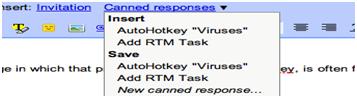
9. Canned Responses If you find yourself doing a lot of repetitive typing, the Canned Responses lab will save you a lot of trouble. Just enable the lab, set up those messages you find yourself sending over and over again, and then send them with the click of a button. You can even send them automatically using filters and use them with external services (like automating Remember the Milk tasks). Note also that you can use OS-wide text expansion if you need to do this outside of Gmail—though what’s nice about Gmail’s canned responses is that you can use them no matter what computer you’re on.

Canned response enable

Canned response in Gmail

10. Mouse Gestures You can use this as another shortcut for using Gmail. Use your mouse to navigate with gestures. Hold right-click and move the mouse left to go to a previous conversation, move it right to go to the next conversation, and move up to go back to the inbox view.

Mouse gesture in Gmail