RPM package manager for beginners

RPM Linux logoRPM is a powerful software manager for Linux. Earlier it was meant only for Redhat but now it is used in all the Distro which uses rpm for managing their software. 

//There are actually two types of Distro. One is RPM based and other is Debian based. Distro which uses .rpm software is called rpm based linux example: Redhat, fedora, centos etc  and  distro which uses .deb software is called debian based linux example: Ubuntu, Debian, Knoppix etc. This is simillar to Windows system. In windows .exe is used whereas in linux .rpm and .deb is used.//

RPM can install, remove, query and validate the software in the system. There are some good graphical programs which install rpm software but first i will tell you about command line method.

Querying the System

How to look which all software are installed in the system. Here is the command for it:

rpm -qa | more

Let me explain you this. Here rpm  tells the system that you are going to run rpm program. -q tells the sytem about Query operation. a in -qa is for listing all the software. |more is not the feature of rpm but is linux command which tells the system to list the output one page at a time.

How to get info for the single software. Here is the command for it:

rpm -qi vlc

Here i option require the specific package name. So specific package name is given, i.e vlc.

Installing Software in the System

rpm -ivh vlc.rpm

Here vlc.rpm is not the full package name, it is just an example. i is for install, v is for verbose message in case installation fails and h option show the progress mark with hash.

If  you want to update package the use U instead  of i i.e rpm -uvh vlc.rpm.

Removing Software

    rpm -e vlc

e option is used for erasing. But sometimes this will not work due to some dependency. vlc many be dependent on some othe package. so in this case -nodeps option is used. and the command is:

    rpm -e –nodeps vlc

Sometimes packages are not removed properly. For example, if you try to install software and the rpm says that it is alreay installed, and then when you try to remove it then rpm says it is not installed. In this case -force will help to remove this problem. Here is the command for it:

rpm -ivh –force vlc.rpm

Regarding Graphical installer of RPM

People who are working on Linux generally don't use graphical installer. For beginners i think they can have feel of it but i wont recommend this.

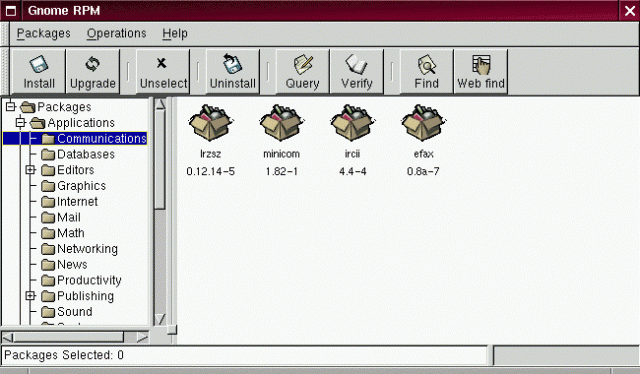
There is a software called GnoRPM. To start GnoRPM type gnorpm in the command line.

GnoRPM software


If you have any query related to package manager then just post your query here. There are some other good command line way to install software from internet without worrying about dependency, which will be posted as new topic. Just keep following us.


All about Runlevel

Runlevels  are meant for specifying different configuration of running services. With the help of runlevel we can control the installed services.
Runlevels are also available in windows system but it is very complex to set in windows.

There are 6 run levels also called init level.

Root password lost – recover it here!

Need to login on to LINUX machine – but don’t have the privilege? – or want to gain root privilege?
Pre Requisite – you need the access physical or command line or console access to reboot the machine.

Follow the steps :-

  1. The very first screen when you restart the linux machine – press an enter or space whichever works and this will take you to the snapshot of step 2.

Kernel menu

                                                                                Fig 1

  1. You will get this screen –

edit-mode-option

                                                                                Fig 2

Press Enter. You will get the screen in Fig.3

Kernel console

                                                                                Fig 3

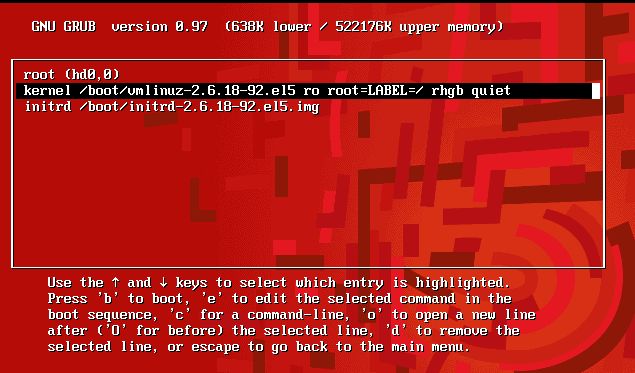
Press e in the end of 2nd line , the one starting with kernel, to enter the edit mode.

  1. You will get the screen in fig 4, add “s” at the end to login next time in single user mode Type Enter

single user mode

4. After the step 3 you will get this screen, press b to reboot.

After single user edit

  1. After the reboot, below is the screen you will get-

After Reboot

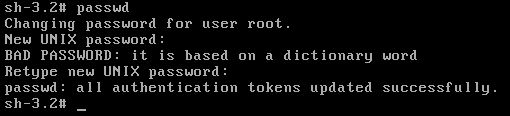
Now you can change the password by typing passwd,it won’t ask you this time for the old password.

password change

Now, you have successfully changed the root password.

PS : Remove thes “, that you have put in there previously by using the same procedure. And next time you reboot you can login as root!!

Any query/help/suggestion/feedback regarding this is welcome. Please feel free 🙂 

How to use multiple files efficiently in vim editor

Many time we need to work with multiple files all together. If its windows system then we can use some GUI based editor to accomplish our task. But what if you are on putty or have only CLI(Command Line Interface) as an option to  edit your files. I prefer using vim editor.

After doing some experiments and knowing some important commands, I though to share with you. So i have written few commands point wise which may be useful for you while editing multiple files using vim (not GVIM, although these commands are valid there too.)

Basic useful vim commands for everyone

I know it’s not a new topic to discuss and it has lots of online contents already available over the net. But Then I thought it would be useful to this site’s visitors and can have online repository on vim most commonly used commands.
This post has only most commonly used vim commands which we use in our day today development activities. This post will be very helpful for those who wish to learn vim editor from the scratch and it can be useful for all other vim users too.

So, first open the file by using vim filename (single file at one time). I will be posting very soon about manipulation on multiple files using vim editor.

Installing rTorrent and wTorrent on Open Suse and Red hat

I know u guys are well familliar with various Windows Client like uTorrent, BitComet, Vuze etc etc, Transmission for Mac …And well yaa kTorrent for Linux Distros.
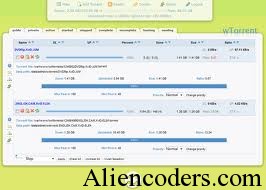
But Do u guys know about one great text based torrent client. rTorrent. This is the most popular torrent client used by hardcore uploaders with Seed Boxes. (More on Seed Boxes later) Just imagine running 100 torrents on a P4 machine with 0% CPU usage. Isnt that awsome?

So lets start the tutorial For running rTorrent you will need a front end else you will need to perform different operations on torrent file using the konsole. There are many front ends available for rTorrent on internet e.g wTorrent, rtGUI, nTorrent etc etc. So How to set up rTorrent with xmlrpc and with wTorrent as front end ? Many other tutorials are ofcourse easily available for other distros like ubuntu and Debian. Here we go

-: Dependencies and pre-requisite:-

First of all we need to install various dependencies

gcc(GNU C Compiler) g++(GNU C++ Compiler) automake libsigc++20-devel libopenssl libopenssl-devel libtool ncurses-devel subversion libcurl libcurl-devel texinfo

for installing all these dependencies you can use

sudo zypper install <packae name>

If u want to search for a specific package and choose then use

sudo zypper se <package name>

This will display a list of names of packages matching your search name. If on any step you find that you are missing something you can always use

cnf <missingfunction>

It will tell whaether it is available on your system or not and what packages are required for that specifically missing e.g Suppose make is missing then use

cnf make

It will tell you either the exact path(if it is installed) or what packages are required for this and will suggest u like try

zypper install thispackage

Get the xmlrpc package from its svn repository, compile, configure and install it. on bash

cd.. svn co xmlrpc-c – Revision 1851: /advanced xmlrpc-c cd xmlrpc-c ./autogen.sh

(If executing ./autogen.sh gives error please check for what reason the error is coming. If its lacking some packages like aclocal not found, make not found, makeinfo not found etc etc, Use cnf functionality and see if you have required packages if you are missing any please install it using zypper.)

./configure –enable-tools –prefix=/usr/local make make install

or u can also run all at once by using

./configure –enable-tools –prefix=/usr/local && make && make install

-: rTorrent compilation :- Download the latest rTorrent packages from Index of /downloads type on bash

cd .. mkdir rtorrent cd rtorrent svn co svn://rakshasa.no/libtorrent/trunk svn up cd trunk cd libtorrent ./autogen.sh ./configure –prefix=/usr/local && make && make install cd ../rtorrent (Change it to rtorrent directory) PKG_CONFIG_PATH=/usr/local/lib/pkgconfig/ ./configure –with-xmlrpc-c && make && make install

After these steps your rtorrent will e ready to run but wait you still need .rtorrent.rc file in your home directory. Contents of my .rtorrent.rc is below.

scgi_port = localhost:5000 # Move completed torrents to /home/rt/torrents/done/ on_finished = move_complete,"execute=mv,-u,$d.get_base_path=,/Maxtor/rtorrent/done/ ;d.set_directory=/Maxtor/rtorrent/done/" # Maximum and minimum number of peers to connect to per torrent. #min_peers = 40 #max_peers = 100 # Same as above but for seeding completed torrents (-1 = same as downloading) #min_peers_seed = 10 #max_peers_seed = 50 # Maximum number of simultanious uploads per torrent. #max_uploads = 15 # Global upload and download rate in KiB. "0" for unlimited. #download_rate = 0 #upload_rate = 0 # Default directory to save the downloaded torrents. directory = /Maxtor/rtorrent/doing # Default session directory. Make sure you don't run multiple instance # of rtorrent using the same session directory. Perhaps using a # relative path? session = /home/deshbandhu/.rtsession # Watch a directory for new torrents, and stop those that have been # deleted. schedule = watch_directory,5,5,load_start=/Maxtor/rtorrent/watch/*.torrent schedule = untied_directory,5,5,stop_untied= # Close torrents when diskspace is low. #schedule = low_diskspace,5,60,close_low_diskspace=100M # Stop torrents when reaching upload ratio in percent, # when also reaching total upload in bytes, or when # reaching final upload ratio in percent. # example: stop at ratio 2.0 with at least 200 MB uploaded, or else ratio 20.0 #schedule = ratio,60,60,"stop_on_ratio=200,200M,2000" # The ip address reported to the tracker. #ip = 127.0.0.1 #ip = rakshasa.no # The ip address the listening socket and outgoing connections is # bound to. #bind = 127.0.0.1 #bind = rakshasa.no # Port range to use for listening. port_range = 45000-50000 # Start opening ports at a random position within the port range. #port_random = no # Check hash for finished torrents. Might be usefull until the bug is # fixed that causes lack of diskspace not to be properly reported. #check_hash = no # Set whetever the client should try to connect to UDP trackers. #use_udp_trackers = yes # Alternative calls to bind and ip that should handle dynamic ip's. #schedule = ip_tick,0,1800,ip=rakshasa #schedule = bind_tick,0,1800,bind=rakshasa # Encryption options, set to none (default) or any combination of the following: # allow_incoming, try_outgoing, require, require_RC4, enable_retry, prefer_plaintext # # The example value allows incoming encrypted connections, starts unencrypted # outgoing connections but retries with encryption if they fail, preferring # plaintext to RC4 encryption after the encrypted handshake # # encryption = allow_incoming,enable_retry,prefer_plaintext # Enable DHT support for trackerless torrents or when all trackers are down. # May be set to "disable" (completely disable DHT), "off" (do not start DHT), # "auto" (start and stop DHT as needed), or "on" (start DHT immediately). # The default is "off". For DHT to work, a session directory must be defined. # # dht = auto # UDP port to use for DHT. # # dht_port = 6881 # Enable peer exchange (for torrents not marked private) # # peer_exchange = yes # # Do not modify the following parameters unless you know what you're doing. # # Hash read-ahead controls how many MB to request the kernel to read # ahead. If the value is too low the disk may not be fully utilized, # while if too high the kernel might not be able to keep the read # pages in memory thus end up trashing. #hash_read_ahead = 10 # Interval between attempts to check the hash, in milliseconds. #hash_interval = 100 # Number of attempts to check the hash while using the mincore status, # before forcing. Overworked systems might need lower values to get a # decent hash checking rate. #hash_max_tries = 10

Change the name of directories as per your choice. Please check that your .rtorrnt.rc file contains

scgi_port = localhost:5000

You can use what ever port you want to use

-:Setting up Webserver for wTorrent with scgi support :-

I will use lampp Get lampp servers and untar them to /opt

wget Download XAMPP from SourceForge.net tar xvfz xampp-linux-1.6.5a.tar.gz -C /opt wget Download XAMPP from SourceForge.net tar xvfz xampp-linux-devel-1.6.5a.tar.gz -C /opt

Now Get SCGI 1.12 Modules from here

http://python.ca/scgi/releases/scgi-1.12.tar.gz

After this do the following cd to the directory where you downloaded this tarball an execute the following.

tar zxfv scgi-1.12.tar.gz cd scgi-1.12 cd apache2 /opt/lampp/bin/apxs -i -c mod_scgi.c

Now we need to edit Apche config file a little so let us go to its directories

cd /opt/lampp/etc vi httpd.conf

Now find the sequence of lines where modules are being loaded Append another load module directive

LoadModule scgi_module modules/mod_scgi.so

After adding this navigate to the end of the file and adding

SCGIMount /RPC2 127.0.0.1:5000

Note that here you have to use the same port as specified in .rtorrent.rc If U have used 5000 as me then use 5000 here else you should use your own specific port.

-: Seting up wTorrent :-

Download latest wTorrent from its svn repository. On bash write

cd /opt/lampp/htdocs svn co svn://wtorrent-project.org/repos/trunk/wtorrent/

Now change the ownership of wtorrent directory by using

chown -R serverusername.servergroupname /opt/lampp/htdocs/

If you are confused with the server user and group then plz do the following On Bash

vi /opt/lampp/etc/httpd.conf

find the server user and group and change the user to your user name (not root) and change the group name to users and then change the permission of wtorrent directory. e.g. Suppose for me

server user = deshbandhu server group= users

then I will use the command

chown -R deshbandhu.users /opt/lampp/htdocs/

Now start lampp

/opt/lampp/lampp start

It ill start Apche with ssl, MySQL, Phpmyadmin by default but if you want to start simply apache

/opt/lampp/lampp startapache

Start rtorrent in its screen

su <username> -c 'screen -d -m rtorrent'

e.g. I use

su deshbandhu -c 'screen -d -m rtorrent'
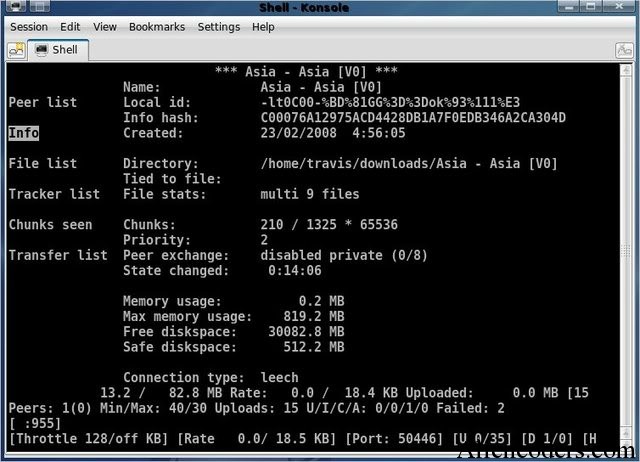
It will ask for yuor password , enter it . If u suspect that rtorrent is not running check

netstat -lnp |grep 5000

It should return some result else if it does not then open a terminal and simply write

rtorrent

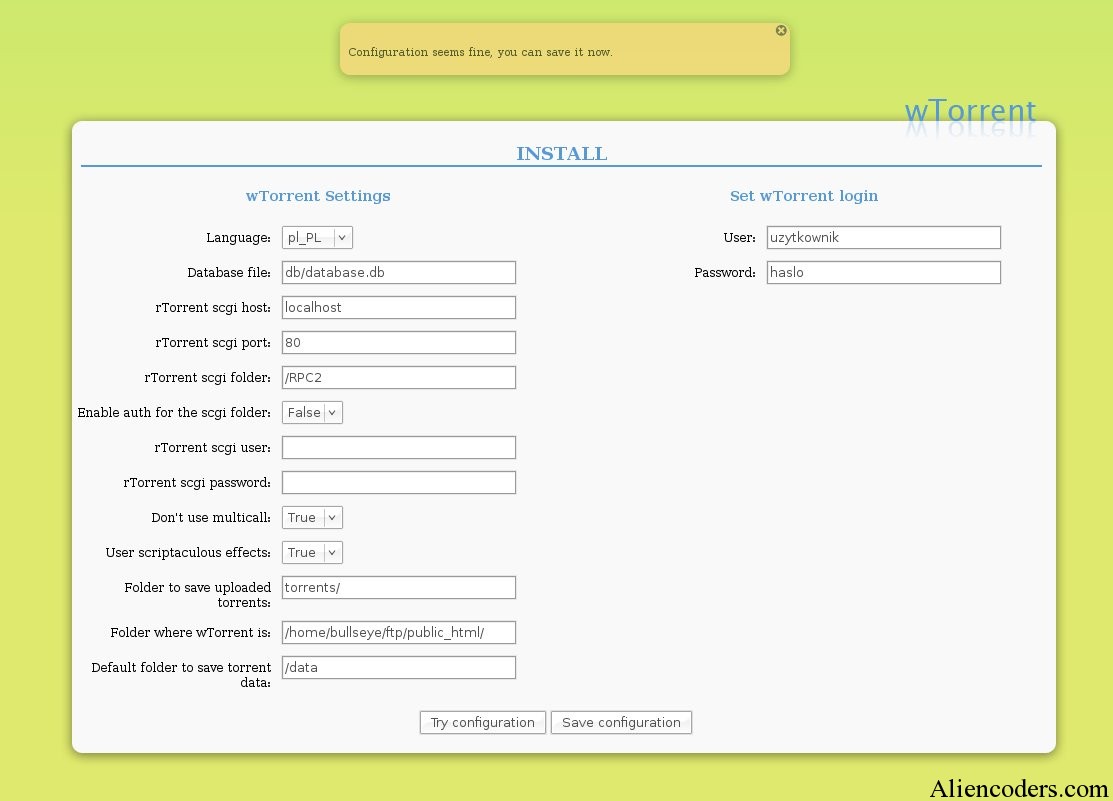
Whoa !!!!! rTorrent and wTorrent is set up now. But U need to create accounts for wtorrent. For this Open mozilla go to

http://localhost/install.php

Configure accounts and users for once. After this step u can delete intall.php from htdocs directory. Now on mozilla

http://localhost/

Enter the user name and password and start using rtorrent and wtorrent. Feedbacks are welcome!!!!
Five Reasons to prove Linux is Secure than Windows

Linux vs Windows "Security through obscurity" may be a catchy phrase, but it's not the only thing that's catching among Windows users. The expression is intended to suggest that proprietary software is more secure by virtue of its closed nature.

If hackers can't see the code, then it's harder for them to create exploits for it–or so the thinking goes. Unfortunately for Windows users, that's just not true–as evidenced by the never-ending parade of patches coming out of Redmond.

In fact, one of Linux's many advantages over Windows is that it is more secure–much more. For small businesses and other organizations without a dedicated staff of security experts, that benefit can be particularly critical.

Five key factors underlie Linux's superior security:
1. Privileges
Linux systems are by no means infallible, but one of their key advantages lies in the way account privileges are assigned. In Windows, users are generally given administrator access by default, which means they pretty much have access to everything on the system, even its most crucial parts. So, then, do viruses. It's like giving terrorists high-level government positions. With Linux, on the other hand, users do not usually have such "root" privileges; rather, they're typically given lower-level accounts. What that means is that even if a Linux system is compromised, the virus won't have the root access it would need to do damage system wide; more likely, just the user's local files and programs would be affected. That can make the difference between a minor annoyance and a major catastrophe in any business setting.

2. Social Engineering Viruses and worms often spread by convincing computer users to do something they shouldn't, like open attachments that carry viruses and worms. This is called social engineering, and it's all too easy on Windows systems. Just send out an e-mail with a malicious attachment and a subject line like, "Check out these adorable puppies!"–or the porn equivalent–and some proportion of users is bound to click without thinking. The result? An open door for the attached malware, with potentially disastrous consequences organizationwide. Thanks to the fact that most Linux users don't have root access, however, it's much harder to accomplish any real damage on a Linux system by getting them to do something foolish. Before any real damage could occur, a Linux user would have to read the e-mail, save the attachment, give it executable permissions and then run the executable. Not very likely, in other words.

3. The Monoculture Effect However you want to argue the exact numbers, there's no doubt that Microsoft Windows still dominates most of the computing world. In the realm of e-mail, so too do Outlook and Outlook Express. And therein lies a problem: It's essentially a monoculture, which is no better in technology than it is in the natural world. Just as genetic diversity is a good thing in the natural world because it minimizes the deleterious effects of a deadly virus, so a diversity of computing environments helps protect users. Fortunately, a diversity of environments is yet another benefit that Linux offers. There's Ubuntu, there's Debian, there's Gentoo, and there are many other distributions. There are also many shells, many packaging systems, and many mail clients; Linux even runs on many architectures beyond just Intel. So, whereas a virus can be targeted squarely at Windows users, since they all use pretty much the same technology, reaching more than a small faction of Linux users is much more difficult. Who wouldn't want to give their company that extra layer of assurance?

4. Audience Size Hand-in-hand with this monoculture effect comes the not particularly surprising fact that the majority of viruses target Windows, and the desktops in your organization are no exception. Millions of people all using the same software make an attractive target for malicious attacks.

5. How Many Eyeballs "Linus' Law"–named for Linus Torvalds, the creator of Linux–holds that, "given enough eyeballs, all bugs are shallow." What that means is that the larger the group of developers and testers working on a set of code, the more likely any flaws will be caught and fixed quickly. This, in other words, is essentially the polar opposite of the "security through obscurity" argument. With Windows, it's a limited set of paid developers who are trying to find problems in the code.

They adhere to their own set timetables, and they don't generally tell anyone about the problems until they've already created a solution, leaving the door open to exploits until that happens. Not a very comforting thought for the businesses that depend on that technology. In the Linux world, on the other hand, countless users can see the code at any time, making it more likely that someone will find a flaw sooner rather than later.

Not only that, but users can even fix problems themselves. Microsoft may tout its large team of paid developers, but it's unlikely that team can compare with a global base of Linux user-developers around the globe. Security can only benefit through all those extra "eyeballs."

Once again, none of this is to say that Linux is impervious; no operating system is. And there are definitely steps Linux users should take to make their systems as secure as possible, such as enabling a firewall, minimizing the use of root privileges, and keeping the system up to date. For extra peace of mind there are also virus scanners available for Linux, including ClamAV.

These are particularly good measures for small businesses, which likely have more at stake than individual users do. It's also worth noting that security firm Secunia recently declared that Apple products have more security vulnerabilities than any others–including Microsoft's. Either way, however, when it comes to security, there's no doubt that Linux users have a lot less to worry about.

Everything about cd command in UNIX

analysis of cd command.Hi Alien Coders….its not an alien thing to write about cd. Yeah cd(change directory) not CD(Compact Disc) 😛 . Either you are working on Windows or Unix flavors O.S, the most easiest and usual command is cd, correct?

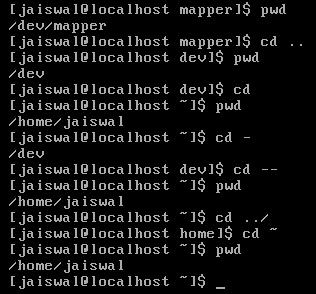
cd means change directory (as everyone knows) and its more powerful in Unix rather than Windows i guess. Window is having only cd path_of_the_diretory or cd .. but in Unix or specifically in Linux cd command is having lots of options. Lets explore one by one:

1. cd path_of_directory This command is used to enter into the directory whichever is specified either absolute or relative Ex: # cd /home/jaiswal/songs/audio/bollywood (absolute path) # cd  songs/audio/bollywood   (relative path when u r already at /home/jaiswal)

2. cd .. This command is used to move one step up form the current directory. If you are at /home/jaiswal/songs/audio/bollywood (keep it as a base of the examples) and want to move one directory up use cd .. Ex: # cd ..  (now current directory will be /home/jaiswal/songs/audio) # cd ../../../movies  (moved up three directories and entered into movies directory now i.e. /home/jaiswal/movies)

3. cd – This command comes very handy when you are working with files and one is at other directory and one is at another directory. For example: suppose one file is at /opt/bin/perl/codes and other is at /opt/bin/perl/modules/jaiswal/modules Now go to one directory using cd. Like cd /opt/bin/perl/codes then again type cd /opt/bin/perl/modules/jaiswal/modules and now use cd – You will be returned back to previous one which you used with cd. now use cd – as many time as you wish to switch over those two directories.

Ex:

# cd /opt/bin/perl/codes
# cd /opt/bin/perl/modules/jaiswal/modules
# cd - /opt/bin/perl/codes
# cd - /opt/bin/perl/modules/jaiswal/modules
Yes , you are right cd – is doing two work at a time.

1. Bringing back to previous used cd directory path and 2. also print the current directory path just like pwd

4. cd — or cd ~ or cd Yes all three commands will let you drive to user's home directory most probably /home/user_name like /home/jaiswal ex: #  cd — or cd ~ or cd (don't write all three commands all together just i wrote. use any one if at one time buddy.) Windows have no such option as far as i have tried (if it is there let me know ) # pwd /home/jaiswal # I hope you will like it although even you know all these commands, you will find rarely any article on this which will explain like this. What say?